Container Lifecycle
CoderFlow automatically manages the lifecycle of task containers to balance resource usage with availability. Containers progress through several phases—from creation to eventual removal—based on activity, task status, and configuration.
Container States
A task container can be in one of these states:
| State | Description |
|---|---|
| Running | Container is active. The agent may be executing, or the task may be completed but the container kept available for interaction (terminal access, file browsing, app server testing). |
| Stopped | Container has been stopped due to inactivity but still exists on disk. It can be restarted if needed. |
| Removed | Container has been permanently deleted. The task's data (logs, output, diffs) is preserved, but the container environment is gone. |
Automatic Sleep (Stopping Inactive Containers)
CoderFlow runs a cleanup job every 10 minutes that checks for containers with no recent activity. When a container exceeds the inactivity threshold, it is gracefully stopped.
Inactivity Thresholds
| Container Type | Default Threshold |
|---|---|
| Standard containers | 2 hours |
| Pinned containers | 48 hours |
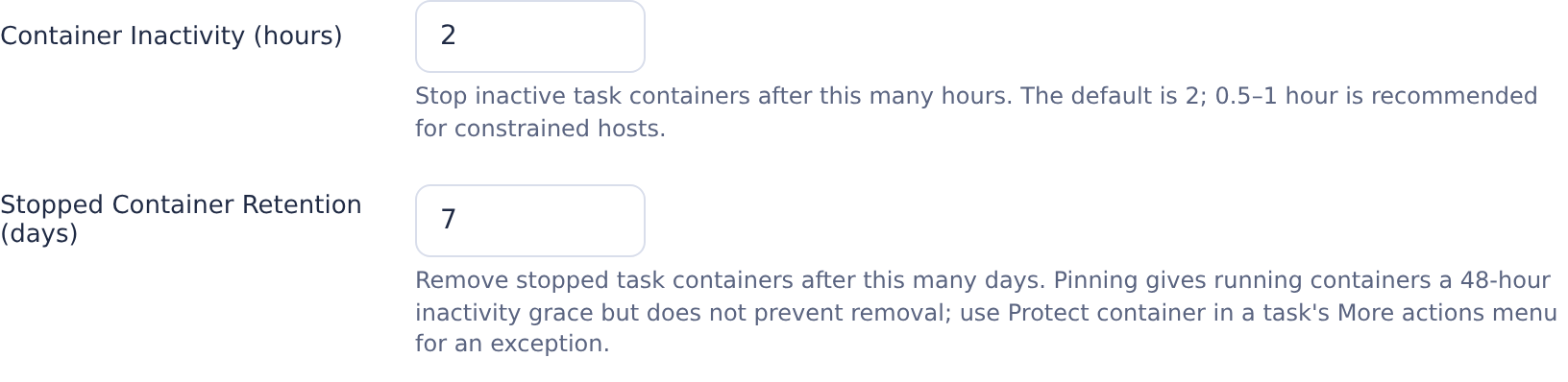
Configure the standard threshold in Server Settings → General → Container Inactivity (hours) (container_cleanup_hours), or override it with CONTAINER_CLEANUP_HOURS on the server. Pinned containers use a fixed 48-hour inactivity threshold; pinning does not prevent stopping or removal.
Optional Post-Turn Idle Threshold
Set idle_container_cleanup_hours in the server setup configuration, or IDLE_CONTAINER_CLEANUP_HOURS in the server environment, to stop non-pinned containers sooner after a turn finishes. This optional setting has no field in the Settings UI. When unset, the standard inactivity threshold applies.
The shorter threshold applies only when the task has finished a turn, is not an interactive task, and has no attached terminal or active App Server session. It only takes effect when shorter than the standard threshold. Pinned containers still use 48 hours.
What Counts as Activity
Cleanup uses the most recent recorded container/agent activity, turn completion, or task creation time. Starting a follow-up, restarting the container, or opening a browser terminal records fresh container activity. An attached browser terminal or an active App Server session prevents automatic stopping under either inactivity threshold.
Task-board changes such as pinning, snoozing, or approval do not extend retention. Merely viewing a task is not a reliable way to keep its container alive: cleanup uses dedicated container activity timestamps when available, with older task activity metadata as a compatibility fallback.
Stopped Containers Are Not Lost
Stopping a container does not delete the task's work. All code changes, logs, and output remain intact. The container can be restarted for further interaction—such as reviewing files, running terminals, or providing additional feedback.
Automatic Removal (Deleting Containers)
The same 10-minute cleanup sweep removes eligible stopped task containers. Automatic removal applies to tasks in a terminal state: completed, failed, interrupted, ended, or rejected. Active and queued tasks are not eligible for removal by this sweep.
| Removal Reason | Behavior |
|---|---|
| Approved and pushed | A stopped container is eligible once the task's approval records a successful push. It does not need to reach the retention limit. |
| Marked as loser | A stopped container is eligible once its task variant is marked as a loser. It does not need to reach the retention limit. |
| Retention expired | A stopped container is eligible after 7 days by default, even if the task is unapproved or pinned. |
| Rejected | Explicit task rejection (for example, through the CLI) immediately attempts to stop and remove the container. If removal fails, the stopped container can later qualify for the sweep under the rules above. |
Configure Server Settings → General → Stopped Container Retention (days) (stopped_container_retention_days), or override it with STOPPED_CONTAINER_RETENTION_DAYS. The retention window starts from the latest recorded container stop, turn completion, or container activity timestamp, rather than the task's creation date. A container newly stopped by cleanup gets a fresh retention window, unless approval/push or loser status makes it eligible earlier.
Protect Container
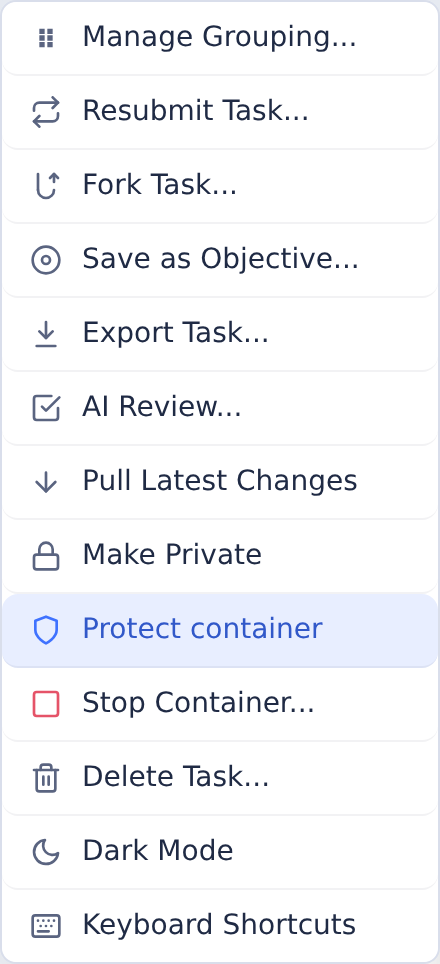
On the task page, choose More actions → Protect container to exempt an existing container from all automatic removal policies, including removal after approval/push, loser selection, and retention expiry. Choose Remove container protection in the same menu to allow automatic removal again. This per-task setting is stored as task.containerProtected; the API is PATCH /tasks/:id/container-protection with {"protected": true} or {"protected": false}.
Protect container is the only explicit per-task exemption from automatic removal. It does not prevent inactivity stopping. Explicit actions such as rejection, task deletion, Remove Stopped Containers, or manual Docker System Prune can still remove the container.
Pinning and Snoozing
Pinning keeps a task in view and gives its running container a 48-hour inactivity grace. It does not exempt a stopped container from removal. Snoozing a pin changes task-board visibility; the task remains pinned and follows the same stop and removal policies while snoozed. Use Protect container when you need to preserve the existing container for later review or QA.
For compatibility, already-stopped pinned containers without a recorded stop timestamp receive a one-time 7-day grace when cleanup first encounters them as removal candidates. The deadline is saved across server restarts so owners can enable protection. This is a migration grace, not indefinite retention or an extra week for every pinned container.
What Happens to My Task When Its Container Is Removed?
Container removal preserves the task's saved history, logs, output, and diffs. After retention cleanup, the task page shows “Task container removed after N days of inactivity”. Use Continue in New Container to fork the task into a new container; full history replay is selected by default. The old container cannot be restarted, and unsaved state that existed only inside it cannot be recovered. Deleting the task itself or explicitly requesting task-data cleanup is separate from container removal.
Automatic Docker storage prune never removes containers. Task containers are handled by the lifecycle sweep described here; manual cleanup actions have broader scope. See Server Monitoring → Cleanup Operations.
IBM i Task Libraries
When an environment has an IBM i connection with the Build feature enabled, CoderFlow creates a temporary task library (DB2 schema) on the IBM i system for each task. This library provides an isolated build environment so that tasks do not interfere with each other or with production libraries.
Lifecycle
Task libraries follow the same lifecycle as the container they belong to:
| Event | What Happens |
|---|---|
| Task starts | A uniquely named library is created on the IBM i system (e.g., AITSK_ABC123...) and added to the job's library list. |
| Container is stopped | The library is automatically deleted (DROP SCHEMA CASCADE) as part of the container's shutdown cleanup. |
Because library cleanup runs when the container stops, task libraries persist for as long as the container is running—with default stop thresholds of 2 hours of inactivity for standard containers and 48 hours for pinned containers, subject to configuration and active sessions (see Inactivity Thresholds above).
Orphaned Libraries
In some cases, a task library may not be cleaned up automatically:
- Container crash — if the container is terminated abruptly (e.g., the Docker host crashes) without running its shutdown handler, the cleanup script never executes.
- Object locks — if an IBM i job still holds a lock on an object in the library at shutdown time, the
DROP SCHEMA CASCADEwill fail. The error is logged but the container shutdown continues, leaving the library behind.
Orphaned libraries can be identified by their description text, which includes the CoderFlow task ID (e.g., CoderFlow task 1711484523456-k7f2xm9). They can be safely deleted manually using DLTLIB once any locks are released.
Orphaned Directory Cleanup
Task directories that have no associated task.json file (orphaned data from interrupted container creation or other edge cases) are automatically deleted after 24 hours.
Summary
- Running — container is active; activity resets the inactivity timer
- Stopped — inactivity exceeds the configured threshold (2 hours by default, 48 hours if pinned, or the optional shorter post-turn threshold); container can be restarted
- Removed — eligible stopped container is approved+pushed, marked as loser, or past retention without protection; explicit rejection also attempts removal. Saved task history remains available for continuation in a new container
Configuration Reference
Valid environment overrides take precedence over the corresponding server setup settings. The sweep reads the effective settings each cycle.
| Setup Setting | Environment Override | Default | UI Location and Meaning |
|---|---|---|---|
container_cleanup_hours | CONTAINER_CLEANUP_HOURS | 2 hours | Server Settings → General → Container Inactivity (hours). Standard non-pinned inactivity threshold; minimum 0.1 hour. |
stopped_container_retention_days | STOPPED_CONTAINER_RETENTION_DAYS | 7 days | Server Settings → General → Stopped Container Retention (days). Retention for eligible stopped containers, including pinned tasks; minimum 1 day. |
idle_container_cleanup_hours | IDLE_CONTAINER_CLEANUP_HOURS | Unset (standard threshold) | Setup/environment only. Optional shorter post-turn inactivity threshold for non-pinned, non-interactive tasks without attached sessions; minimum 0.1 hour when set. |
Invalid standard inactivity or retention overrides fall back to the valid setup value, then the default. An invalid idle override disables the optional shorter threshold, so the standard threshold applies to non-pinned containers.
Protect container is a per-task option in More actions, not a server-wide setting or environment variable. The pinned 48-hour stop threshold, one-time legacy 7-day grace, and 10-minute sweep interval are not exposed as configurable settings.