Environments
An environment defines where agents work—the Docker image, repositories, tools, and configuration they need to complete tasks. Administrators manage environments through the Web UI.
Configuration Storage
All environment configuration is stored in your organization's coder setup repository—a git repository that defines your CoderFlow installation. This includes Dockerfiles, setup scripts, agent instructions, templates, and environment settings.
The Web UI provides a complete interface for managing this configuration:
- Save — Write changes to disk without committing
- Discard — Revert uncommitted changes
- Commit & Push — Commit changes to git and push to the remote repository
This workflow lets you experiment with configuration changes before committing them. The repository status shows uncommitted changes, and you can pull updates from the remote to stay in sync with your team.
Environment Configuration
Navigate to Environments in the Web UI to create and configure environments. Each environment has the following tabs:
For a step-by-step application setup, start with Web Application Environments. Detailed guides cover Skills, MCP Servers, Automations, and IBM i connections.
Overview
Basic environment settings:
- Description — What this environment is for
- Default Agent — AI agent to use for tasks
- Default Models — Per-agent model and effort/reasoning level for tasks in this environment, overriding the server-wide defaults in Server Settings → Models. A task can still override both on the launch form. For Claude and Codex you can select Auto (Task Classifier) to have CoderFlow pick a model per task — see Automatic Model Selection
- Docker Image — Container image name
- Timezone — Timezone for the environment
- Agent Limit per Developer — How many autonomous agents one developer may run at once in this environment. Leave blank for no per-environment limit. See Agent Limit per Developer
- Skills — Skills assigned to this environment
- README — Documentation displayed to users
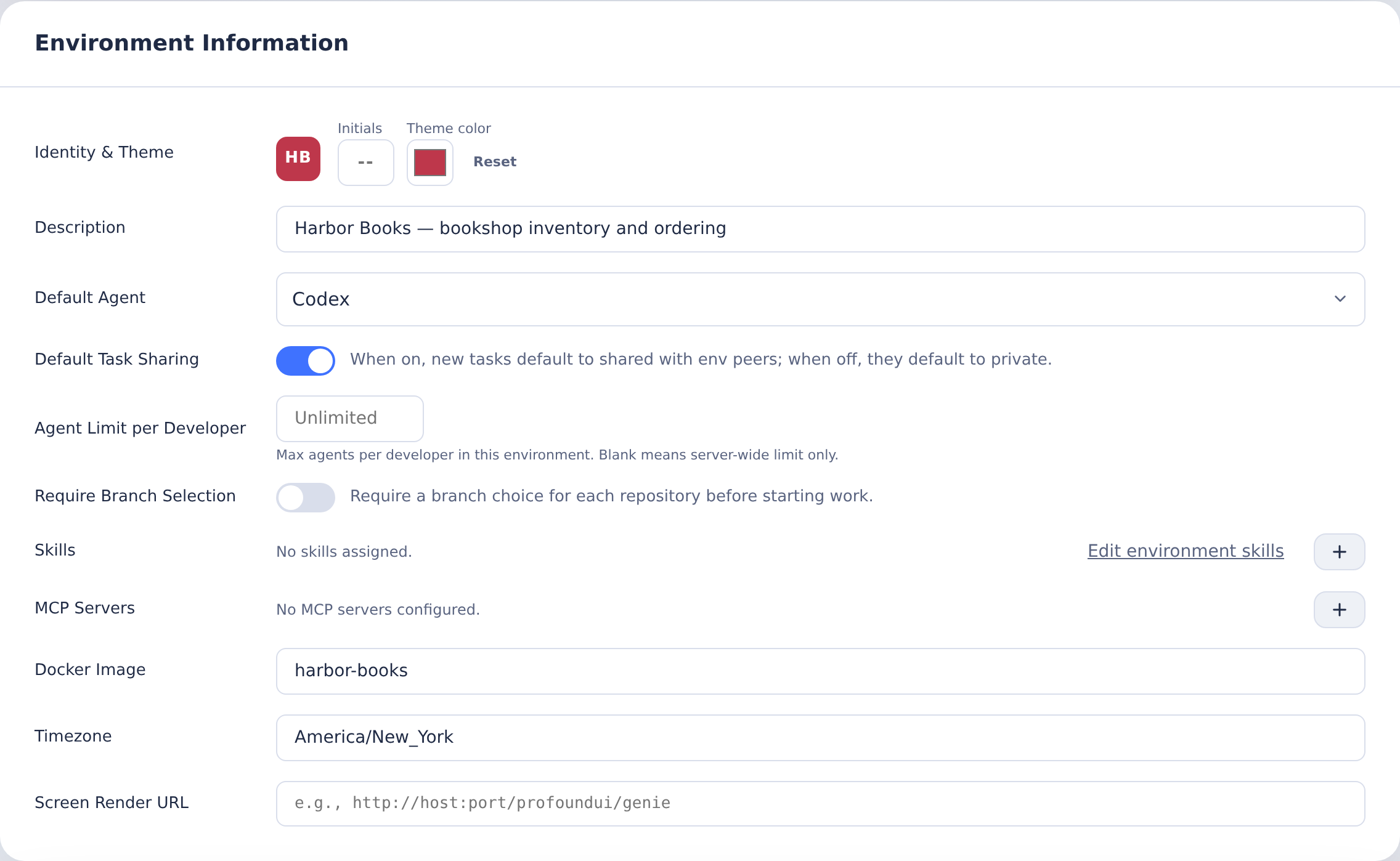
Agent Limit per Developer
By default the only ceiling on concurrent work is the server-wide agent limit (8 by default), which is shared by everyone. One person launching a large batch of tasks can therefore occupy every slot on the server.
Set Agent Limit per Developer to cap how many autonomous agents a single developer can run at the same time in this environment. Accepted values are 1 to 100. Leave the field blank (its placeholder reads "Unlimited") to apply no per-environment cap, in which case only the server-wide limit applies.
The two limits stack: a task needs both a free server-wide slot and a free per-developer slot before it starts.
When a developer is at their cap:
- New tasks wait in the queue as usual. The queue skips over a developer who is at their cap and starts the next eligible task instead, so one person's full quota does not block other developers or other environments behind them.
- Actions that restart agent work on an existing task — sending a follow-up, or rewinding — are refused with Agent concurrency limit reached rather than queued, because there is no queue slot to wait in. Wait for one of that developer's agents to finish and try again.
What does not count against the limit:
- Interactive terminal sessions — Attaching to a container or opening a terminal is never treated as an autonomous agent.
- Test, deploy, and documentation-publish tasks — These run outside the autonomous agent pool.
Lowering the limit does not stop agents that are already running; it applies to the next launch.
Custom Task Fields
The Custom Task Fields card on the Overview tab defines extra task detail fields for tasks in this environment — for example an SDLC stage, a project code, or a due date. Users set values when launching a task (the fields appear below the template parameters on the home page) and can edit them later in the task page's Details card. Field values are searchable from the task board using key:value tokens.
Click + Add Field to define a field. Key and Label share a row, with labels above the fields and short visible hints. Saving shows all validation errors inline at once:
- Key — Identifier used for storage and search tokens. Snake_case: starts with a lowercase letter; lowercase letters, digits, and underscores only; max 64 characters. The key is locked after creation.
- Label — Display name shown to users. Defaults to the key if blank.
- Type — One of:
- Text — Freeform text, up to 2,000 characters
- Set list — One choice from a list of options you define (up to 200 options)
- Date — A calendar date
- Number — Any numeric value
- Options — For Set list fields, the list of allowed values. Options can be added, removed, and reordered.
- Default Value — Assigned to new tasks when no value is provided. Leave empty for no default.
- Description — Help text shown to users editing the field.
- Show on tile — When on, the field's value appears as a chip on the task's board tile.
- Use as board lanes — Set list fields only. The task board's Board view groups tasks into drag-and-drop columns using this field's options. Only one field per environment can be the lane field.
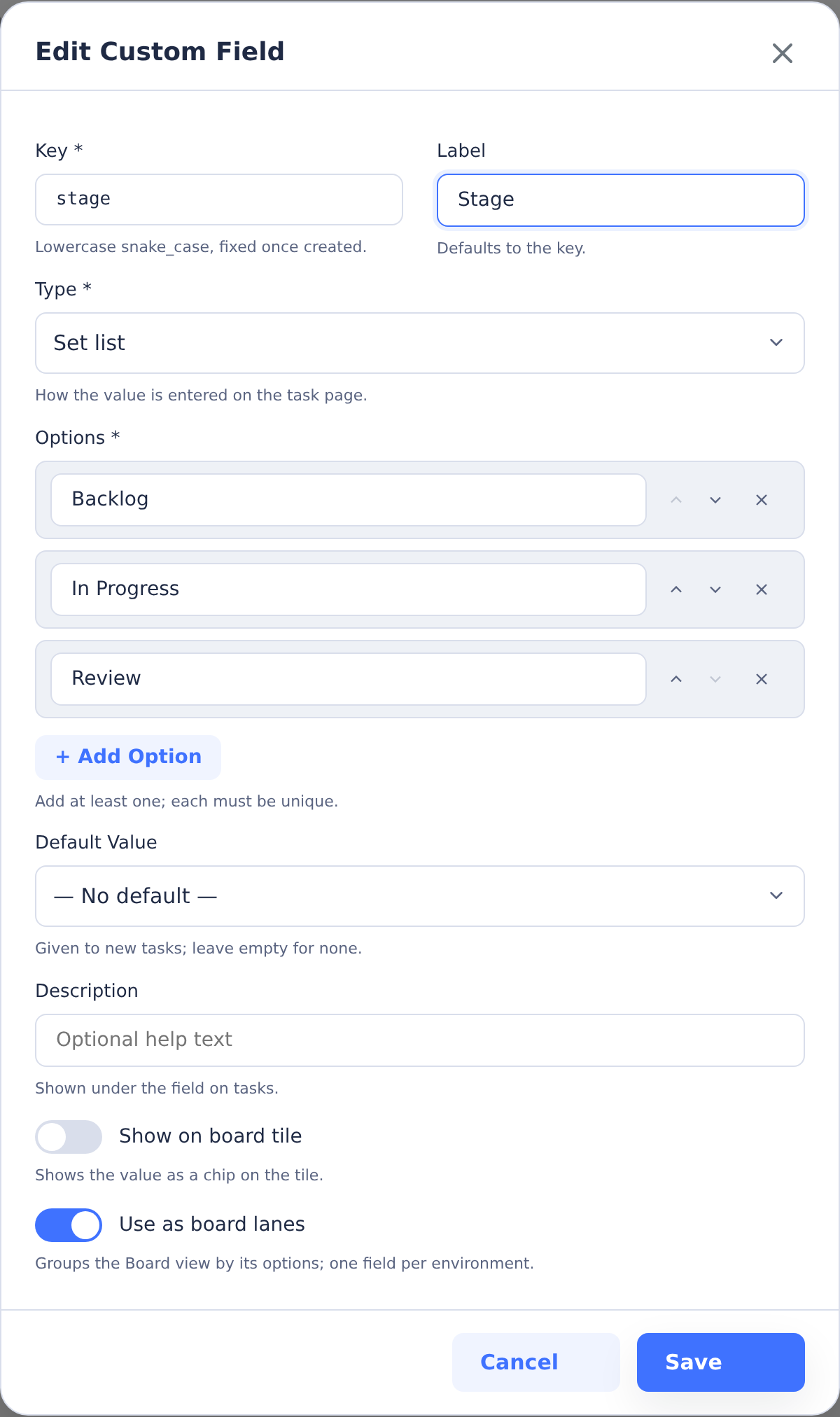
An environment can define up to 50 fields. Use the arrow buttons on the field list to control display order.
Managing field definitions requires the environments:manage permission; editing a field's value on a task requires the same tasks:change capability as other task edits.
Deleting a field definition does not delete stored values — tasks that have a value for a deleted field show it read-only as an Archived field until the value is cleared. Keys cannot be renamed for the same reason: stored task values are tied to the key.
Repositories
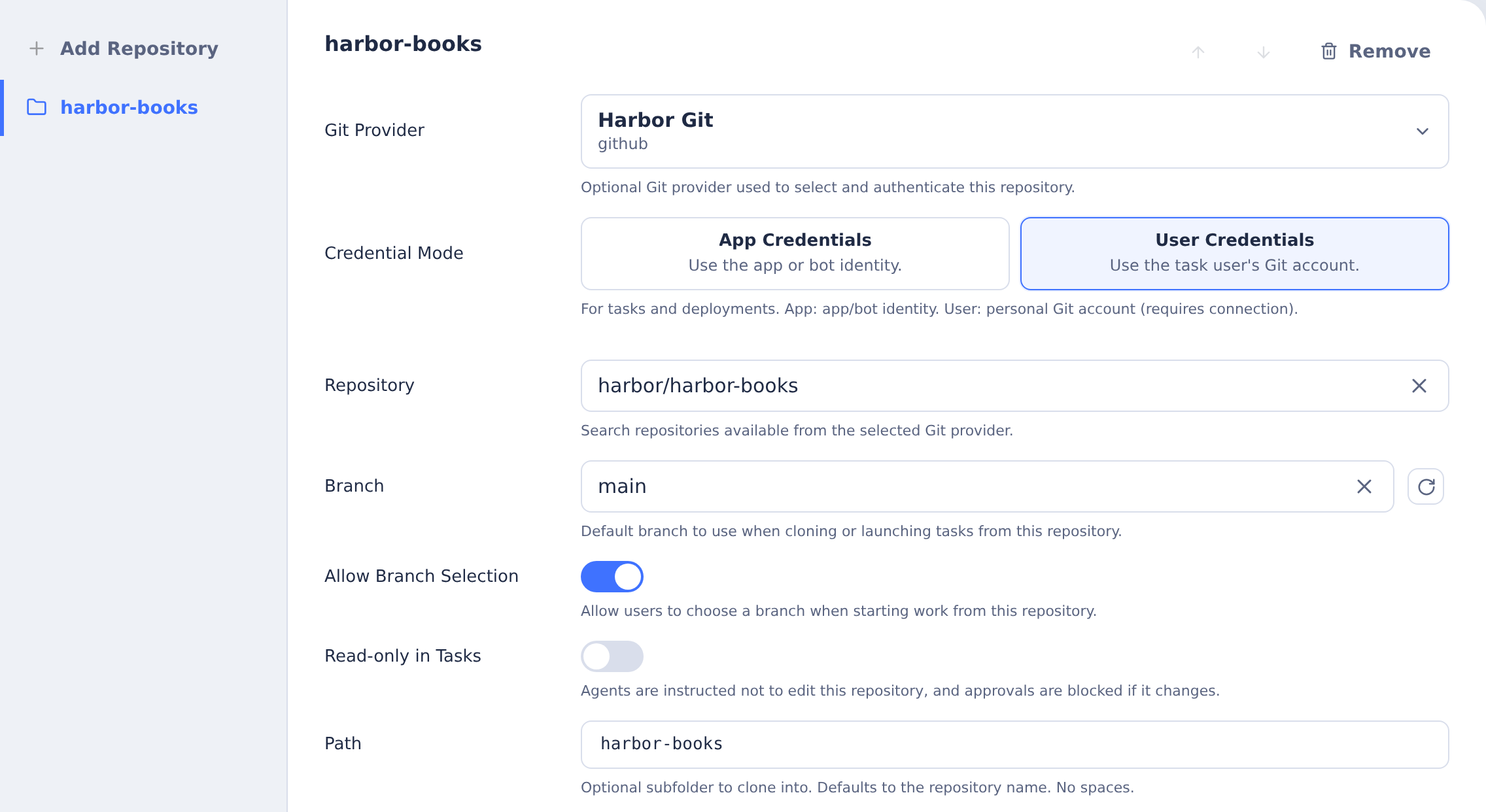
Git repositories cloned into the environment. To add a repository, click Add Repository and choose one of:
- With Git Provider — Select a Git Provider from the dropdown, then choose a repository from the list of repos the provider can access. Authentication is automatic for all Git operations (clone, fetch, push) in builds, tasks, and deployments.
- Manual Entry — Enter a repository URL directly without selecting a provider. Use this for public repositories or when using PAT secrets for authentication.
Repository settings:
- Branch — Default branch to check out
- Allow Branch Selection — Let users choose branches when creating tasks
- Path — Where to clone the repository in the container
- Credential Mode — How Git operations authenticate with the remote provider (Git Provider repos only):
- App Credentials — Uses the provider's application identity (default)
- User Credentials — Uses each user's personal Git account via OAuth; requires users to connect their Git account before running tasks
- IBM i Source Import — Designate this repository as the target for the Import IBM i Sources and Generate IBM i Build Rules tools. Only one repository per environment can have this enabled.
- Docs Hosting — Publish a docs folder from this repository as a static docs site served by the CoderFlow server at a stable URL. See Docs Hosting for setup, publishing, and access settings.
Application Server
Configuration for running and testing applications:
- Start Command — How to launch the application server
- Proxy URL — URL for proxying requests to the application
- QA URL — URL template for testing (supports placeholders)
- Authentication — Credentials for accessing the application
- Ports — Ports to expose from the container
- Launch URLs — Quick links for testing the application
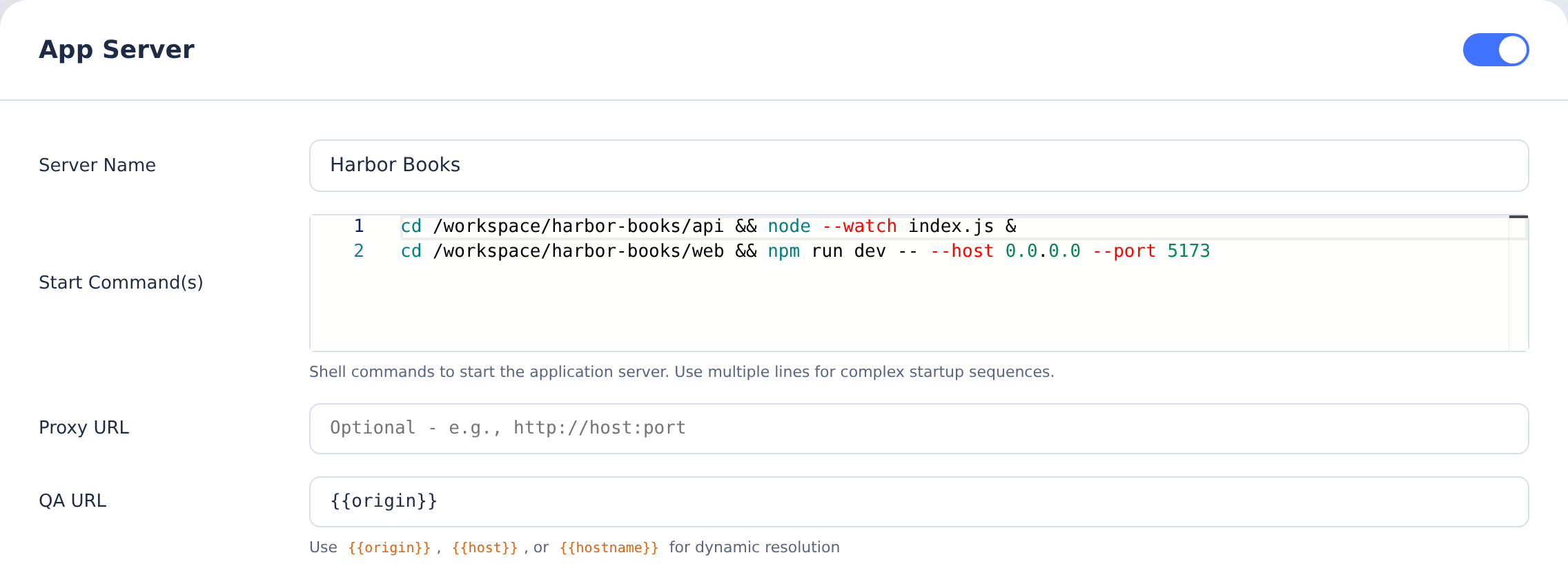
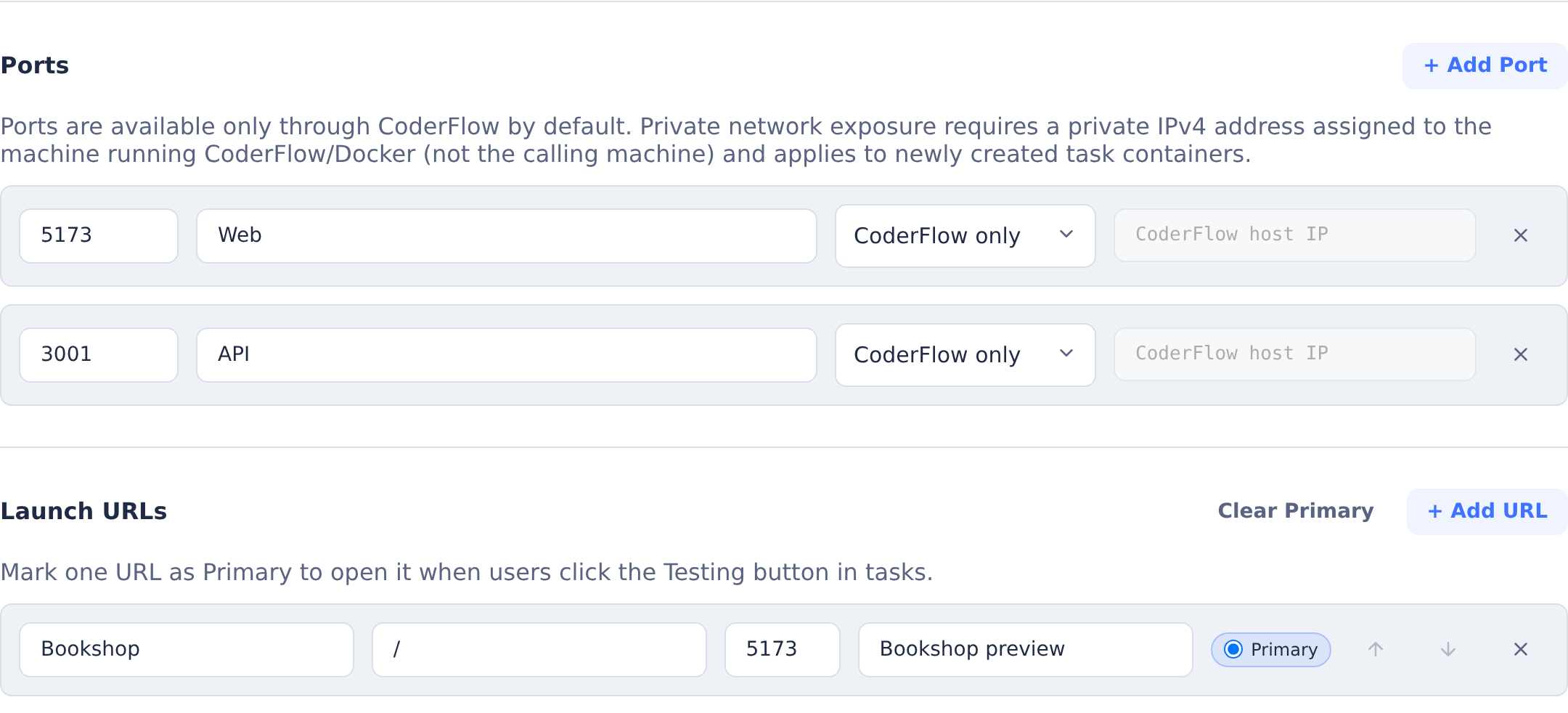
This Harbor Books example runs a Node.js API on 3001 and a React/Vite front end on 5173. The primary launch URL opens the front end.
Proxy URL vs. QA URL
Use Proxy URL when CoderFlow should forward task app traffic to an already-running application server instead of starting one inside the task container. In proxy mode, task app links go through CoderFlow's task proxy, which forwards requests to the target URL, adds forwarded headers, handles configured basic auth and proxy headers, and injects the feedback widget into HTML responses.
Use QA URL for QA Mode launch links. QA URLs point to the externally reachable application address that testers should open through the QA proxy. They support {{origin}}, {{host}}, {{hostname}}, and {{protocol}} placeholders, plus port-specific QA URL overrides. QA Mode uses these URLs to expose the app through /qa/... routes with widget injection; it does not use the task app proxy target as a fallback.
Agent Instructions
The Agent Instructions tab manages the environment's AGENTS.md file. This is the durable, project-specific guidance mounted into task, interactive, and deployment containers at /coder-setup/{environment}/AGENTS.md.
Use AGENTS.md for standing instructions that every agent should know before working in the environment:
- Project structure and architecture
- Build, test, and verification commands
- Coding conventions and review expectations
- Repository-specific safety rules
- Domain-specific knowledge agents need
The tab also includes Standard Instructions toggles. These are predefined instruction blocks, such as output requirements or IBM i verification guidance, that CoderFlow appends at task startup when enabled. Keep custom instructions focused on your project; use the toggles for CoderFlow-managed conventions that should remain consistent across environments.
Agents with permission to update environment instructions can also use the Environment Instructions skill during a task to view or propose updates to AGENTS.md. Use the separate Memory tab for accumulated project notes that should be loaded as memory; AGENTS.md is best for stable operating rules.
Skills
Skills are reusable prompt-based actions that agents can invoke during tasks. In the Overview tab, use Manage Skills to assign skills to the environment. Assigned skills are injected into every task launched in this environment, so agents have them available immediately.
If you need different skills for different projects, create separate environments or update the assigned skill set before launching new tasks.
See Skills for creating, importing, and assigning skills. For external tools, see MCP Servers.
Files
Manage build and lifecycle scripts under Build → Scripts:
- pre-clone — Dockerfile instructions run before repositories are cloned
- post-clone — Dockerfile instructions run after repositories and their post-clone actions
- setup.sh — Initialization script run when containers start
- cleanup.sh — Cleanup script run when containers stop
CoderFlow generates the Dockerfile from the environment settings. Use Build → Preview Dockerfile to inspect it. The build-hook guide explains where runtime installation and dependency commands belong.
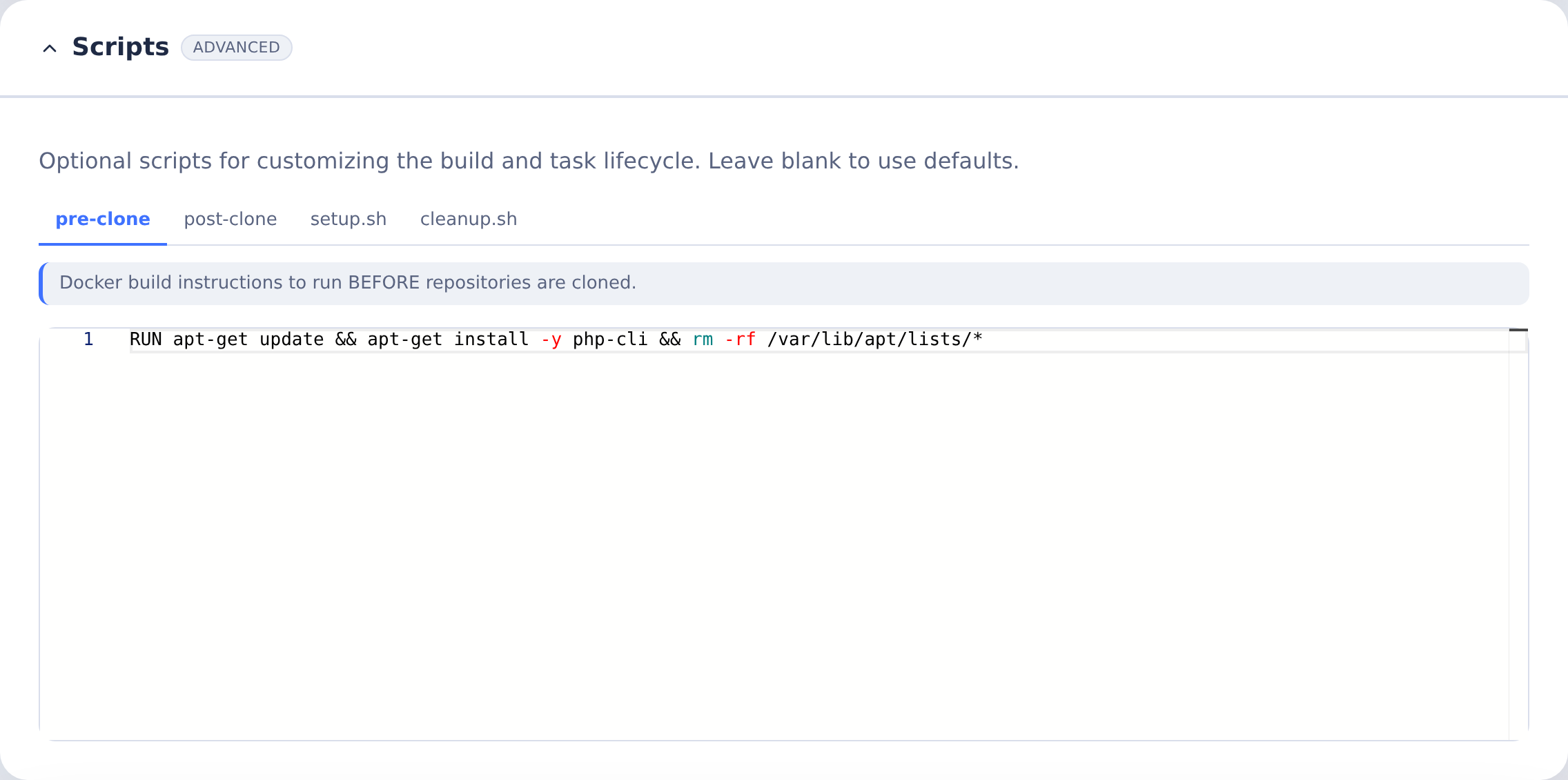
The pre-clone example installs PHP. Use the commands for your runtime in the Stack reference.
Secrets
Secrets store sensitive values like API keys, credentials, and certificates for use in builds, tasks, and deployments. They are also used to define non-sensitive environment values like external service URLs, ports, and so on.
Defining Secrets
Navigate to the environment's Secrets tab and click Add Secret to open a form with labels above the fields, arranged in this order:
- Secret Name and Description share a row.
- Source Type selects File on host or Direct value.
- Special uses groups Each user provides their own value and Use as Git PAT (Personal Access Token). PAT settings include Git Host and, for a custom host, Custom Git Hostname.
- Value or Host File Path appears as appropriate. Selecting Each user provides their own value removes the shared value; each user supplies theirs under Profile Settings → Secrets in CoderFlow or the Portal.
- Available For presents Build, Tasks, Deploy, and Portal on one line.
- Expose As and Variable Name share a row when exposure settings apply; file mounts use a container path instead. PAT secrets do not need these settings.
Save Secret shows all validation errors inline at once. The form uses short visible hints.
Environment secret values are stored unencrypted in the environment's .secrets.json; the Value badge says Saved, not encrypted. Only the per-user values entered under Profile Settings → Secrets are encrypted, using the server's .user-secrets-key. If that key is lost, see the administrator Lost server key recovery steps.
Secret Types
- Value — Stores literal strings such as API keys, passwords, or tokens. Can be exposed as an environment variable.
- File — References a file on the host system such as SSH keys or certificates. Can be mounted read-only in containers.
Using Secrets in Tasks
Secrets with Tasks availability are injected when task containers start:
- Expose as environment variable — The secret value becomes available as the specified variable name
- Expose as file — The file is mounted read-only at the specified container path
Using Secrets in Builds
Secrets with Build availability are passed to Docker BuildKit during image builds. Access them in your Dockerfile using --mount=type=secret:
RUN --mount=type=secret,id=my_secret cat /run/secrets/my_secret
For example, to use an .npmrc file during build:
RUN --mount=type=secret,id=npmrc,target=/root/.npmrc npm install
To expose a secret as an environment variable:
RUN --mount=type=secret,id=api_key,env=API_KEY ./configure.sh
See Docker Build Secrets for more details.
Using Secrets in Deployments
Secrets with Deploy availability are injected when deployment scripts run:
- Expose as environment variable — The secret value becomes available as the specified variable name in the deployment script
- Expose as file — The file is mounted read-only at the specified container path during deployment
This is useful for storing deployment credentials, SSH keys for remote servers, API tokens for deployment services, or configuration files specific to deployment targets (Base, QA, Production).
Using Secrets as Git PAT
A secret can provide Git authentication for HTTPS repositories. When adding a secret, check Use as Git PAT (Personal Access Token) under Special uses and specify a Git Host (e.g., github.com) to use the secret as a Personal Access Token for Git operations. The PAT applies to any repository under Repositories that matches the hostname.
PAT secrets can be either Value type (token entered directly) or File type (token read from a file on the host). Select Available For contexts as needed—Build, Tasks, or Deploy. PAT secrets do not require "Expose as" configuration.
In builds, PAT credentials are available as the git-credentials build secret. Mount it to the standard Git credentials location:
RUN --mount=type=secret,id=git-credentials,target=/root/.git-credentials \
    git clone https://github.com/myorg/private-repo.git
In task and deployment containers, the PAT is automatically configured in the Git credential store.
Note: PAT secrets are ignored for repositories that have a Git Provider configured.
Connections
Connections define external servers that containers can access during tasks and deployments. Instead of manually configuring SSH keys, database credentials, and environment variables through secrets and setup scripts, connections handle this automatically—you declare a connection once, and CoderFlow injects the appropriate configuration into every container that needs it.
Click Add Connection, then choose the SQL Server, IBM i, or SSH type card. Nothing is preselected; the form appears after you choose. When editing, the title identifies the fixed type, for example Edit IBM i Connection.
The form is arranged in titled panels: General contains Name, Description, and Available For; Server contains Host, Transport, CoderFlow Bridge, Database, User, and Password as applicable. IBM i Features and each enabled feature's settings follow, then Portal Applications (application hosting and launch trust), Advanced, and Connection checks where applicable.
Expand the collapsed Advanced panel to change the preflight requirement using Block task startup if this connection fails its preflight check. Its summary shows Preflight: warns only or Preflight: blocks task startup. Saving marks every invalid field at once and shows an error summary at the top. Credential badges distinguish Saved securely (connection password and SSH private key) from Not saved (temporary setup and configuration-check passwords).
Connection Types
-
SQL Server — Connects to a Microsoft SQL Server database. Requires host, database, user, and password. An option to verify the DB server's TLS certificate is enabled by default. Containers receive a pre-configured database connection that agents use through the
sqlskill. -
IBM i — Connects to an IBM i system. IBM i connections are feature-based—you select which capabilities to enable, and CoderFlow configures only what's needed. Features are independent and can be selected in any combination. See IBM i Features below.
-
SSH — Connects to a generic SSH server. Requires host, user, and an SSH private key. Containers receive a configured SSH key and host entry so agents or scripts can connect using
ssh <connection-name>.
Available For
Controls which contexts can use the connection, and whether its configuration is injected into a container at all:
- Tasks — Injected into every task container, interactive test container, and standalone test container in the environment.
- Deploy — Injected into every deployment script container in the environment.
- Portal Applications — Available for IBM i when Portal is enabled. Lets users launch applications with their personal IBM i login; see IBM i Portal Applications.
- Automation — Read directly by headless background automations (for example an IBM i Import automation) and never injected into any task or deployment container.
At least one scope must be selected. Most connections use Tasks. Add Deploy when deployment scripts need access to the same external server. Use a dedicated Automation-only connection for a background job so its credentials aren't exposed to every task or deployment in the environment — especially if that connection needs broader IBM i authority than an interactive user's own connection would.
IBM i Features
Features only apply to a connection scoped for Tasks or Deploy — none of them are used by an Automation-only connection, and the IBM i Features panel is hidden when neither Tasks nor Deploy is selected. A note explains this under Available For. The feature choices return if you select either scope again before saving; they are not saved while both scopes are off. When creating a Tasks/Deploy-scoped IBM i connection, select one or more features:
-
SQL — Database access via DB2. Agents use the
sqlskill to execute queries, inspect schemas, and verify data. Connectivity is provided by Profound Logic Remote Access Server (RAS), which must be installed on the IBM i system. Requires a password. -
Build — IBM i program compilation using
codermake. Each task gets its own isolated build library, created automatically when tasks start and cleaned up when they end. Requires an SSH key. Additional fields appear for Build Repo (which environment repositorycodermakeruns in), optional Build Directory (subdirectory within the repo), and Build Library Name Prefix (1–5 character prefix for task library names, e.g.,AITSK). -
Sync — Sync task changes to an IBM i library. When enabled, the approval dialog offers a Sync to IBM i checkbox, and tasks with changed files show a Sync to IBM i button that can be used repeatedly, before or after approval. Source members are created from changed files and written to the specified library. A Sync / deploy credentials setting controls how member sync and UI deploy authenticate:
- Prompt (default for new connections) — You are prompted for a user profile and password each time you sync or deploy. No SSH key or SSH feature is required.
- Connection — Sync and deploy use the SSH user and key configured on the connection. Requires the SSH feature to be enabled.
See IBM i Sync for usage details.
-
Profound UI htdocs Files — Deploys task changes under
htdocs/profoundui/to the configured IBM i htdocs directory, preserving the path belowhtdocs. Like source member sync, deploy does not require task approval and can be run repeatedly. Requires PUI htdocs Path (for example/www/myinstance/htdocs) and the Tasks availability scope. Deploy uses the same Sync / deploy credentials mode as source member sync on that connection. -
Agentic Display Files — Enables task-scoped Profound UI EJS screen overlays for RPG Open Access applications. Requests for
/profoundui/userdata/ui/*can be served from files inside the task workspace instead of the IBM i IFS, so developers can preview EJS templates, CSS, and JavaScript without changing the shared system. This feature also enables Profound UI htdocs deploy and requires PUI htdocs Path and the Tasks availability scope. -
SSH — SSH shell access to the IBM i system. Agents use the
ibmi-clcmdskill to run CL commands remotely. Requires an SSH key. -
Interactive Sessions — Agent-driven interactive testing through Profound UI. Agents can operate 5250 terminal and Rich Display sessions, with recordings visible in task visualizations. Requires a password. Additional fields appear for PUI Base URL, PUI Render Path, and PUI Launch Path. This feature requires the Tasks availability scope.
When multiple features are selected on the same connection, they share configuration where appropriate—for example, Build uses the SSH key from the SSH feature when both are enabled.
SSH Key Management
Connections that require SSH access (IBM i with SSH or Build features, Sync/htdocs deploy in "Connection" mode, and generic SSH connections) need a keypair. The connection form provides several options:
- Import from file — Upload an existing private or public key file from your local machine
- Generate Keypair — Generate a new RSA 4096-bit keypair on the server (
ssh-keygen -t rsa -b 4096). Both key fields are populated automatically. - Install Public Key on Remote — After saving a connection with a keypair, this button appends the public key to the remote host's
authorized_keys. Enter the remote user's password (used only for this operation, not saved). For source-address restrictions and other hardening considerations, see SSH Key Management.
Testing Connections
Choose Test connection in the Add/Edit dialog footer for any connection type. Results appear in Connection checks. SQL Server and SSH show their sign-in results; IBM i also reports the selected services’ readiness. For IBM i, Check configuration with another profile lets you supply temporary credentials for configuration inspection.
Tests use the values visible in the form, not the last-saved values, so you can change a field and test immediately without saving first.
Skills Auto-Import
When you save a connection, CoderFlow automatically imports and assigns the skills agents need:
| Connection Type | Feature | Skill |
|---|---|---|
| SQL Server | — | sql |
| IBM i | SQL | sql |
| IBM i | Build | codermake |
| IBM i | Profound UI htdocs Files | (none) |
| IBM i | Agentic Display Files | ejs-screen-designer |
| IBM i | SSH | ibmi-clcmd |
| IBM i | Interactive Sessions | ibmi-interactive-session |
| SSH | — | (none) |
Skills are only added, never removed—deleting a connection does not remove its associated skills.
IBM i User Profile Setup
IBM i connections require a properly configured user profile on the IBM i system. Click How to set up IBM i user profile in the connection form to see the CL commands for creating and configuring the profile. Each command can be copied individually. Additional manual setup includes configuring the user's JOBD or initial program for the appropriate library list, and ensuring PUISETENV is called for interactive sessions.
Restrictions
- An environment can have at most one IBM i connection with the Build, Sync, or Interactive Sessions feature per availability scope. Multiple IBM i connections with only SQL and/or SSH features are allowed.
- The Interactive Sessions feature requires the Tasks availability scope.
Build
Building and scheduling:
- Schedule — Automatic rebuild interval (e.g., nightly)
- Build History — Previous builds with status and duration
- Build Now — Trigger an immediate rebuild
For build-time secrets (SSH keys, tokens), see Secrets / Env Vars.
Rebuild the environment after changing build settings, scripts, or dependencies. See Automations for scheduled workflows beyond image rebuilds.

Tests
Test commands available in the Testing menu:
- Define commands agents can run to verify their changes
- Configure expected outputs or assertions
Test definitions are stored in tests.json in the environment directory. See Test Definitions for the file format, parameters, and CLI behavior.
Templates
Task templates for this environment:
- Reusable task definitions with parameters
- See Templates section for details
Deployment Profiles
Deployment Profiles provide built-in CI/CD capabilities for deploying code to different targets.
Each profile defines:
- Target — Where code deploys (Base, QA, Production, etc.)
- Deployment script — Commands to run (e.g., setting environment variables, running build tools)
- Credentials — Separate authentication for each target
Deployments aren't just for production—they're part of the regular workflow. For example, with IBM i development, after code is approved and pushed to repositories, a deployment compiles the changes to the base environment. Additional profiles can then deploy to QA or production systems.
For IBM i environments, this includes setting the right library list and running codermake against the target system.
Deployments can be triggered from the Web UI.
Profiles are stored as paired JSON and shell files under deployment-profiles/ in the environment directory. See Deployment Profiles for authoring details.
Creating Environments
To create a new environment:
- Navigate to Environments in the Web UI
- Open the actions menu and click New Environment
- Configure the basic settings
- Add repositories and configure build scripts as needed
- Build the environment
You can also start from an existing environment instead of a blank one — see Importing and Exporting Environments.
Importing and Exporting Environments
Environments move between CoderFlow installations as credential-free bundles. Export packages an environment's configuration into a portable .zip; Import recreates it elsewhere, either from that file or straight from a public Git repository. Use this to share a starting point across teams, seed a new installation from a reference app, or hand an environment to support to reproduce an issue.
Export deliberately omits .secrets.json (the secret values) and each repository's .git history. The bundle instead records the names of the secrets the environment references, so you know what to re-create on the Secrets tab after importing. No tokens, passwords, or keys ever leave in an export, and none are ever read from an import.
Exporting
On the Environments page, open the actions menu and choose Export Environment (📤). CoderFlow builds a .zip of the environment directory — environment.json, the Dockerfile-generating settings, scripts, AGENTS.md, templates, deployment profiles, and so on — alongside a manifest (coderflow-environment.json) that describes the bundle and lists the referenced secret names. The downloaded file is what you hand to another installation or commit to a sharing repository.
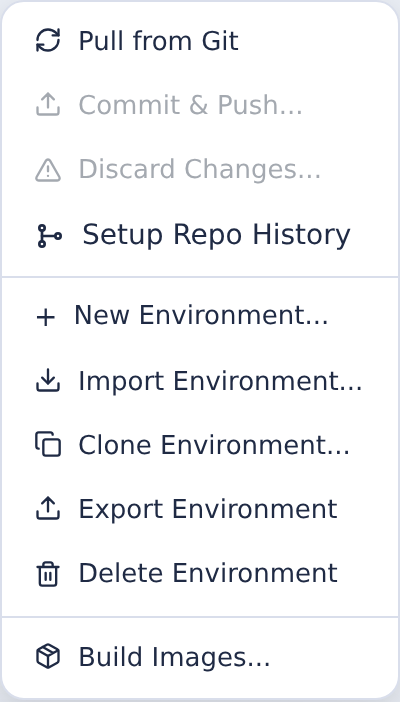
Importing
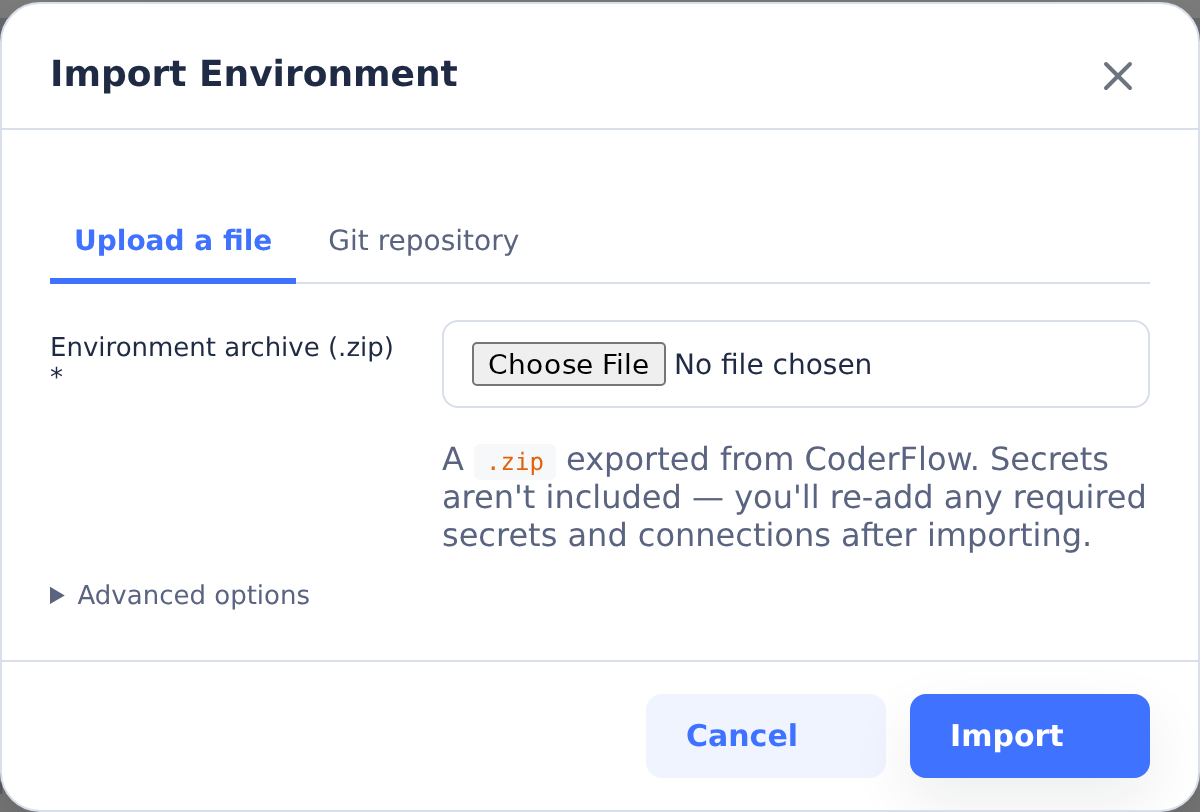
On the Environments page, open the actions menu and choose Import Environment… (📥), then pick a source tab:
Upload a file
Choose a .zip produced by Export Environment and click Import.
Git repository
Import an environment directly from a public Git repo:
- Enter the Repository URL (an
https://URL). The field is prefilled with the CoderFlow reference apps repository as a convenient starting point. - Click Load environments. CoderFlow shallow-clones the repo and lists every importable environment it finds — any directory containing an
environment.json, including one at the repository root. This is how the reference apps expose all of their backend/front-end combinations in a single picker. - Pick one from the Environment list.
- (Optional) Expand Advanced options to import from a specific Branch or tag, from a Path within the repository (use this for an environment the picker can't reach, or to skip the list entirely), or under a different name with Import as a different name.
- Click Import.
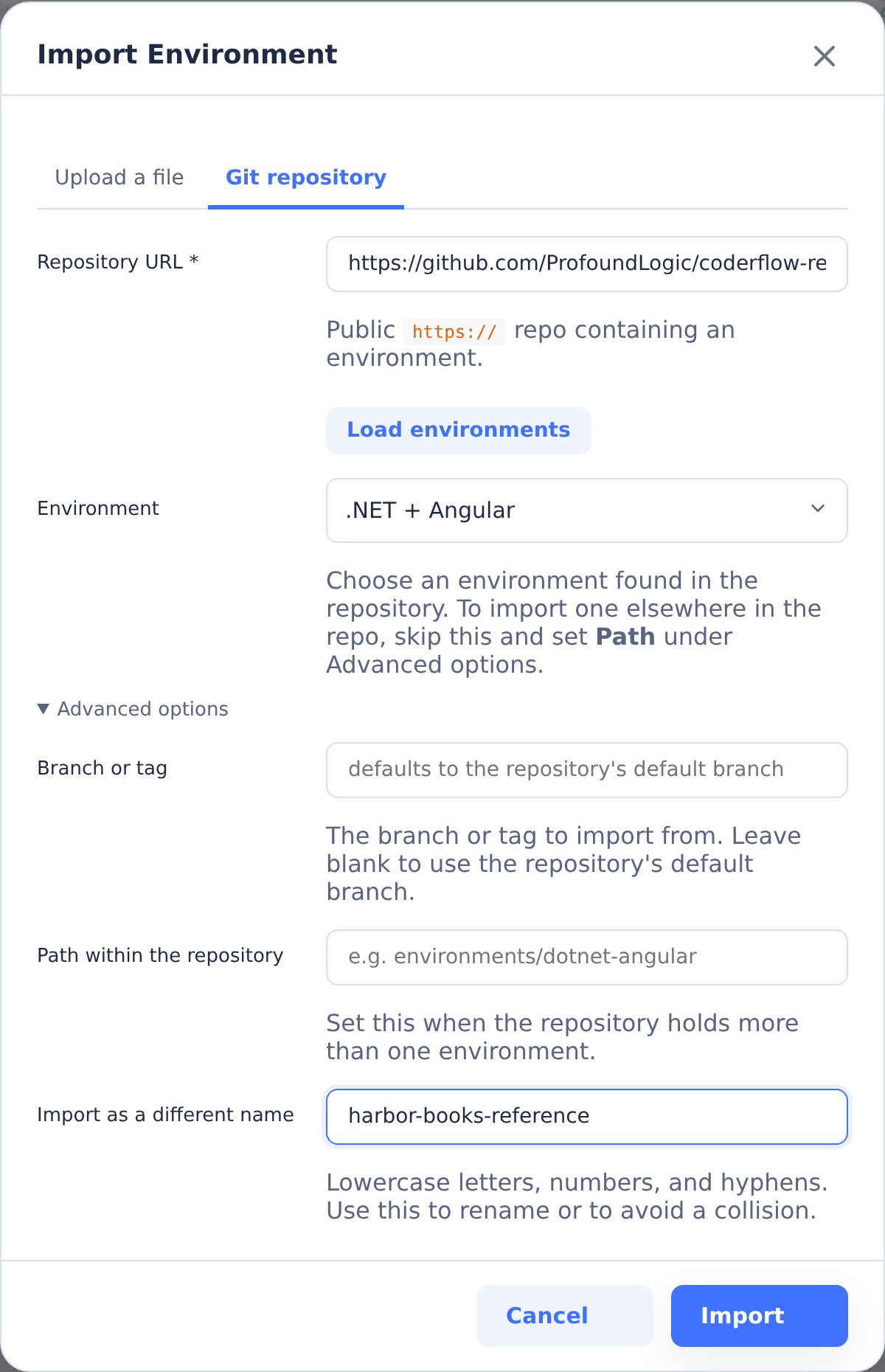
In both cases CoderFlow copies the environment's files in — again excluding .secrets.json and .git — attributes it to you, and adds it as an uncommitted change, exactly like a Save. Review it, then Commit & Push to keep it (or Discard to back out). If an environment with that name already exists, the import is rejected rather than overwriting it; re-import under a different name with Advanced options.
After importing
An imported environment is configuration only, so finish the setup before running tasks:
- Re-create its secrets. The bundle lists the secret names the environment expects but not their values. Add them on the Secrets tab, along with any Connections the environment used.
- Check repository access. If the environment clones private repositories, make sure a Git Provider or PAT secret can reach them.
- Build the image. Build it on the Build tab before creating tasks.
Importing from a private Git repo works transparently when a Git Provider for that host is connected — CoderFlow authenticates the clone automatically. With no provider connected, only public repositories can be imported.
Building Environments
After configuring an environment, build its Docker image from the Build tab. Click Build Now to trigger a build. The build history shows previous builds with their status and duration.
For automation or command-line workflows, you can also build from the server:
coder-server build <env-name>
For automated workflows, scheduled rebuilds can pull the latest code and rebuild the image at regular intervals.
Base Image
All environments build on top of a shared base image. Rebuild the base image to update agent CLIs (Claude Code, Codex, Gemini, Bob Shell, Grok Build, Kimi Code) to the latest version or after updating core dependencies. Use the Build Base Image option in Settings → Environments → Actions, or from the CLI:
coder-server build base
Run this as the dedicated user that runs the server — the base image bakes in that user's UID/GID. From another account (including root) the command asks the running server to build instead, which needs an authenticated session (coder login, or CODER_API_KEY); see Build Base Image for the details.
After rebuilding the base image, rebuild any environments that depend on it.
Public media volumes
Under Server → Volume Mounts, add a Public media volume, choose a name (for example images) and a container path (/public-media/images), then save. CoderFlow provisions persistent storage and displays a public base URL using the existing HTTPS Site URL. Select the URL to copy it. No separate Media settings page or publishing grant is needed.
Keep draft images, source evidence and review copies elsewhere. After your existing human approval workflow, finalize only the reviewed bytes into this destination. Finalizing is disclosure: anyone can retrieve the image without signing in. CoderFlow does not certify that files have been approved.
New task containers receive this helper and their exact base URLs in agent instructions:
node /usr/local/lib/coderflow/public-media-finalize.cjs PRIVATE_FILE /public-media/images PUBLIC_BASE_URL REVIEWED_SHA256
Use the hash recorded during review. The helper checks it before writing and returns {filename, sha256, bytes, url}. It makes a durable temporary copy and atomically installs a content-hash filename without overwriting existing files. Ordinary cp is not atomic. This helper is mounted by the server; it is not available in older CLI releases. Check the returned public URL before using it in an external service.
Only single-frame PNG/JPEG files up to 10 MiB and 25 million pixels are served, with filenames <sha256>.png or <sha256>.jpg. Unsupported files, partial copies, symlinks and directory listings are unavailable. No anonymous upload endpoint exists. Other environments cannot write this volume through their mounts.
Files and URLs survive task/container cleanup, forks, rebuilds and server restarts. Removing a mount does not delete public files or revoke URLs. Tasks sharing an environment share its public destination. Publish revisions under new hashes; changing an existing file makes new origin requests fail validation. Successful public responses are cacheable for one year as immutable content, so previously fetched bytes can remain available after a file is changed or deleted. Deletion is not immediate revocation. Writers can still delete files, so retain and back up referenced media. There is no automatic cleanup or volume quota; monitor server disk capacity. An interrupted finalization can leave a .partial-* hard link that keeps the image unavailable; an operator can remove that temporary link after stopping writers.
The supported deployment is the Linux host CoderFlow server running as a non-root user with local Docker and the existing main HTTPS ingress, including ordinary PM2 installations. Missing Site URL or unsupported task App Server/containerized server/remote Docker setups are refused with inline recovery guidance. Unusual filesystem, UID mapping and ingress arrangements need operator verification; this feature cannot make an authenticated external proxy public. No new domain or proxy is needed in the ordinary deployment.
Replace legacy private staging
If forks fail with “Publishable media is not configured on this server,” edit the legacy images volume at /media-staging/images, explicitly select Public media volume, and save its new /public-media/images destination. Leave the existing knowledge mount unchanged. New unique volume names allocate empty storage; reusing a prior public volume name reattaches its retained files. No old private files are copied or exposed. Fork after saving successfully, and recover any private drafts separately for review.
Old private snapshots and published legacy URLs remain intact. Keep their legacy storage/configuration while they are in use. The new public-volume workflow requires no legacy media IDs or approval receipts, but the external publishing agent must still enforce the existing human approval requirement.
Recover an interrupted finalization
Stop all writers to this volume first. From an authorized task with the volume mounted (or using its host directory), run the command below with the actual temporary UUID and hash filename. It removes only the temporary name after checking that both regular files refer to the same inode; it never removes the hash-named image. Do not use a wildcard deletion or run this during finalization. If multiple abandoned temporary names reference that image, repeat for each confirmed pair. Retry the public URL afterwards; normal hash/image validation still applies.
python3 - /public-media/images/.partial-UUID /public-media/images/SHA256.png <<'PYRECOVER'
import os, re, stat, sys
from pathlib import Path

temporary, image = map(Path, sys.argv[1:])
if (temporary.absolute().parent != image.absolute().parent
        or not re.fullmatch(r"\.partial-[0-9a-f-]{36}", temporary.name)
        or not re.fullmatch(r"[0-9a-f]{64}\.(png|jpg)", image.name)):
    raise SystemExit("Refused: supply a temporary/hash pair in the same directory")
directory = os.open(temporary.parent, os.O_RDONLY | os.O_DIRECTORY | os.O_NOFOLLOW)
try:
    a = os.stat(temporary.name, dir_fd=directory, follow_symlinks=False)
    b = os.stat(image.name, dir_fd=directory, follow_symlinks=False)
    if not (stat.S_ISREG(a.st_mode) and stat.S_ISREG(b.st_mode)
            and (a.st_dev, a.st_ino) == (b.st_dev, b.st_ino)):
        raise SystemExit("Refused: these are not regular-file links to the same inode")
    os.unlink(temporary.name, dir_fd=directory)
    os.fsync(directory)
finally:
    os.close(directory)
print("Temporary link removed; hash-named image retained")
PYRECOVER