Multi-Factor Authentication (MFA)
CoderFlow supports time-based one-time password (TOTP) multi-factor authentication for local logins. When enabled, users present a 6-digit code from an authenticator app (Google Authenticator, 1Password, Authy, Microsoft Authenticator, and similar) in addition to their username and password.
Overview
MFA applies to local authentication only:
- Browser sessions — Username/password login is followed by a TOTP step.
- CLI and VS Code API keys —
coder loginand the VS Code extension complete a TOTP step before a key is issued. - OIDC / SSO logins are unaffected — Those remain governed by your identity provider, which enforces its own MFA. See Single Sign-On.
TOTP parameters are fixed by the product and shown in the admin UI: 6 digits, 30-second period, SHA-1, ±1 step of clock skew. The per-user TOTP secret is stored encrypted at rest and is never returned by any API.
There are no printed recovery or backup codes. If a user loses their authenticator, an administrator resets their TOTP and the user re-enrolls. See Recovering a locked-out user.
Enabling MFA (administrators)
Configure the policy in Server Settings → Authentication → Multi-Factor Authentication:
- Turn on Enable TOTP MFA.
- Choose an Enforcement mode (see below).
- Optionally set the Issuer name (default
CoderFlow). This is the label users see next to their account in their authenticator app. - Click Save.
The policy is stored in mfa.json in your server data directory, alongside other server settings such as oidc.json.
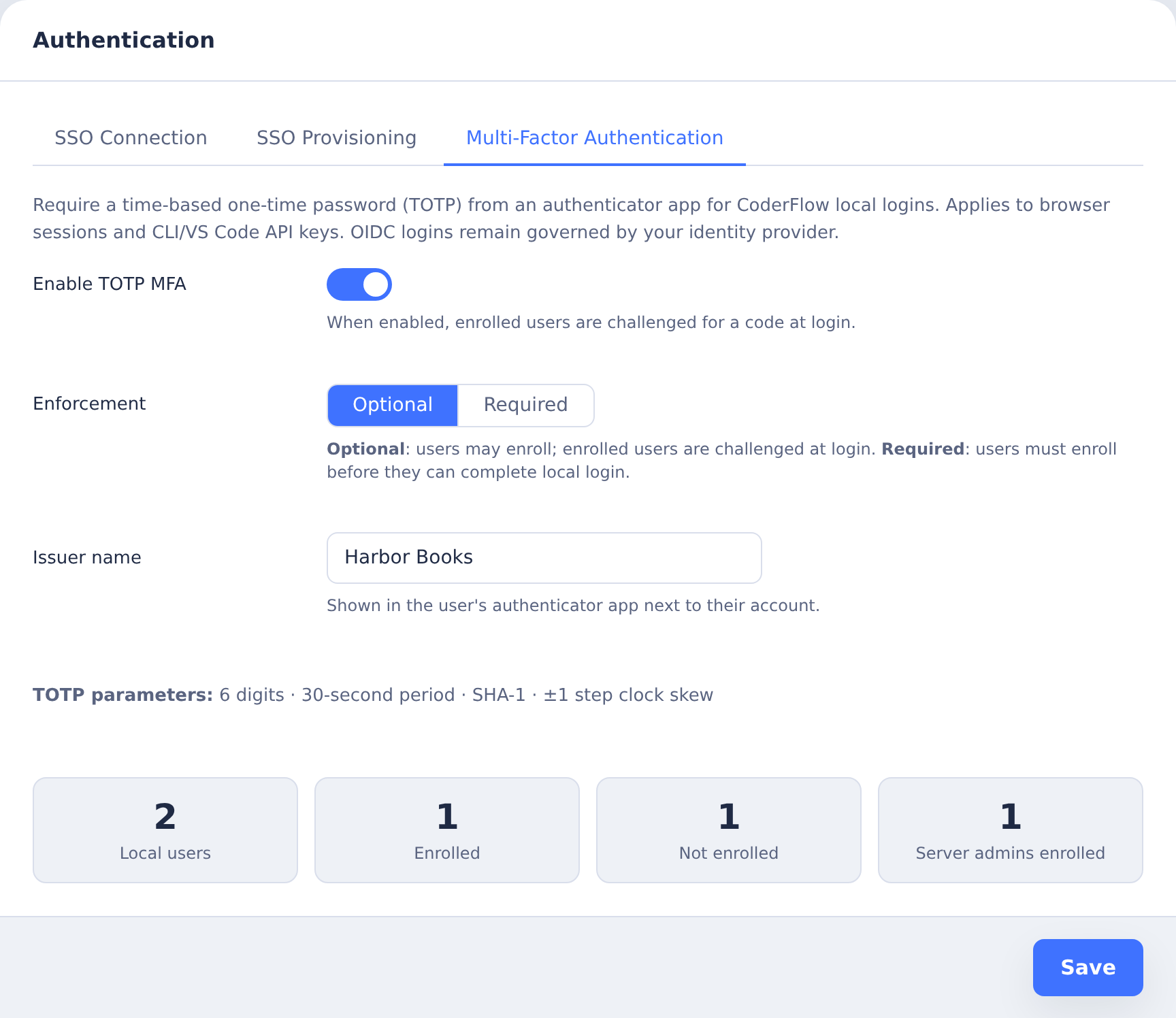
Enforcement modes
| Mode | Behavior |
|---|---|
| Disabled | No MFA prompts and no enrollment UI. |
| Optional | Users may enroll. Enrolled users are challenged for a code at every local login; unenrolled users can still log in normally. |
| Required | Every local-auth user must enroll and pass TOTP before a session or API key is issued. |
Lockout safeguards for Required mode
To prevent locking everyone out, switching enforcement to Required is only allowed when all of the following are true:
- The administrator making the change is enrolled in TOTP.
- That administrator supplies a valid current code in the Your authenticator code field shown when selecting Required.
- At least one Server Admin is enrolled.
Enroll yourself first (see below), then turn on Required mode.
Enrolling (users)
Each user enrolls from their own profile:
- Open Profile Settings → Security and find the Multi-Factor Authentication section.
- Click Set up TOTP.
- Scan the QR code with an authenticator app, or enter the displayed key manually.
- Enter the 6-digit code your app shows to confirm and finish enrollment.
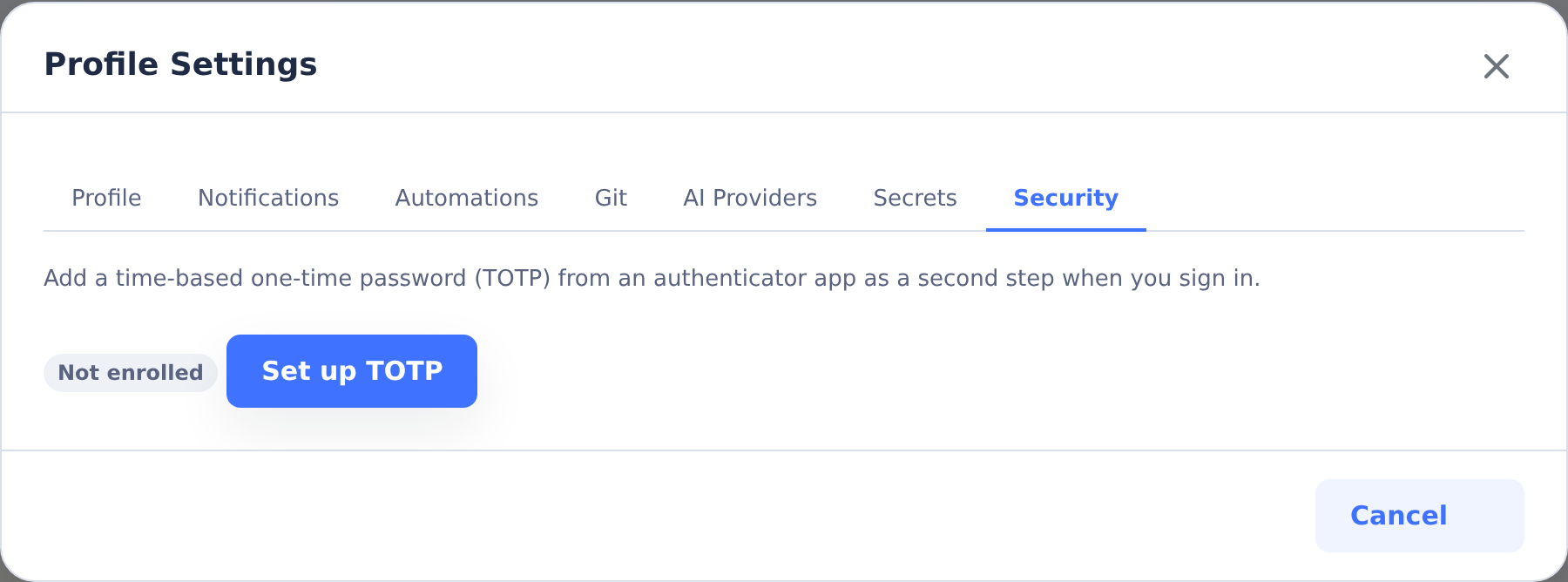
In Required mode, unenrolled users are routed into this enrollment flow at their next browser login and cannot complete login until they enroll.
Logging in with MFA
- Browser — After username/password, enter the current 6-digit code when prompted.
- CLI —
coder loginprompts for the code after the password and issues the API key once it verifies. An incorrect code can be retried; an expired challenge requires runningcoder loginagain.
First-time enrollment is not available from the CLI. A Required-mode user who has never enrolled must enroll once in the browser, then run coder login again.
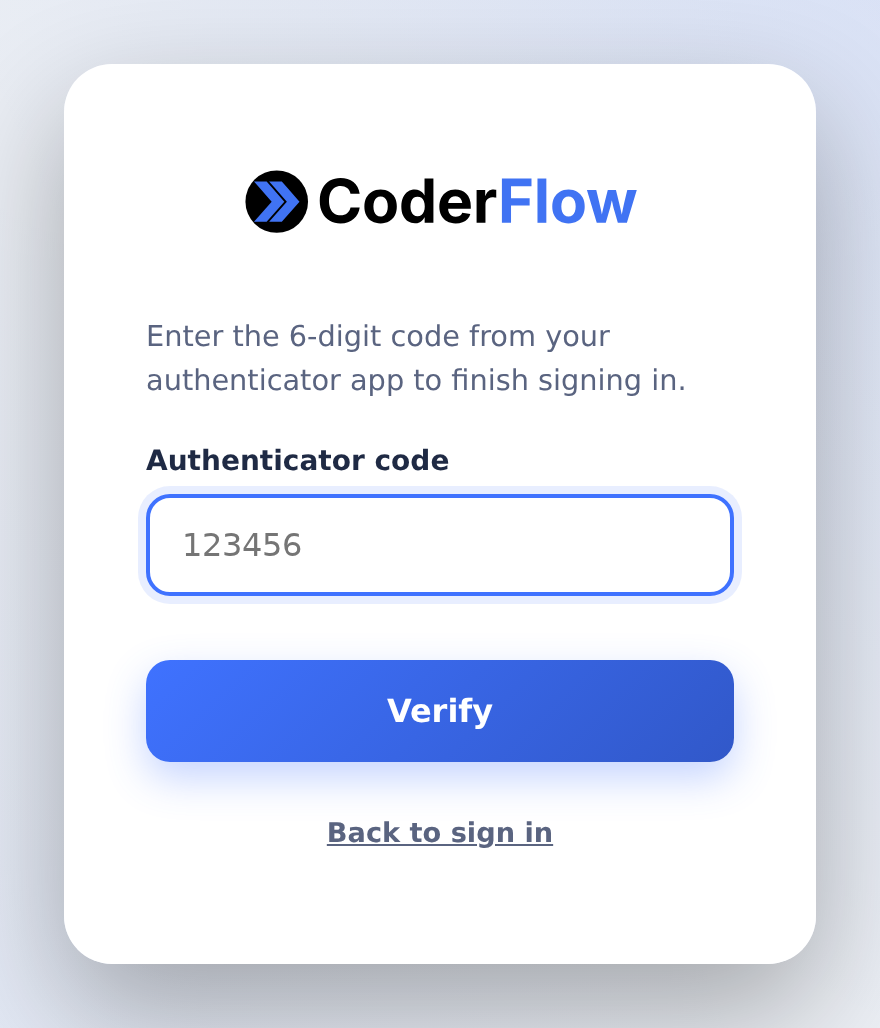
Disabling MFA for your own account (users)
From Profile Settings → Security → Multi-Factor Authentication, choose Disable TOTP and confirm with your current password and a current authenticator code. Users cannot self-disable while the administrator policy is set to Required.
Administering user MFA
User MFA state is visible in Administration → People & Access. Each user row shows an MFA status badge.
Recovering a locked-out user
If a user loses access to their authenticator:
- Go to Administration → People & Access.
- Find the user and click Reset TOTP.
- Ask the user to enroll again from their profile.
Resetting a user's TOTP requires the users:edit permission. See People & Access and Permissions.
Related
- Single Sign-On — OIDC logins and IdP-managed MFA
- API Keys — how CLI and VS Code authenticate after login
- People & Access — managing users and resetting credentials