Notifications
CoderFlow can reach users through email (SMTP) and browser desktop notifications (foreground + Web Push). Both are off by default until configured: the server doesn't send email until SMTP is set up, and a browser doesn't receive desktop notifications until the user grants permission.
This page covers the server configuration, the per-user preferences each channel honors, and the @-mention syntax that drives most comment emails.
Channels at a glance
| Channel | Triggers | Configured by | Per-user opt-out |
|---|---|---|---|
| Email — @mentions | Someone mentions you in a comment | Admin: SMTP | Profile → Notifications → @Mentions |
| Email — comments on your tasks | Someone comments on a task or objective you created | Admin: SMTP | Profile → Notifications → Comments on my tasks/objectives |
| Desktop notifications (foreground) | A task you launched in this browser tab finishes | Per-user, per-browser permission | Toggle off Browser Notifications → Enable on this browser |
| Web Push (background) | A task you launched finishes while the tab is closed/backgrounded | Auto-enabled when desktop notifications are granted | Same as above (revoking the toggle unsubscribes) |
The server stores per-user preferences (email_mentions, email_comments_on_my_tasks, task_completion_notification_mode) on the user record; the browser-permission toggle is per-device and lives in localStorage.
Email (SMTP) Configuration
Navigate to Settings → Email (SMTP) to configure outbound mail:
- SMTP Host — Your mail server hostname (e.g.,
smtp.office365.com) - SMTP Port — Typically
587for STARTTLS or465for SSL/TLS - Use TLS/SSL — Enable for port 465; leave disabled for port 587 with STARTTLS
- Username — SMTP authentication username
- Password — SMTP authentication password (leave blank when re-saving to keep the existing one)
- From Address — Email address shown as the sender
- From Name — Display name shown alongside the sender address (optional)
Use Test Connection to verify the SMTP server is reachable, then Send Test Email to confirm full delivery to a recipient you specify.
SMTP settings can also be supplied via environment variables (SMTP_HOST, SMTP_PORT, SMTP_USER, SMTP_PASS, SMTP_SECURE, SMTP_FROM, SMTP_FROM_NAME). The Settings UI takes precedence: when both are set, the saved configuration is used.
Provider-specific notes
Office 365. Use smtp.office365.com on port 587 with TLS/SSL disabled (STARTTLS is negotiated automatically). Ensure the sending account has SMTP authentication enabled — you may need to turn on "Authenticated SMTP" in the Microsoft 365 admin center.
Gmail. Use smtp.gmail.com on port 587 with TLS/SSL disabled. Gmail requires an App Password rather than the regular account password. Generate one at Google Account → Security → App Passwords; 2-Step Verification must be enabled on the account.
SendGrid. Use smtp.sendgrid.net on port 587. The username is literally apikey; the password is the SendGrid API key.
AWS SES. Use email-smtp.<region>.amazonaws.com on port 587 (replace <region> with your AWS region). SES SMTP credentials are different from your AWS access keys — generate them in the AWS SES console under SMTP Settings, and verify the From address before sending.
Troubleshooting
Connection timeout. Verify the SMTP host and port. Check that your firewall allows outbound connections on the SMTP port; some cloud providers block port 25, in which case use 587 or 465.
Authentication failed. Confirm the username and password. For Gmail, use an App Password. For Office 365, confirm SMTP authentication is enabled for the account.
Emails not received. Check the spam/junk folder. Verify the From address is authorized to send from your mail server. For SES, confirm the From address is verified.
Certificate errors. If your mail server uses a self-signed certificate, the container needs to trust it. Confirm the server's system clock is accurate — certificate validation depends on it.
Browser & Push Notifications
CoderFlow can show desktop notifications when a task finishes — both while a CoderFlow tab is open (foreground) and after it's closed (Web Push). Both paths use the same service worker so the click handler routes to the right task page either way.
How it works
- The service worker (
/sw.js) is registered the first time a user enables notifications, and it stays registered across visits. - The browser displays the notification with
ServiceWorkerRegistration.showNotification(), including on Android Chrome where thenew Notification()constructor throws. - For background delivery, the browser subscribes to the server's Web Push endpoint (
POST /api/push/subscribe) using a VAPID public key fromGET /api/push/vapid-key. The server then dispatches push payloads to that subscription whenever the user's tasks reach a terminal status. - Notification clicks open
/task.html?id=<taskId>(or?groupId=...for groups). If a tab on that URL is already open, it gets focused instead of opening a new one.
VAPID configuration (admin)
Web Push requires a VAPID key pair. CoderFlow loads keys with this priority:
VAPID_PUBLIC_KEYandVAPID_PRIVATE_KEYenvironment variables.- Persisted keys at
${DATA_DIR}/.vapid-keys.json. - Auto-generated on first start, persisted to that file with
0600permissions.
In other words, Web Push works out of the box without manual setup — you only need to set the env vars to pin a specific keypair (e.g. across replicas or for disaster recovery).
The VAPID subject defaults to mailto:admin@coderflow.ai and can be overridden with VAPID_SUBJECT (it appears in push requests so the push service has a contact for abuse reports). If the web-push npm package isn't installed in the running build, Web Push is disabled silently and GET /api/push/vapid-key returns 503 push_disabled; foreground notifications still work in that case.
Per-user push subscriptions are stored at ${DATA_DIR}/push-subscriptions.json. When a push delivery returns 404 or 410, the stale endpoint is pruned automatically.
User experience
The first time a logged-in user lands on the home page, a banner appears:
Enable Desktop Notifications — Stay informed when your tasks complete
Clicking Enable Notifications asks the browser for permission, registers the service worker, and (if VAPID is configured) registers a push subscription. The same toggle lives at Profile → Notifications → Browser Notifications → Enable on this browser. The Dismiss button hides the banner permanently for the current browser via localStorage.
The browser-notification preference is per-device, not per-account: it follows the browser's permission and a localStorage flag, so enabling it in Chrome on a laptop does not automatically enable it in Firefox on a phone. The profile checkbox reflects the local state, not a server-stored preference.
A push endpoint identifies a specific browser+VAPID pair, not a user. If a different account logs in to the same browser and re-subscribes, the server transfers ownership to the new account — so notifications follow whoever is currently logged in on that device.
Foreground vs. background, group vs. per-task
When the user has notifications enabled, the client subscribes to the server-sent task event stream. Each terminal task event triggers either a foreground notification (if a CoderFlow tab is open and tracking it) or a Web Push delivery (otherwise).
The Grouped task runs preference at Profile → Notifications controls how groups behave:
- Notify each task as it finishes (default) — Each task in a group fires its own notification.
- Notify once when the group finishes — Standalone tasks still notify when they finish, but multi-task groups suppress per-task notifications and emit a single summary notification once every task in the group reaches a terminal state.
Standalone tasks always notify when they finish, regardless of this preference. Test runs and deployment runs use a similar payload format (e.g. Test: <name>, Deploy: <profile>).
Service worker & offline page
The service worker also caches a small offline fallback page (/offline.html). When a top-level navigation fails because the server can't be reached, the browser shows that page with a Reload button. Other requests (XHR, fetch, assets) are not cached and will fail normally. There is no general background-sync queue: CoderFlow does not retry failed API calls when connectivity returns.
Per-user notification preferences
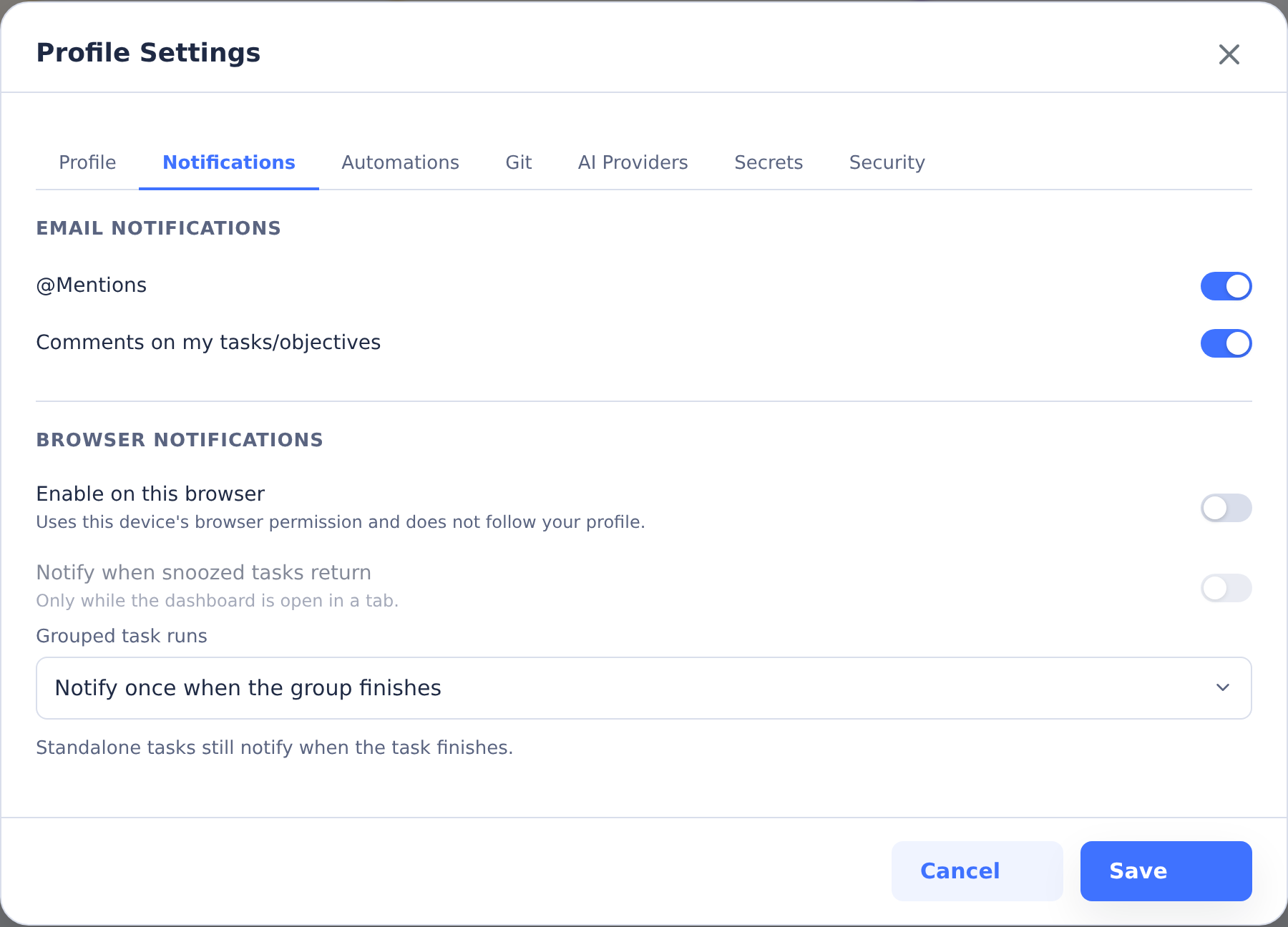
Each user controls their own notification settings at Profile → Notifications. Defaults apply when a user has never edited them.
- Email Notifications
- @Mentions (default: on) — Email when mentioned in a task or objective comment.
- Comments on my tasks/objectives (default: on) — Email when someone else comments on a task or objective you created.
- Browser Notifications
- Enable on this browser (default: off; per-device) — Toggle desktop notifications and Web Push for this browser. Disabling unsubscribes from Web Push immediately.
- Grouped task runs (default: Notify each task) — Per-task vs. per-group desktop notifications, as described above.
- Notify when snoozed tasks return (default: off; per-device) — A desktop notification when a snoozed pin returns to the Pinned view. This is a sub-preference of Enable on this browser and does nothing unless that is on. Unlike task-completion alerts, it is delivered by the open dashboard tab rather than Web Push, so it only fires while the dashboard is open in a browser tab. It is stored as the
notify_on_snooze_returnserver preference and mirrored per browser.
A user must have an email address on their profile to receive any email notification. SMTP must also be configured globally; otherwise email is skipped silently and only logged at debug level.
The server preferences are stored on the user record under preferences (email_mentions, email_comments_on_my_tasks, task_completion_notification_mode). Two adjacent profile preferences live in the same area but are not notifications:
- Default Environment — Used when a user creates a task without picking one explicitly.
- Auto-pin new tasks (default: on) — When enabled, tasks the user creates are pinned automatically. The setting is mirrored to a server preference (
auto_pin_new_tasks) so server-side flows like Slack-triggered tasks honor it.
@-Mentions in comments
Typing @ in any comment box opens a user-search dropdown when the current user can read the user directory. Type to filter, then press Enter or click to insert. The dropdown closes if you type a space or move the cursor outside the active mention. See Permissions for the current user-directory access behavior.
In the stored markdown, mentions are encoded as @[Display Name](mention:<userId>), which renders to a styled chip in the UI and to plain @Name in plain-text email bodies.
When a comment is posted:
- The server parses each
@[Name](mention:userId)token in the content. - For every mentioned user other than the commenter, it looks up the user, checks their
email_mentionspreference, and (if email is configured and the user has an email) sends the Mention notification template with a preview of the comment and a deep link back to the task or objective. - Independently, if the task or objective has an owner other than the commenter, the server sends the Comment notification template to the owner — gated on their
email_comments_on_my_taskspreference.
A commenter never gets emailed about their own comment, even if they @-mention themselves. To opt out of mention emails, turn off Profile → Notifications → @Mentions; to opt out of being notified about replies on your own tasks and objectives, turn off Comments on my tasks/objectives.
Mention notifications and owner notifications are independent: the same comment can trigger both (one mention email, one owner email) or neither. Both depend on SMTP being configured globally.