VS Code Extension
The CoderFlow extension brings completed task changes into your local desktop VS Code workspace. It is different from the task page's VS Code button, which opens Web VS Code inside the running task container.
Use the extension when you want to preview generated diffs in desktop VS Code and apply selected changes to repositories on your machine.
The extension can:
- Browse completed tasks that have code changes
- Group task variants together
- Filter to your pinned tasks
- Preview file diffs side by side
- Apply a whole single-variant task, one variant from a group, one repository, or one file
- Work with multi-repository VS Code workspaces
Create, run, continue, and approve tasks in the Web UI. The extension is for local review and patch application.
Installation
From VS Code Marketplace: Search for "CoderFlow" in Extensions and click Install.
From VSIX File:
- Get the
.vsixfile from your admin - In VS Code: Extensions →
...menu → Install from VSIX
Connecting to the Server
- Click the CoderFlow icon in the Activity Bar
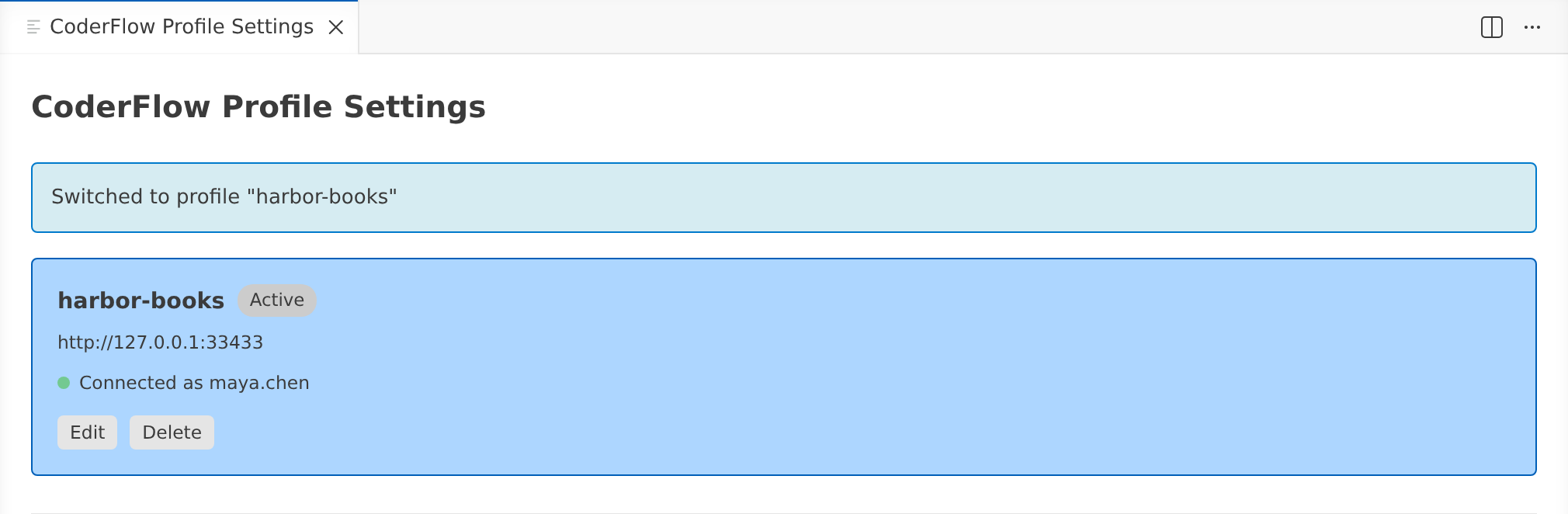
- Click the server icon to open CoderFlow Profile Settings
- Enter a profile name and your server URL, then log in or use an API key
- Click Activate on the profile you want to use
- Tasks from completed work will appear in the tree view
The profile manager can store the server URL and API key created through CoderFlow login flows. The extension also supports the profoundCoder.serverUrl and profoundCoder.apiKey settings.
Task List
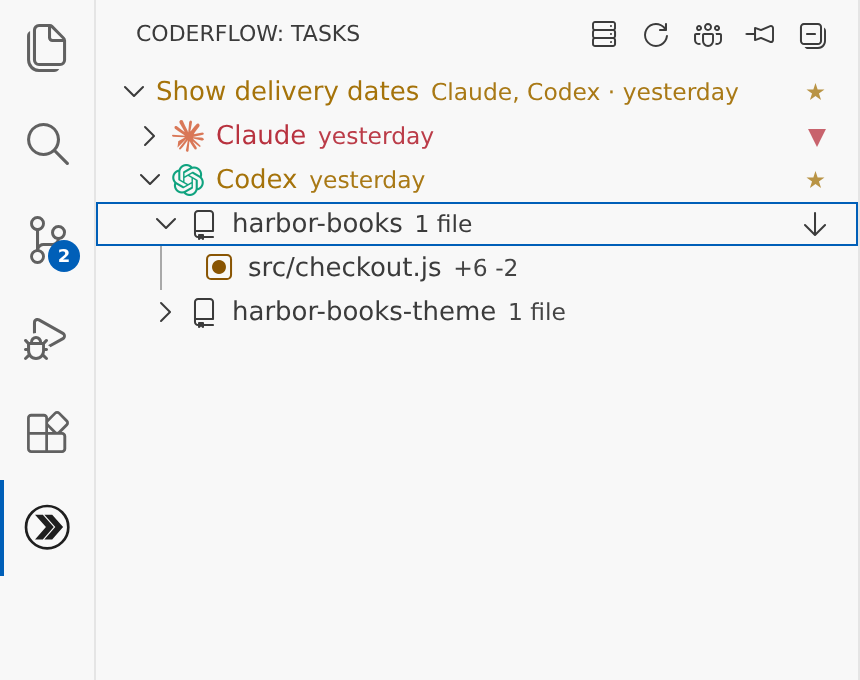
The task tree shows completed tasks that have code changes. Judge tasks are excluded. If you are an admin, the toolbar can switch between your tasks and all users' tasks.
Use the pin icon in the task view toolbar to enable Show Pinned Only. The extension asks the server for filter=pinned and saves the filter state in VS Code global state, so it stays active after a window reload until you choose Clear Pinned Filter.
Variant Grouping
When related task runs are variants of the same prompt, the extension groups them under one top-level item.
Grouping uses this order:
- Tasks with the same server-assigned
groupIdare grouped together. - Older tasks without a
groupIdcan still be grouped when they have the same environment, task type, test name when applicable, and parameters other thaninstructions, and were created within 25 seconds of each other.
For multi-variant groups, the top-level item shows the task name and the agent labels. Expanding it shows each variant, such as Claude, Codex, Gemini, or Bob. Single-variant tasks skip the variant level. Tasks that change multiple repositories show a repository level before the files.
Opening a grouped variant in the browser opens the group view when a group ID is available.
Previewing Changes
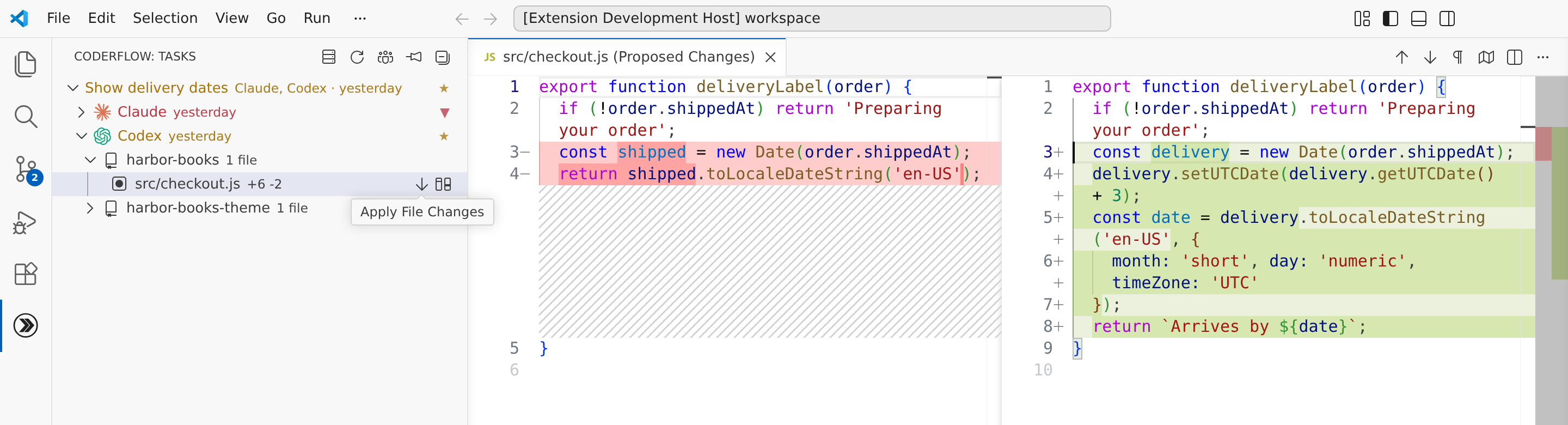
Click the diff icon next to any file to see changes side-by-side.
The preview opens a VS Code diff editor with the current local file on one side and the task's proposed content on the other. For new files, the original side is empty.
Applying Changes
Apply at the smallest level that matches what you want to keep:
| Tree item | Command | What it applies |
|---|---|---|
| Single-variant task | profoundCoder.applyTask | All repositories changed by that task |
| Variant under a group | profoundCoder.applyVariant | All repositories changed by that variant |
| Repository | profoundCoder.applyRepo | All changed files in that repository |
| File | profoundCoder.applyFile | Only that file's patch |
For a multi-variant group, apply from the specific variant you want. The group header opens the Web UI group view, but it does not apply all variants at once.
Apply One File
Click the apply icon on a file node to run profoundCoder.applyFile. The extension writes a file-specific patch to a temporary file and runs git apply --ignore-whitespace --include="<file>" against the matching local repository.
Use file-level apply when you want to cherry-pick from multiple variants or keep one generated file while rejecting the rest of the task.
When You Have Uncommitted Work
If your repository has uncommitted changes, you'll be prompted to:
- Stash & Continue - Stashes modified and untracked files before applying
- Discard & Continue - Resets tracked changes and removes untracked files, then applies
- View Changes - Opens Source Control to review first
If applying the patch fails after a stash, the extension attempts to restore the stash. After a successful apply, review your local Git status before continuing.
Multi-Repository Projects
Open all repositories in your VS Code workspace before applying.
The extension matches each CoderFlow repository to a local Git repository by using the task patch's local_path and the open workspace folders. It checks:
- The folder at
<workspace folder>/<local_path> - The sibling folder beside an open workspace folder
- The open workspace folder itself
- A workspace folder whose basename matches the repository path
If a task changed several repositories, the tree shows a repository level. You can apply all files for one repository or expand it and apply individual files.
What Does Not Happen in the Extension
The desktop extension does not edit the task container. It applies patches to local repositories. It also does not create tasks, start containers, run follow-ups, or approve/push task results. Use the Web UI for those workflows.
Troubleshooting
"Cannot find repository"
- Open the repository folder in your VS Code workspace.
- Make sure the local folder path matches the repository path from the CoderFlow environment.
- For multi-repo work, open every repository before applying.
Connection issues
- Verify server URL in Profile Manager
- Re-login if your API key expired
Pinned task is missing
- Clear Show Pinned Only if the task is not pinned.
- Confirm the task is completed, has code changes, and is visible to your CoderFlow account.
Patch apply fails
- Preview the file first to check whether your local branch matches the task's base.
- Pull or switch branches if your local checkout is behind.
- Try applying individual files instead of the whole variant.