Web VS Code
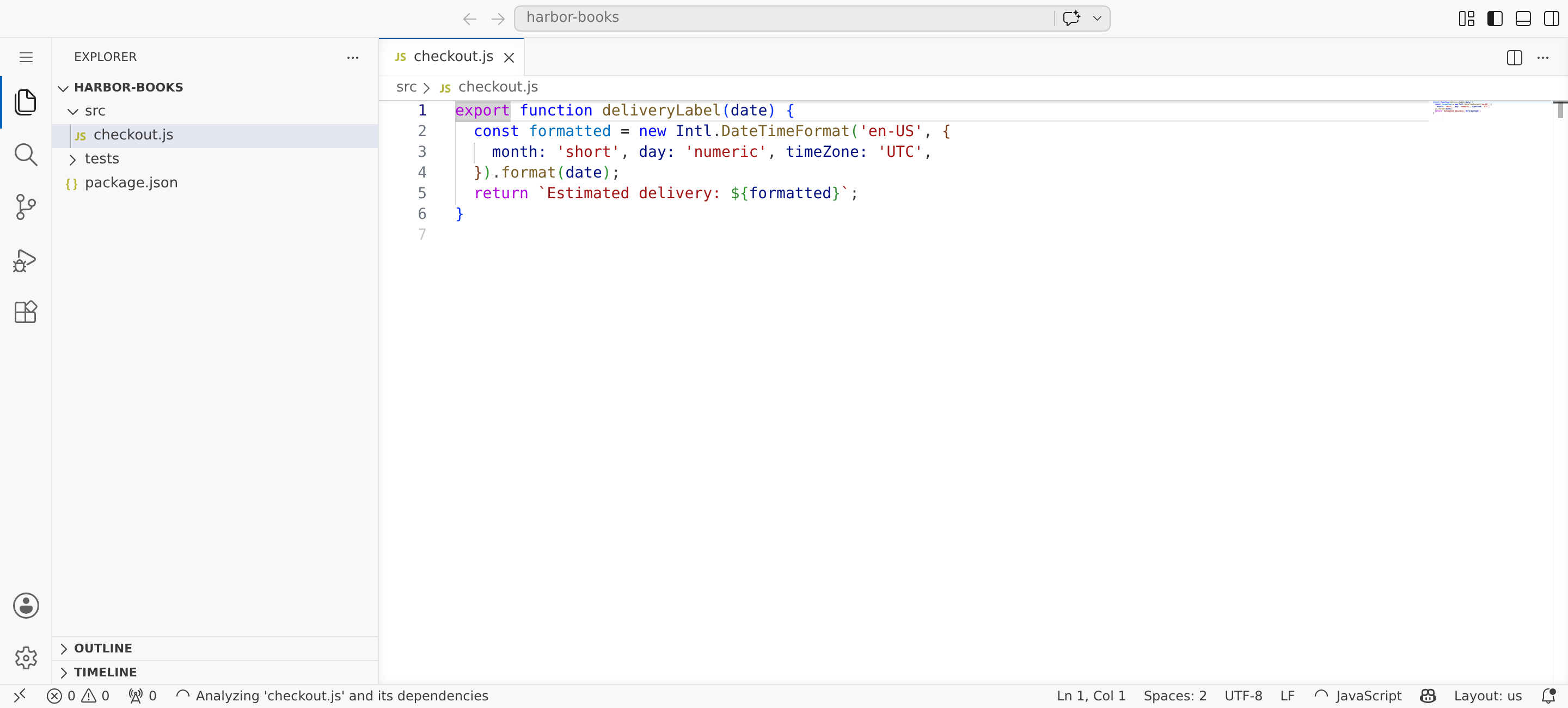
The VS Code button on a task opens a browser IDE backed by code-server. It is not the desktop VS Code extension. It runs inside the task container and edits the same files that Quick Edit and the task terminal see.
Use Web VS Code when you need a full IDE in the container: repository-wide search, a terminal, source control tools, extension support, or several files open at once.
Open a Task Container
Open a coding task whose container is running, then click VS Code in the task header. CoderFlow starts code-server if needed and opens it in a new browser tab.
The button is available on normal coding tasks when the task has a running container. It is hidden on log-only task types such as test and deploy runs, and it is disabled when the container is stopped or missing.
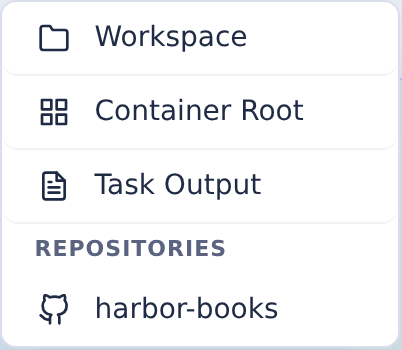
The default button opens /workspace. The dropdown next to VS Code lets you choose a different folder, or a repository's VS Code workspace file, before the browser tab opens.
Folder Options
| Option | Folder | Use it when |
|---|---|---|
| Workspace | /workspace | You want the full multi-repo workspace. This is the default. |
| Task Output | /task-output | You need logs, generated artifacts, task metadata, screenshots, or summary files. |
| Container Root | / | You need to inspect the container image, installed tools, or system configuration. |
| Repository name | The repo path from the environment config, usually /workspace/<repo> | You want VS Code focused on one repository instead of the whole workspace. |
The Changed Files section also has a VS Code button on each repository header. That opens code-server directly at that repository path.
Workspace Files
If a repository contains a VS Code workspace file (*.code-workspace) at its root or one folder below it, the dropdown lists that file under Workspace Files. Choose it to open code-server with the workspace, so its folders and settings, such as formatter, lint, tab, and line-ending rules, apply.
CoderFlow looks for workspace files the first time you open the dropdown while the container is running, and reuses the result until the task's container changes. Files are listed whether or not they are committed, including ones the repository's .gitignore excludes. node_modules folders are skipped, and up to 20 files are shown. If the check fails, the dropdown says so instead of listing files.
The container resolves the folders a workspace file names. A folder outside the task's repositories, or a path on a developer machine, shows as missing. Settings for an extension that is not installed in the image have no effect; see Installed Extensions. If VS Code opens the workspace in Restricted Mode, choose Trust to enable extensions such as ESLint.
What Runs Where
CoderFlow starts code-server in the container on port 8080 using start-code-server.sh. code-server itself runs without its own password because CoderFlow handles authentication, permission checks, HTTP proxying, and WebSocket proxying before traffic reaches the container.
Your browser loads a CoderFlow URL such as /tasks/<task-id>/vscode/. You normally do not connect to the container's 8080 port directly.
The IDE inherits the task container:
- The integrated terminal runs in the container.
- Files under
/workspaceare the task's repository checkouts. - Files under
/task-outputare the task's result files and logs. - Git commands operate on the container repositories, not on your local checkout.
Saving and Persistence
Web VS Code has auto-save enabled with a one-second delay in the standard base image. Saved files are written to the task container.
Those edits are preserved while the task container exists. If the container is stopped, it can be restarted and the files are still there. If the container is removed, the task logs, output, and stored diffs remain, but the live container filesystem is gone. Approve and push work you want stored in Git.
After editing in Web VS Code, return to the task page and click Sync Changed Files if the Changed Files section has not refreshed yet.
Installed Extensions
The standard base image installs these code-server extensions:
dbaeumer.vscode-eslintbarrettotte.ibmi-languagesadamraichu.pdf-viewerxicilion.markdown-viewer-extensionfrom a pinned VSIX URL
If you maintain a custom base image, add gallery extension IDs to vscode-extensions.txt and direct VSIX URLs to vscode-extension-vsix-urls.txt before rebuilding the image. Use the VSIX URL file when gallery metadata works poorly but a direct extension download is reliable.
The base image also configures a quiet VS Code layout, disables built-in chat/AI panels, enables Git autofetch, and turns on file auto-save.
Choosing Between Web VS Code and the Extension
Use Web VS Code for live work in the task container. It is best before approval, while you are testing or modifying the task's result in its original environment.
Use the VS Code Extension for local patch review. It shows completed tasks with code changes and applies selected variants, repositories, or files into repositories open on your machine.
The two surfaces do not share editor state. Web VS Code edits the container; the extension applies generated patches locally.
Troubleshooting
The VS Code button is disabled
Start the task container first. Web VS Code requires a running container.
The task is a test or deploy run
Test and deploy tasks are log-only. Use the task logs instead of Web VS Code.
The tab opens the wrong folder
Use the dropdown next to VS Code and choose Workspace, Task Output, Container Root, a workspace file, or a repository name. CoderFlow adds the selected folder or workspace file to the code-server URL so the new tab opens in that location.
Changed Files does not show my IDE edit
Click Sync Changed Files on the task page. The sync step recalculates repository diffs from the container.