Example: .NET + Angular (two-process)
A browser-only walkthrough that instantiates the environment pattern for an ASP.NET Core API paired with an Angular dev server — the two-process model, where the dev server proxies /api to the API and the browser live-reloads as the agent edits. It mirrors the Node.js + Angular example; the only real difference is that .NET's runtime isn't in the base image, so you install the SDK in a pre-clone step.
You don't build anything locally: point a CoderFlow environment at the ready-made reference app and configure it in the Web UI. This is one of several combinations in the reference-apps repo; see the Stack reference for other stacks, and the PHP example for the single-origin model.
What you'll need
- Permission to create environments in the CoderFlow Web UI. For background, see Core Concepts and the Environments reference.
- Network access from CoderFlow to GitHub — the reference repo is public, so no credentials or Git provider setup are required.
The reference app
The code lives in dotnet-angular/ of the reference-apps repo. Two pieces define the two-process wiring:
-
api/— an ASP.NET Core app (.NET 10) that exposes one endpoint and binds to0.0.0.0on port 3001:app.MapGet("/api/hello", () => Results.Ok(new { message = "Hello from the .NET API!" }));var port = Environment.GetEnvironmentVariable("PORT") ?? "3001";app.Run($"http://0.0.0.0:{port}"); -
web/— an Angular app whose component fetches/api/helloand shows the message.web/proxy.conf.jsforwards/apito the API, so the browser only ever talks to one origin (no CORS):module.exports = [{context: ["/api"],target: process.env.API_TARGET || "http://localhost:3001",secure: false,changeOrigin: true,},];
The rest is the standard Angular scaffold. Everything below happens in the CoderFlow Web UI.
Create the CoderFlow environment
This follows the environment pattern; the steps fill in the .NET + Angular values.
1. Create the environment
Go to Environments → New Environment. On the Overview tab set a Description, a Default Agent, a Docker Image name (e.g. dotnet-angular), and a Timezone.
2. Add the repository
On the Repositories tab, click Add Repository → Manual Entry and paste the public URL https://github.com/ProfoundLogic/coderflow-reference-apps. Set Branch main and a Path (the steps below assume /workspace/coderflow-reference-apps); no credentials are needed for a public repo. For Post-clone Action, choose Custom command and install dependencies for both the API and the front end (baked into the image at build time):
cd dotnet-angular/api && dotnet restore && cd ../web && npm ci
3. Install the .NET SDK (pre-clone script)
The base image includes Node.js, Git, curl, and Python, but not the .NET SDK. You don't edit a Dockerfile — CoderFlow generates it. Instead, open the Build tab, expand the Scripts card, select the pre-clone tab, and add these instructions (raw Dockerfile lines injected before any repo is cloned, so the SDK is available when the Post-clone Action runs):
RUN curl -fsSL https://dot.net/v1/dotnet-install.sh -o /tmp/dotnet-install.sh \
 && bash /tmp/dotnet-install.sh --channel 10.0 --install-dir /usr/local/dotnet \
 && ln -sf /usr/local/dotnet/dotnet /usr/local/bin/dotnet \
 && rm /tmp/dotnet-install.sh
ENV DOTNET_ROOT=/usr/local/dotnet
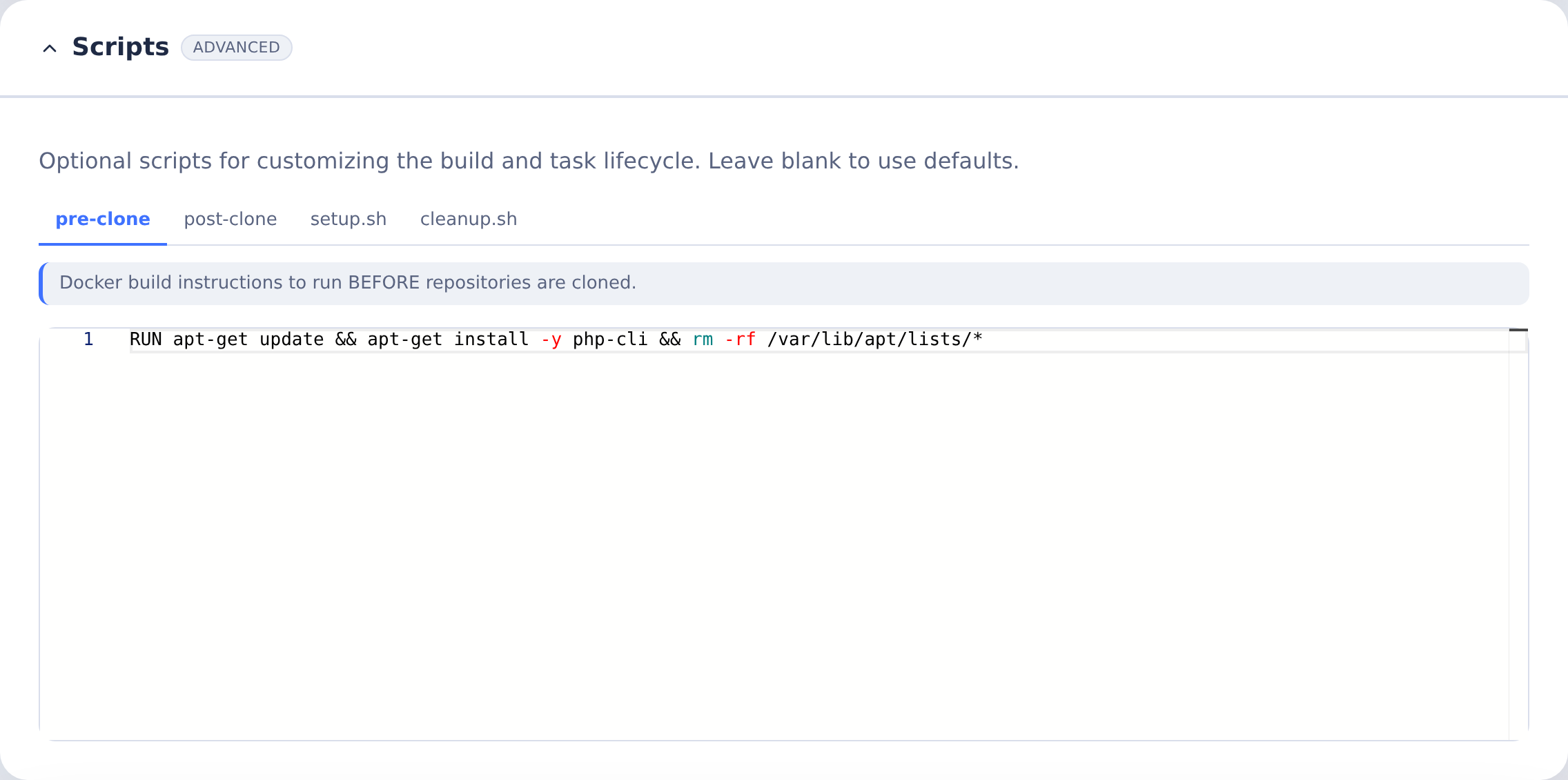
Use this Scripts card for the .NET SDK instructions above. The shared illustration shows a PHP hook; replace its contents with the .NET instructions for this environment.
4. Configure the application server
On the Application Server tab:
- Start Command — start the API in the background, then the Angular dev server:
cd /workspace/coderflow-reference-apps/dotnet-angular/api && dotnet watch run &cd /workspace/coderflow-reference-apps/dotnet-angular/web && API_TARGET=http://localhost:3001 npx ng serve --host 0.0.0.0 --port 4200 --proxy-config proxy.conf.js
- Ports — add
4200(name likeweb) and3001(name likeapi). - Launch URLs — add one with Path
/on port 4200, and mark it primary.
Two processes run side by side: the ASP.NET Core API on 3001 and the Angular dev server on 4200, which proxies /api to the API. The API binds to 0.0.0.0 (via PORT, default 3001) so CoderFlow's task proxy can reach it. dotnet watch run compiles before it serves (so the first launch takes a moment), then rebuilds and restarts the API automatically whenever you edit the C# source.
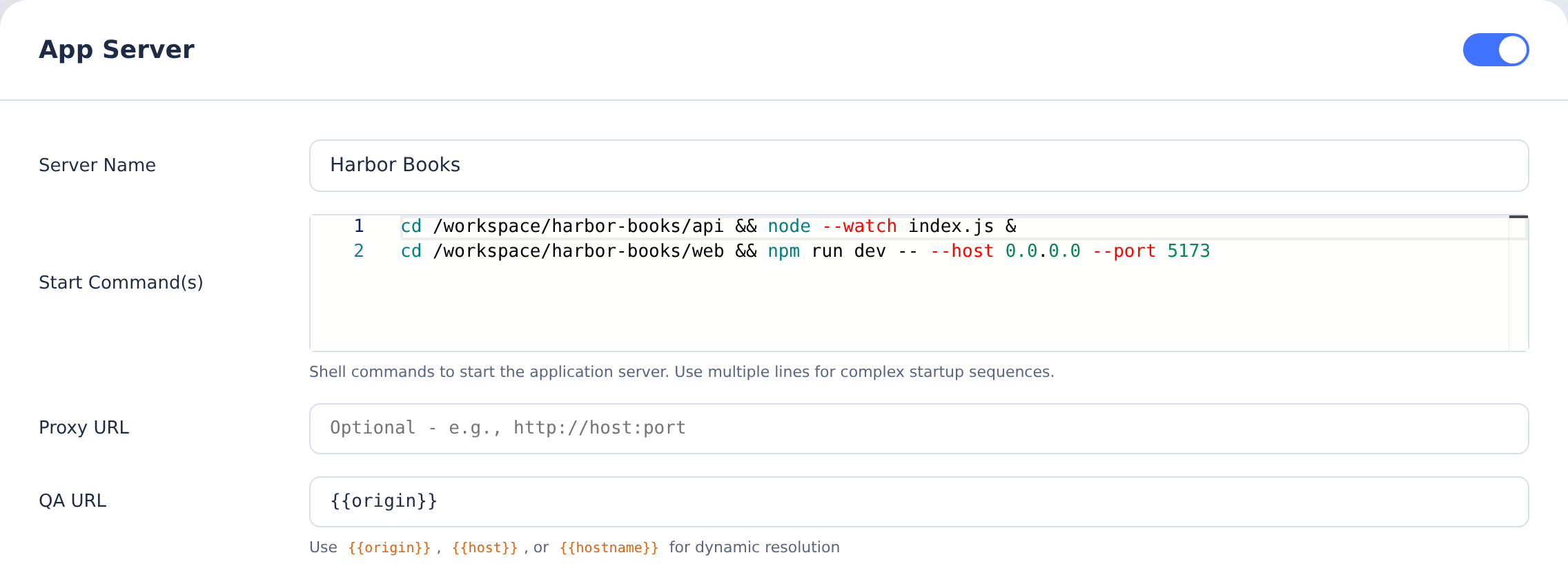
The same App Server fields apply to .NET + Angular. The shared illustration uses Node.js + React; use the .NET and Angular commands above, with the Angular launch URL on 4200.
5. (Optional) Agent testing and tests
On the Agent Instructions tab, under Standard Instructions, enable Screenshot Guidelines so the agent can screenshot the running app. On the Tests tab, add commands like dotnet build (from dotnet-angular/api) and npx ng build (from dotnet-angular/web). See Test Definitions.
6. Build the environment
On the Build tab, click Build Now. When it succeeds, click Save, then Commit & Push.
Run and test it
- Create a task in this environment. CoderFlow starts a container from the built image; dependencies are already installed, so no
setup.shis needed. - Open the task → Testing menu → Start Server (or Start Server & Launch). See The Testing Menu.
- Click the Launch URL. The Angular page opens through CoderFlow's task proxy and shows "Hello from the .NET API!".
- Use the in-app feedback widget to screenshot and annotate, and run any Tests you defined.
Notes
- Live reload. As the agent edits the front end, the dev server rebuilds and the browser reloads through CoderFlow's task proxy — no restart. This is why two-process is the recommended model for iterating on the UI.
dotnet watch runrebuilds and restarts the C# API automatically too; because the page fetches/api/helloon load, click the page's Reload from API button or refresh to see a new API value. - Single-origin alternative. To run as one process on one port — closer to a single-host deploy — serve the front end from the same origin as the API. See the single-origin model and the PHP example.
- Calling internal APIs over HTTPS. If your real app calls internal services with certificates from a private CA, load your corporate root CA so the container trusts them — see CA Certificates — and keep base URLs and credentials on the Secrets tab rather than in source (Secrets).
- .NET version. The reference app targets .NET 10 (LTS), and the pre-clone script installs a matching SDK. To use a different version, change both
--channeland the app's<TargetFramework>together.
Related
- Web Application Environments — the pattern this example follows
- Stack reference — values for other backends and front ends
- Reference apps repo — every backend/front-end combination
- Environments — full reference for every environment tab