Setting Up an IBM i Environment
How to set up a CoderFlow environment for an IBM i application served by Profound UI Genie. Unlike the web-application environments, nothing runs in the task container: CoderFlow proxies to the running Genie server, so a task can drive real 5250 green-screen and Rich Display Web UI sessions while the agent edits and compiles source on the IBM i.
For the full connection reference and the IBM i-side setup, see IBM i connections; for the bigger picture, see the IBM i overview.
How this differs from a web-app environment
- It isn't a web app. The UI is a green-screen (5250) or Rich Display IBM i application rendered by a running Genie server — not a backend serving an SPA.
- No app runtime to install and no Start Command. The container holds your source for editing and compiling; the live UI comes from Genie, not from a process in the container.
- The proxy is configured by a connection, not by hand. An IBM i Interactive Sessions connection points the Application Server proxy at Genie automatically.
- Compilation happens on the IBM i system. The agent compiles with
codermakeinto an isolated per-task build library, rather than building in the container.
What you'll need
- A reachable IBM i system running Profound UI / Genie Version 6 Fix Pack 41.0 (6.41.0) or later.
- HTTP or HTTPS on the selected Genie instance. Captured screens use CoderFlow’s authenticated server-side proxy, so the instance does not need HTTPS even when CoderFlow uses HTTPS. If you choose HTTPS, the certificate must be trusted by CoderFlow and match the connection hostname.
- Both CoderFlow
SetEnvdirectives enabled globally in that instance’s/www/<instance>/conf/httpd.conf(shown below). - Profound Logic RAS installed (used by the
sqlskill) and an IBM i user profile configured with the right library list and<product-library>/PUISETENVcalled as or from its initial program. Use the selected installation’s actual product library; adding it to LIBL alone is insufficient. Custom initial programs may call PUISETENV indirectly. The connection form's How to set up IBM i user profile helper lists the exact requirements — see IBM i connections. - Permission to create environments and connections in the CoderFlow Web UI.
Create the environment
1. Basic settings
Go to Environments → New Environment. On the Overview tab set a Description, a Default Agent, a Docker Image name, and a Timezone. You do not need any Pre-clone instructions — the IBM i build tooling (codermake) is already in the base image, and the application UI is proxied.
2. Add the source repository
On the Repositories tab, add the repository holding your RPG/DDS/Profound UI source. To bring existing members in and generate compile rules, enable IBM i Source Import on the repository — see Import IBM i Sources and Generate Build Rules.
3. Add an IBM i connection
On the Connections tab, click Add Connection, choose the IBM i type card, and enable the features you need:
- SQL — database access via RAS (the
sqlskill). Requires the user password. - Build — compile with
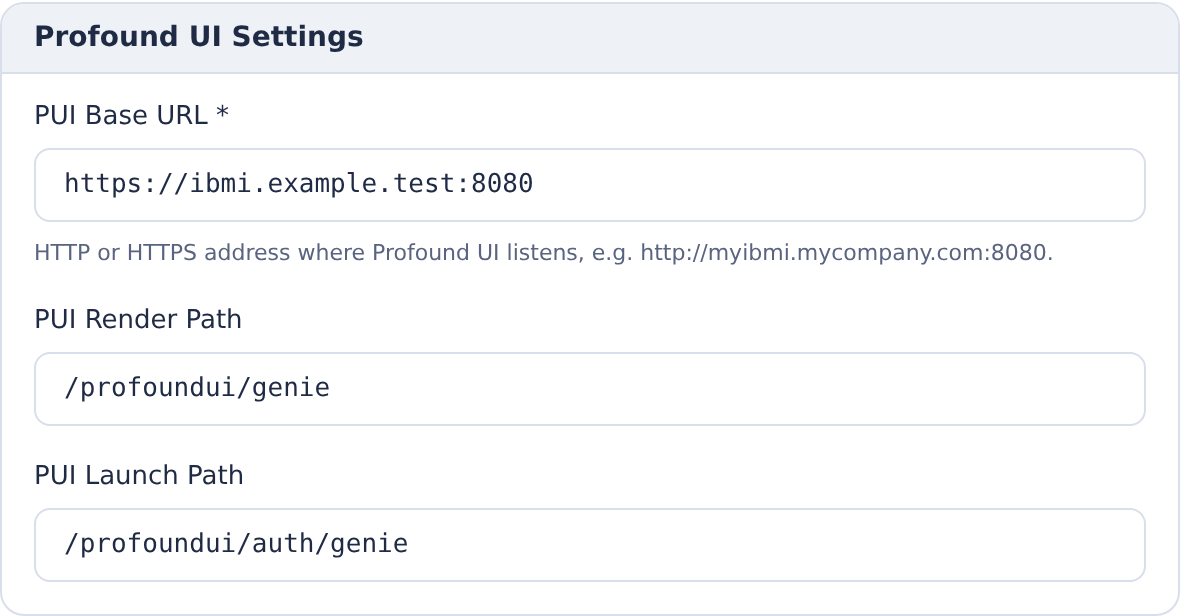
codermakeinto an isolated per-task library. Set the Build Repo and a Build Library Name Prefix. - Interactive Sessions — drive 5250 and Rich Display sessions through Genie. Set PUI Base URL, PUI Render Path (defaults to
/profoundui/genie), PUI Launch Path (defaults to/profoundui/auth/genie), and the user/password.
See IBM i connections → Interactive Sessions for every field and the IBM i-side requirements.
4. What gets configured automatically
Enabling Interactive Sessions wires up the Application Server for you — you don't set a Start Command or Proxy URL by hand. CoderFlow:
- points the Application Server proxy at the Profound UI base URL,
- configures basic auth from the connection,
- adds an
X-Agentic-Task-Libheader carrying the per-task build library, so Genie renders against the task's own compiled changes, and - adds a launch URL named Genie (<connection-name>).
It also imports the ibmi-interactive-session skill so agents can operate the sessions.
Choose Test connection in the dialog footer. The Connection checks panel reports reachability, version, CoderFlow integration and, when using HTTPS, certificate trust separately. Guided installation also enables these global settings in the selected instance when its configuration can be safely edited:
SetEnv PUI_ALLOW_AGENTIC_TASK_LIB 1
SetEnv PUI_ALLOW_CODERFLOW_PROXY 1
For an existing instance, use Enable / repair CoderFlow integration…. This explicit setup action explains the changes and possible session interruption before applying them and starting/restarting that instance. Checking alone never changes configuration or restarts services. Unresolved includes or overrides require manual review; see the repair and recovery steps.
A successful product install keeps the Use … for interactive sessions hand-off even if integration has a remaining manual step. Saved directives, activation and the sign-on prerequisites are reported separately. PUISETENV stays unverified until you check the configured profile with a fresh Genie sign-on; CoderFlow does not rewrite profiles or custom initial programs. If you choose HTTPS, certificate provisioning remains an administrator task. HTTP connections show the certificate check as Not required for HTTP.

5. Build the environment
On the Build tab, click Build Now. When it succeeds, click Save, then Commit & Push.
Run and test it
- Create a task in this environment. The agent edits source and compiles it into the task's temporary build library with
codermake. - Open the task and use the Genie (<connection-name>) launch URL (or the Testing menu) to open the proxied Profound UI. Drive 5250 or Rich Display sessions against the task's library list — see Staged Tasks and QA Mode.
- Sessions are recorded into Task Visualizations for review, alongside the changed-file diffs.
Notes
- Per-task isolation. The
X-Agentic-Task-Libheader means each task's Genie session reflects that task's own compiled changes, isolated from other tasks. - One per environment. An environment can have at most one IBM i connection with the Build, Sync, or Interactive Sessions feature per scope. See Environments → Connections.
Related
- IBM i connections — full connection reference and IBM i-side setup
- IBM i overview — RAS,
codermake, sync, source import, build rules - Web Application Environments — the in-container serving models
- QA Mode and Task Visualizations