Import IBM i Sources
The Import IBM i Sources tool downloads source members from IBM i libraries into a Git repository, organized by library, source file, and member. Use it to seed a repository from an existing IBM i application, or to pull in additional sources later.
Prerequisites
- An administrator has enabled IBM i Source Import on one of the environment's repositories. See IBM i Source Import under Repositories in Environments. Only one repository per environment can be the import target.
- Your role includes the IBM i Import permission (included in the Environment Admin role).
- The IBM i system has its SSH daemon running. The tool connects directly over SSH from the CoderFlow server to run analysis and download sources.
- You have valid IBM i host, user profile, and password credentials. Credentials are held in server memory for the duration of the session only—they are never persisted.
- The user profile has authority to install the
objxsrctool the first time you connect. On first use the tool creates a library (defaultPLOBJX) viaCRTLIB, uploads a save file to that library over SFTP, and restores the tool's programs withRSTOBJ. Subsequent sessions reuse the existing library. The profile therefore needsCRTLIB(or a pre-created library named in the advanced objx Tool Library field with*CHANGEauthority) andRSTOBJauthority. If your profile can't create libraries, ask an administrator to create an empty library for the tool and grant you*CHANGEauthority on it. - The user profile has authority to discover and read the members you want to import—
*USEon the source libraries and source physical files, and*OBJOPR/*READon the members themselves. Members the profile can't read are skipped with an error in the review step.
Launching the Tool
From the main task launcher, open the actions menu and choose Import IBM i Sources.... The menu item appears only when the current environment has an import-enabled repository and your role grants the permission.
Workflow
The tool walks through four steps: Connect, Libraries, Download, Review.
1. Connect
Enter the IBM i host, user, and password. Host, user, and the advanced objx Tool Library field are remembered locally between sessions; the password is not.
2. Select Sources
Build a list of libraries, then pick what to import from each.
Library list
- Add Libraries — enter one or more library names (newline-separated). Each is validated against the IBM i. Invalid names are reported without closing the dialog.
- Trashcan icon — removes a library from the list.
- Your library list is saved on the server and restored the next time you connect to the same host.
Selecting members
Each library row starts as a simple checkbox that imports the whole library. Expanding a library fetches its source files; expanding a source file shows its members, where you can filter by name pattern and type and check individual members.
Selection is additive across filter passes: filter CUST*, check all, filter ORD*, check all → both sets end up selected. Changing the filter never clears your existing selection.
The Download Sources button enables when at least one library or member is selected. Selection counts appear in the card header (for example, 1 library + 12 members selected).
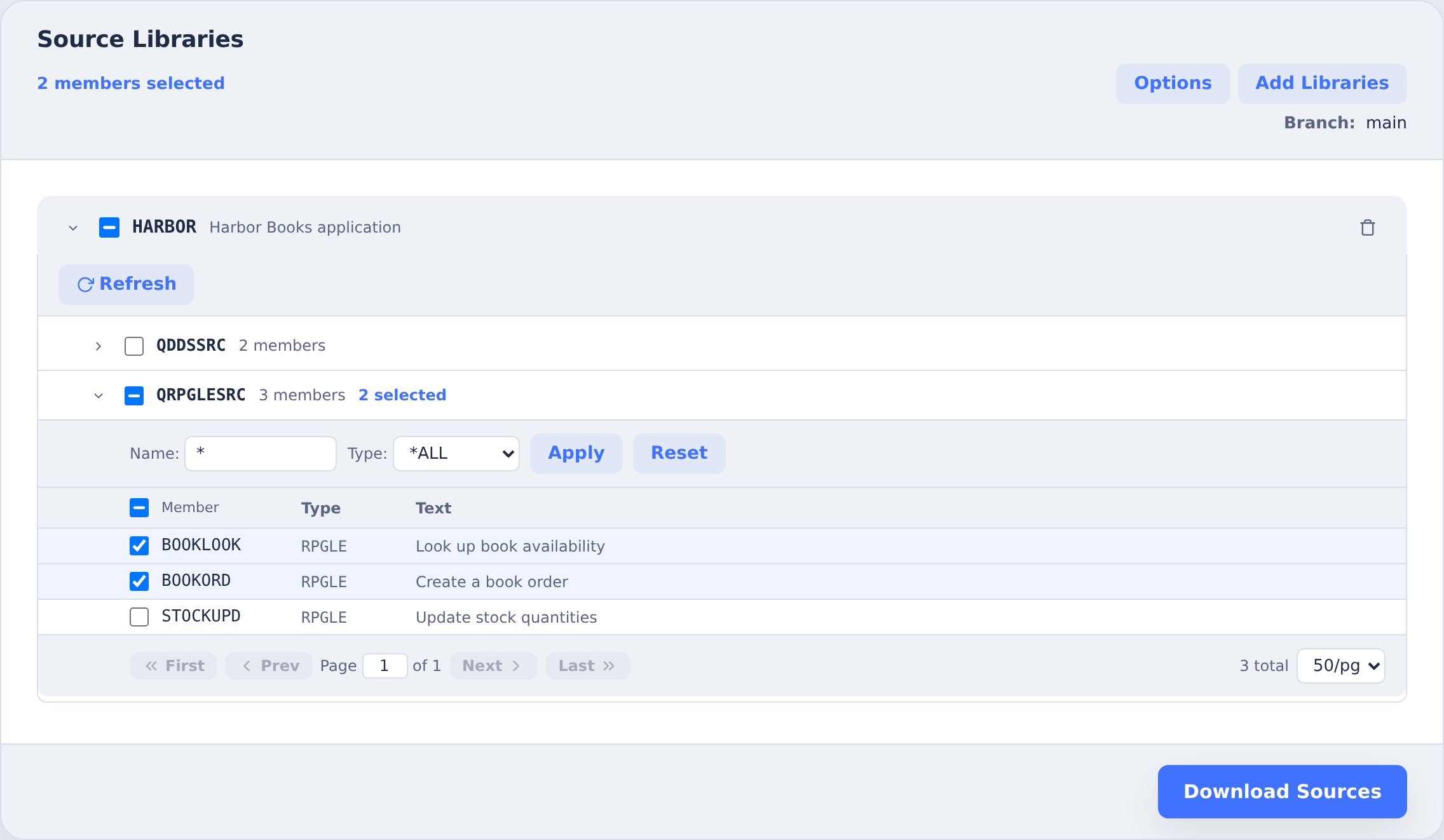
Branch
If the target repository allows branch selection, pick the branch the resulting task will run on. Otherwise the repository's configured branch is used.
Options
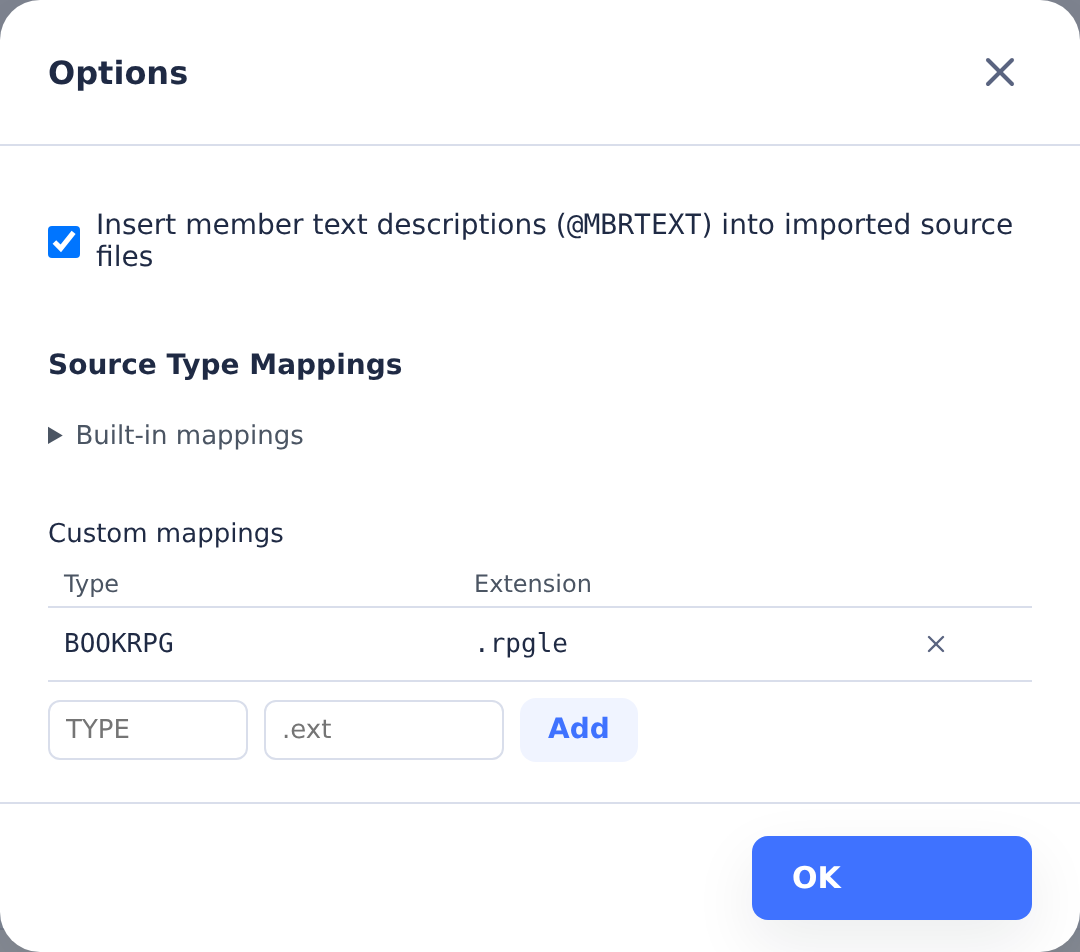
Open Options to configure import settings:
- Insert member text descriptions (
@MBRTEXT) (on by default) — inserts each member's IBM i text description as an@MBRTEXT:comment near the top of the imported source file, using comment syntax appropriate for the source type (for example,/* @MBRTEXT: ... */for CL,// @MBRTEXT: ...for ILE RPG,* @MBRTEXT: ...in column 7 for DDS and fixed-format RPG). When off, any existing@MBRTEXT:comment is stripped from imported content. This comment is what lets the Sync to IBM i feature preserve the original text description when writing the file back as a source member—sync reads the first lines of each file, extracts the@MBRTEXTvalue, and passes it as theTEXT()parameter on the member create. Files that don't carry an@MBRTEXTcomment are synced with an empty text description. - Source Type Mappings — the mapping from IBM i member type (RPGLE, CLLE, DSPF, etc.) to file extension. Built-in mappings are read-only; custom entries can be added for non-standard types, using an extension made of letters, digits,
_, or-after each dot (for example.sqlrpgleor.table.sql). Custom mappings are shared with the Build Rules tool. - Read SQL source members to choose their file extension (off by default) — for members of the listed Member types (
SQLby default), reads the SQL instead of mapping the type. A member that creates one table, view, index, SQL procedure, SQL function, or trigger—and otherwise only labels, comments on, or grants authority to it—is imported with the extensioncodermakebuilds that object from:.table.sql,.view.sql,.index.sql,.proc.sql,.udf.sql, or.trg.sql. Any other member, such as a script that alters tables or changes data, keeps.sql. A listed type can't also have a source type mapping. The setting applies to every import on the server, including automations.
3. Download
Progress streams live: enumerating members, then downloading. Downloaded members are collected on the server as files of the form {library}/{sourcefile}/{member}.{ext}, all lowercase. Use Back to Selection to abort and retry.
4. Review & Import
A summary shows members processed, downloaded, and any errors or warnings. Expand each section for details. The download icon in the card header exports a .tar.gz archive of the raw download metadata if you need to investigate.
When SQL source members are read, these warnings point out members to look at:
- Qualified names used in object creation — the member names a library (other than
QTEMP) for the object it creates, socodermakewould create it in that library rather than the one you build into. The file still gets its object's extension; remove the library names to build it where you build. - SET SCHEMA … changes where … is created — the same, through a
SET SCHEMAstatement. - codermake has no source type for CREATE … or … codermake builds only SQL routines — the member creates an object
codermakecan't build from SQL, such as a sequence, an alias, or a function or procedure implemented by an external program. It's imported as.sql. - Could not read the SQL — the member isn't valid SQL as written, for example a statement cut short by a stray semicolon. It's imported as
.sql.
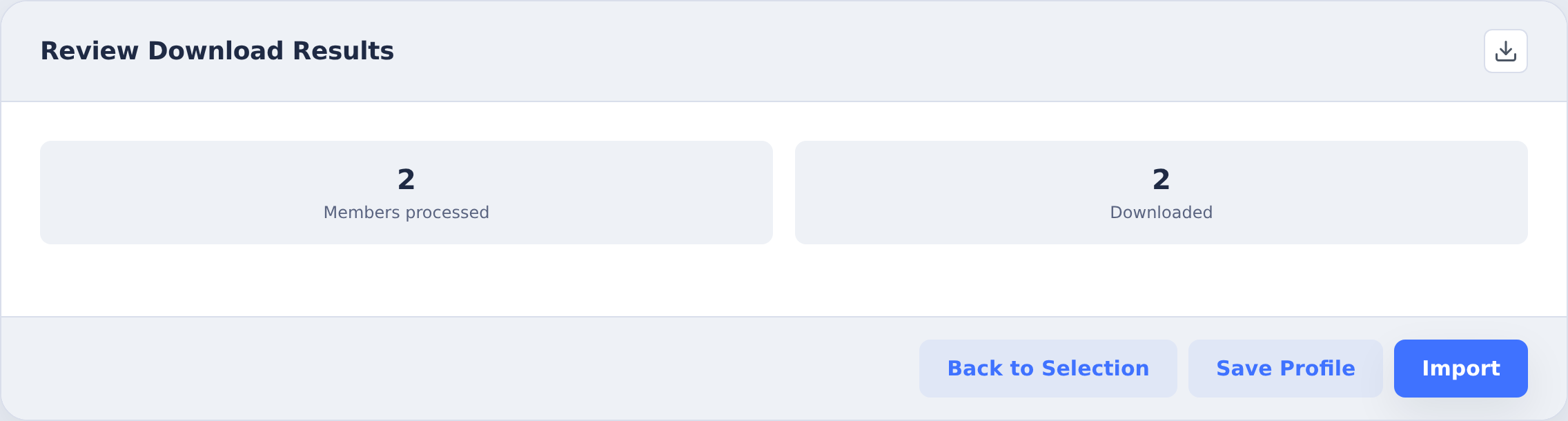
Click Import to create a task. The downloaded source tree is injected directly into the repository inside the task container, and an AI agent writes a summary and commit message. From there, use the standard approval flow to commit and push.
Notes on the Resulting Task
Import tasks differ from regular tasks in three ways:
- They are not resubmittable—the injected files are specific to this import session and can't be regenerated from a prompt.
- The Approve dialog's Sync to IBM i section and the task page's Sync to IBM i button are hidden. The work product is files in Git, not edits to push back to IBM i.
- The Changed Files section includes an IBM i Changes panel summarizing the import in IBM i terms: the source libraries, changed source members, and changed build-rule objects, each tagged Added, Modified, or Deleted.
- Otherwise, review, approve, and push the commit through the normal task UI.
When an import task has a stored sync-run summary, IBM i Changes shows the member changes by name.
