IBM i Portal Applications
Portal Applications let users launch IBM i programs and menus from CoderFlow Portal using their personal IBM i login. Application definitions stay in CoderFlow; you do not need to add users or applications to Atrium environment tables.
Two separate configurations are required: launch trust for the Profound UI instance, and an initial-program entry point for each IBM i user. CoderFlow's guided trust setup does not change user profiles.
Prerequisites
- Enable Portal in CoderFlow Server Settings and give the intended users access to Portal and its applications.
- Set up Settings → Portal → Application hosting. This server-wide setting gives Portal a separate browser address for applications and applies to every environment; hosted installations need custom HTTPS addresses. A server administrator configures it.
- Configure an IBM i connection with Portal Applications selected under Available For and the correct PUI Base URL.
- Install a Profound UI backend that includes Portal launch support and the
PUICFLOGINprogram. Use the programs from the same installation together. - Have users save their personal IBM i login under Profile → IBM i Connections.
- Users need normal IBM i authority to the selected programs, menus, libraries, and application data. Portal does not grant additional IBM i authority.
Set up instance trust
The connection's Portal Applications section shows both launch prerequisites: Application hosting, the server-wide setting above, and Launch trust for this PUI Base URL. If hosting isn't ready, the section says so; server administrators get a link to its settings, which opens in a new tab.
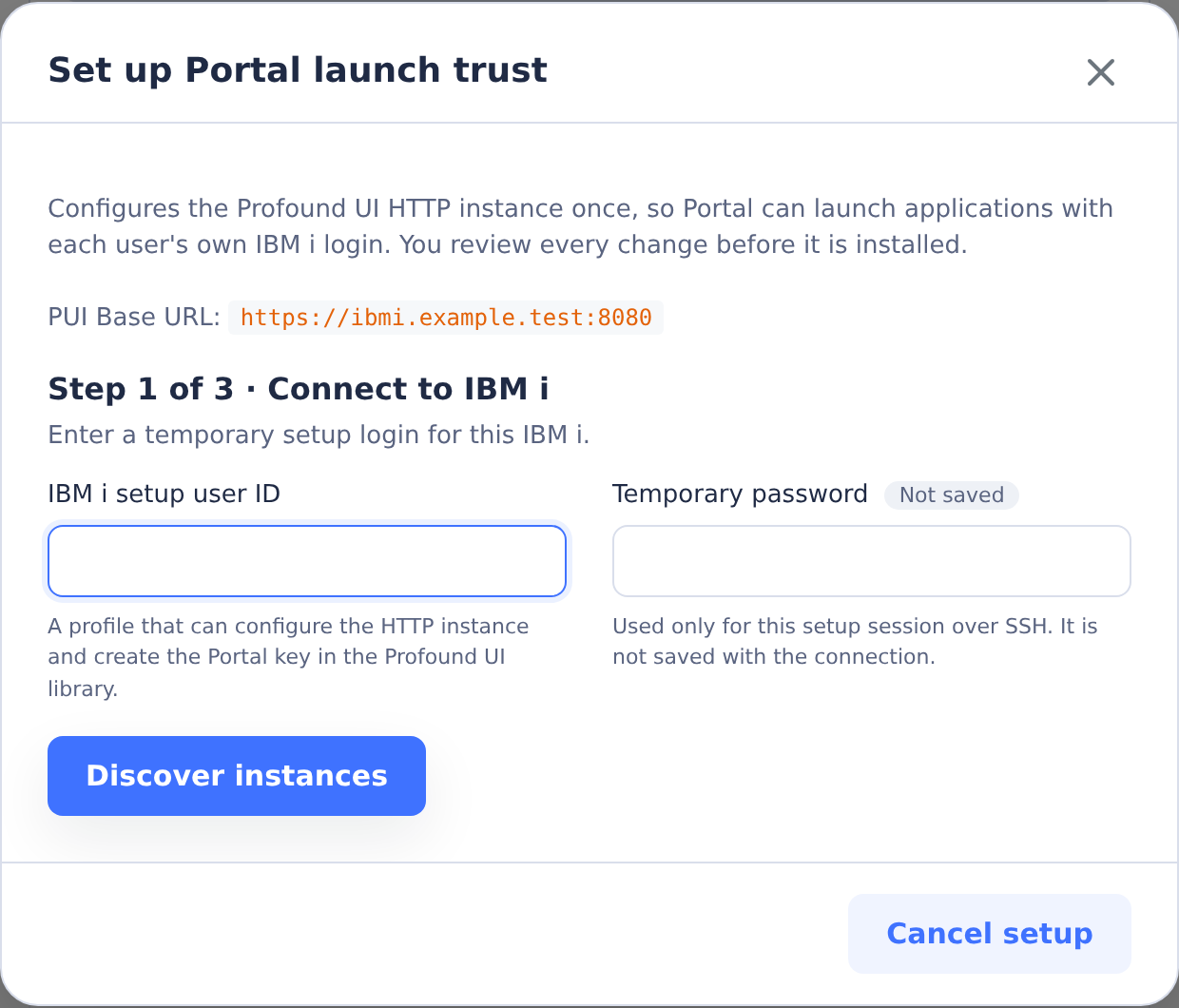
Save the connection, then choose Set up launch trust… under Launch trust. The guided setup opens in its own dialog. After the first save of a new Portal connection, or an edit that adds Portal Applications or changes the PUI Base URL, the connection dialog stays open at this launch trust step. The guided setup discovers Profound UI instances, lets you review the selected instance and changes, and can restart that HTTP instance when requested.
The connection row shows the last recorded setup status:
| Status | Meaning |
|---|---|
| Trusted | The recorded setup completed and its signed launch check passed. |
| Restart needed | Changes were installed but the HTTP instance still needs a restart. |
| Not verified | The signed launch check did not pass; review the instance and run setup again. |
| No setup recorded | CoderFlow has no setup record. Trust may already exist from an earlier setup or the downloaded script. |
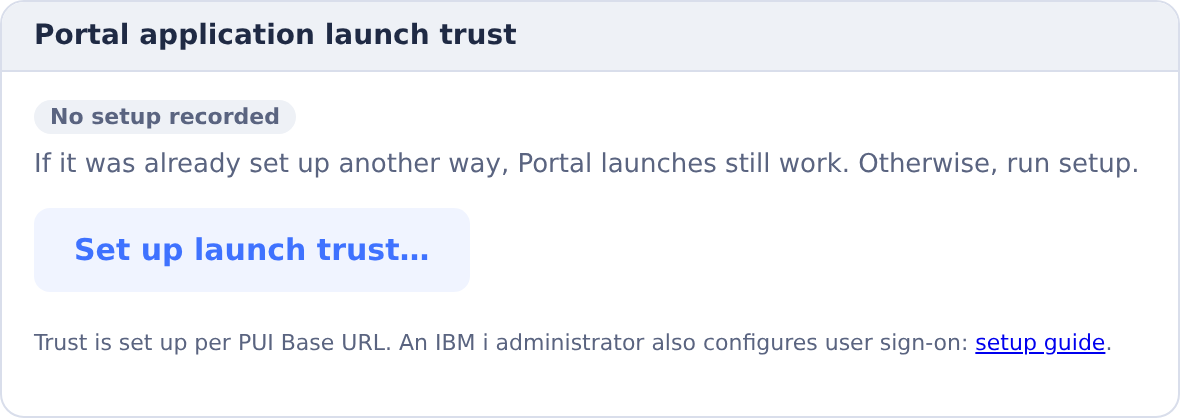
This is a recorded setup result, not a live trust check. The setup dialog lets you discover instances, review changes, install them, and read the result before choosing Done. While installation runs, closing or cancelling is blocked.
Use a temporary setup profile authorized to update the HTTP configuration and trust files, create the protected key object in the Profound UI product library, and transfer its ownership to QPGMR. Restarting requires the appropriate HTTP server authority. The temporary credentials are not saved as the connection's login.
Setup installs CoderFlow's public verification key and creates a protected challenge key on IBM i. The private CoderFlow signing key stays on the CoderFlow server. No additional database table or library is required. Launch expiration is measured using IBM i's clock, so IBM i and CoderFlow do not need matching clocks.
Configure user sign-on
An IBM i administrator performs this step. Replace PUIINST below with the Profound UI product library serving this connection's PUI Base URL, and MYUSER with the user's IBM i profile.
First inspect and record the existing initial program and initial menu:
DSPUSRPRF USRPRF(MYUSER) TYPE(*BASIC)
Do not replace an existing initial program without deciding how to preserve its startup logic.
Users without an existing initial program
Set the profile's initial program to the Portal-specific entry point:
CHGUSRPRF USRPRF(MYUSER) INLPGM(PUIINST/PUICFLOGIN)
PUICFLOGIN takes no parameters. Its behavior depends on the session:
| Session | Behavior |
|---|---|
| Verified CoderFlow Portal launch | Runs the Portal-selected program or menu through the Profound UI launcher, under the signed-on user's authority. |
| Ordinary Genie session | Returns immediately; normal sign-on processing continues. |
| Non-Genie sign-on, such as a 5250 emulator | Returns immediately; normal sign-on processing continues. |
| Invalid or incomplete Portal launch context | Rejects the launch instead of falling through to ordinary startup. |
Returning from the initial program lets IBM i continue with the profile's existing initial menu. If that menu is *SIGNOFF, the session signs off. PUICFLOGIN does not supply a replacement menu or recover an initial program that you overwrote.
Use PUICFLOGIN, rather than PUILOGIN, for this pass-through behavior. PUILOGIN also handles Atrium environment selection on non-Genie sign-ons and can report “User not found in environment table” when that configuration is absent.
Users with existing startup logic
Call PUICFLOGIN first from your initial-program wrapper, then continue with your existing startup logic. For example, if the previous initial program was MYLIB/OLDINIT, a CL wrapper could contain:
PGM
  CALL PGM(PUIINST/PUICFLOGIN)
  CALL PGM(MYLIB/OLDINIT)
ENDPGM
Compile the wrapper into your application library and assign that wrapper as the user's initial program. Alternatively, add the first call to your existing initial program. Adapt the example if your existing program needs parameters or other setup.
For ordinary sign-ons, the Portal entry point returns and OLDINIT runs. For a Portal launch, the selected application runs and the Profound UI launcher signs off the Portal job when the application ends. The wrapper's remaining startup code does not run afterward.
Do not catch a Portal launch failure and then continue into the ordinary application. Handle it as a failed launch.
Test the configuration
- Launch a Portal application in a fresh session and confirm the expected program or menu opens.
- Launch a second Portal application with a different target to confirm that selection is dynamic.
- Sign on through ordinary Genie and through your normal non-Genie client. Confirm the existing initial menu or wrapper behavior is preserved.
- End the Portal application and confirm it closes without entering the wrapper's ordinary application or initial menu.
Changing the profile affects subsequent sign-ons, not an already running session. No CoderFlow restart is needed solely for a profile change.
To undo a profile change, restore the initial-program value you recorded, including its library. If it was *NONE, restore INLPGM(*NONE). Keep the original program or wrapper available until testing is complete.
Troubleshooting
- A hardcoded program opens: the user's initial program may still call it directly. Configure
PUICFLOGINor add it before that call in the wrapper. - “User not found in environment table” on an ordinary sign-on: the profile or wrapper is entering
PUILOGIN's Atrium path. UsePUICFLOGINfor Portal-only handling, preserving any intentional Atrium setup separately. - “Portal launch trust is not ready”: check the connection's PUI Base URL, installed backend support, and launch trust setup. A profile change does not repair instance trust.
- “Application hosting is not ready”: a server administrator checks Settings → Portal → Application hosting. The connection's Portal Applications section shows the same status.
- The selected target is denied: check the user's authority, the qualified target in the application catalog, and the required application library configuration.