Sync to IBM i
Sync to IBM i writes a task's changed source files directly to a target IBM i library as native source members. The same flow can also deploy Profound UI htdocs files to the IBM i IFS. Use it to push agent-produced code into traditional source-member-based change management on IBM i.
Sync is independent of task approval. You can sync a task as many times as you like, before and without ever approving it, which is what makes a long QA cycle possible: sync, test on IBM i, feed the results back to the agent, sync the next round. See Syncing Across a QA Cycle.
This page covers what sync does, how to invoke it, and the rules it uses to map files into source members. For committing and pushing the task's work to Git, see Approval & Deployment. For configuring the IBM i connection that enables sync, see IBM i Connections.
Prerequisites
- The environment has an IBM i connection with the Sync feature, the Profound UI htdocs Files feature, or the Agentic Display Files feature enabled. See IBM i Connections.
- The task container is running. Sync executes inside the task's container, which holds the changed files. If the container has been stopped for inactivity, start it again from the task page.
- The agent is not mid-turn. Sync is unavailable while an agent turn is running, because it would read files the agent is still rewriting. Wait for the turn to finish. (Interactive terminal sessions are exempt — they have no discrete turn, so you can sync after editing files by hand.)
- The task has eligible changed files. Approval is not required.
- The task is not an Import IBM i Sources or Generate IBM i Build Rules task. Sync is hidden on those because their work product is files in Git, not edits to push back to IBM i.
:::note Syncing an unapproved task Syncing does not commit anything. Source members written to IBM i from an unapproved task exist only in the task container and on IBM i — they are not yet in Git. Approve the task when the change is ready so the work is committed and pushed. :::
Sync / Deploy Credentials
Both source-member sync and Profound UI htdocs deploy share the connection's Sync / deploy credentials setting:
- Prompt (default for new connections) — You enter a user profile and password in the dialog every time. The password is used once to open the SSH connection and is never stored.
- Connection — Sync and deploy reuse the SSH user and key already configured on the connection. No additional credentials are needed at runtime. This mode requires the connection to also have the SSH feature enabled.
The mode is set under Environments → Connections on the IBM i connection.
Syncing from the Approval Dialog
Sync can run as part of the approval step. This is convenient when the change is finished and you want to commit and sync in one action — but it is only one of the ways to sync, not a requirement. For iterative work, sync from the task page instead and approve at the end.
To sync while approving:
- Click Approve on a completed task.
- Check Sync to IBM i. The section appears when source-member sync, Profound UI htdocs deploy, or Agentic Display Files is configured.
- Enter a library name if syncing source members. Library names are 1–10 characters, letters/digits and
@,#,$, or_. The name is uppercased automatically. - If the connection is in Prompt mode, enter your user profile and password.
- Select files to sync from the file tree.
- Click Commit Changes. Approval runs first; sync starts automatically once the commit succeeds.
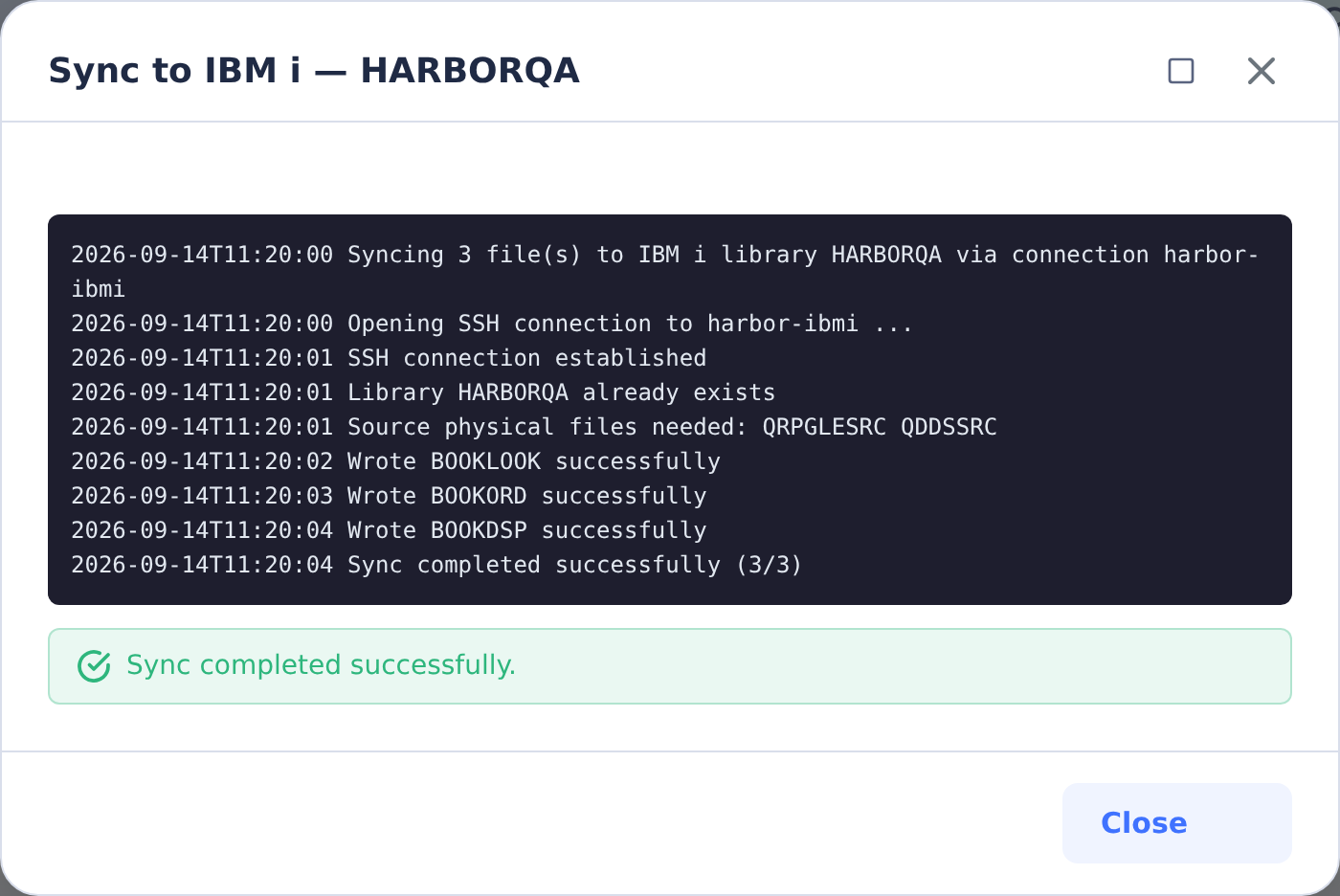
- A live log streams the sync progress.
The library is created on the IBM i system if it doesn't already exist. Source physical files are created as needed inside the library.
Syncing from the Task Page
Sync can also be run directly from the task detail page, at any point after the task has produced changes — before approval, after approval, or repeatedly in between.
- Click the Sync to IBM i / Deploy htdocs button (top-right actions). The button label depends on which kinds of files are in scope:
- Sync to IBM i — source members only.
- Deploy htdocs — Profound UI htdocs files only.
- Sync to IBM i & Deploy htdocs — both.
- Enter the library name when syncing source members.
- If the connection requires prompted credentials, enter your user profile and password.
- Select files from the file tree. The deploy htdocs target IFS path is shown in the dialog when applicable.
- Click Sync, Deploy, or Sync & Deploy to start.
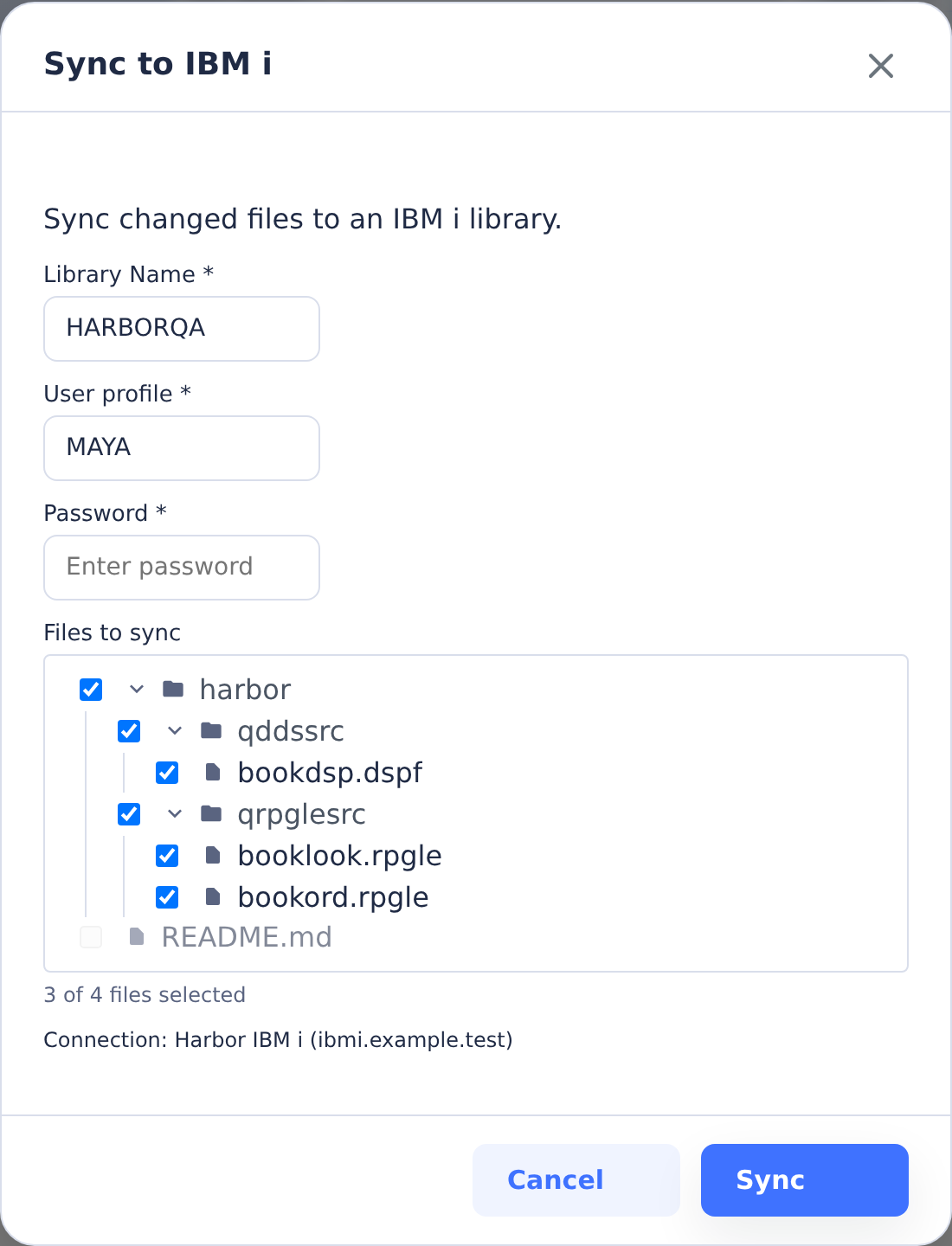
When both source sync and htdocs deploy run together, source sync runs first, then htdocs deploy.
The button appears when:
- The task container is running and no agent turn is in progress.
- The environment has an IBM i connection with Sync, Profound UI htdocs Files, or Agentic Display Files enabled.
- There are eligible changed files of the matching kind.
The button stays available after a successful sync so you can run the next round. Hover it to see when the task was last synced, to which library, and how many syncs it has had.
Syncing Across a QA Cycle
A change often needs more than one pass: sync to a test library, hand it to QA, get feedback, have the agent make further changes, sync again. That cycle can run for weeks or months, and CoderFlow supports it directly.
- Run the task and let the agent produce changes.
- Sync to IBM i into a QA library. No approval needed.
- QA tests on IBM i and reports back.
- Send a follow-up to the agent on the same task with the QA feedback. (Follow-ups need the task container running; start it from the task page if it has been stopped for inactivity.)
- Wait for the turn to finish, then sync again. Repeat from step 3 as many times as needed.
- When the change finally passes, Approve the task to commit and push the work to Git.
Each sync is recorded separately, so the cycle leaves a full audit trail — see Sync History.
Keeping the Task Alive
Two lifecycle behaviors matter over a long cycle:
- Containers stop when idle. By default, a task container is stopped after 2 hours of inactivity (48 hours if the task is pinned); administrators can configure the standard and optional post-turn idle thresholds. Stopping is not destructive — the container's files are preserved and you can start it again from the task page. Sync and follow-ups both require a running container.
- Stopped containers can be removed before approval. The default retention is 7 days, including for unapproved or pinned tasks. Approval + push or loser selection can make a stopped container eligible sooner; explicit rejection also attempts removal. Saved task history remains available after container removal, and Continue in New Container creates a fork for further work, but the old container can no longer run syncs or follow-ups.
For a long QA cycle, choose More actions → Protect container on the task page to preserve its existing container against automatic removal, and approve when the work passes QA. Protection does not prevent inactivity stopping or explicit removal.
Pin the task to keep it visible and use the 48-hour inactivity stop threshold. Pinning alone does not protect it from removal. See Container Lifecycle for retention settings and protection details.
Sync History and Logs
Every sync round is recorded on the task with its timestamp, target library, file count, the user who ran it, and whether it succeeded. Failed rounds are recorded too — those are usually the ones worth going back to. The most recent successful sync is shown in the task metadata panel; the full trail is available from the ibmi-sync-info API as syncHistory (up to the last 100 rounds).
Each round also writes its own log file, so a later round never overwrites an earlier one's log:
GET /tasks/:id/ibmi-sync-log— the most recent round (what the sync log link in the task metadata panel shows).GET /tasks/:id/ibmi-sync-log?syncId=...— one specific round, using asyncIdfromsyncHistory.
Profound UI htdocs deploy keeps the same trail under puiDeployHistory, with GET /tasks/:id/pui-deploy-log?deployId=... for a specific round.
File Selection
The dialog shows a tree of all files changed by the task. Files are pre-selected when their extension matches a known IBM i source type (RPGLE, CLLE, DSPF, PF, LF, PRTF, SQL, BND, MSGF, BNDDIR, etc.).
Files that can't be IBM i source members are disabled in the tree. The most common reasons are:
- Member name (filename without extension) longer than 10 characters.
- Source physical file name (parent directory) longer than 10 characters.
- A non-source extension (
.md,.json,.yml,.html,.css,.js, image and archive formats). - A non-source filename (
.gitignore,Dockerfile,Makefile, etc.).
Profound UI htdocs files (any file under htdocs/profoundui/ in the task workspace) are always shown in the deploy section, never the source-member section, even when no deploy connection is configured.
How Files Map to Source Members
The sync script derives the source physical file, member, and source type purely from the file path:
| Path part | Becomes |
|---|---|
| Parent directory (uppercased) | Source physical file (SRCPF) |
Filename stem (uppercased, before first .) | Member name |
| File extension (uppercased) | Source type |
Example: app/qrpglesrc/customer.rpgle → LIBRARY/QRPGLESRC(CUSTOMER) source type RPGLE.
The library and source physical file are created automatically if they don't exist:
CRTLIB LIB(<library>) TEXT('CoderFlow task <task-id>')CRTSRCPF FILE(<library>/<srcpf>) RCDLEN(112)
If the member exists, sync updates its source type with CHGPFM and overwrites its content. If it doesn't exist, sync creates it with ADDPFM. Member content is written through Rfile -Qw so newlines and column 1 alignment match IBM i conventions.
Member Text Descriptions (@MBRTEXT)
Sync looks for an @MBRTEXT: comment in the first five lines of each file and, when present, sets it as the member's TEXT() description (truncated to 50 characters). The comment syntax depends on the source type — for example, /* @MBRTEXT: ... */ for CL, // @MBRTEXT: ... for ILE RPG, or * @MBRTEXT: ... in column 7 for DDS and fixed-format RPG.
This is the round-trip companion to the Insert member text descriptions option in Import IBM i Sources. When that option imports a member, the original IBM i TEXT() description is preserved as an @MBRTEXT: line; sync reads that line back and re-applies it to the member.
Files without an @MBRTEXT: line are synced with an empty TEXT() description.
Source Member Collisions
If two selected files would resolve to the same (SRCPF, MEMBER) pair — for example qrpglesrc/foo.rpgle and qrpglesrc/foo.dspf both target QRPGLESRC/FOO — sync rejects the request before transferring anything. Either rename one of the files or unselect one in the dialog.
Rich Display Files (.json)
Rich Display files (Profound UI EJS-template .json files and traditional RDF .json files) live in the repo as JSON but on IBM i must exist as DSPF source members containing DDS. When sync sees a .json file selected for sync, it:
- Reads the file from the task container.
- Classifies it as EJS or RDF.
- Converts it to DDS using
@profoundlogic/codermake. - Stages the resulting
.dspffile inside the container. - Syncs the staged
.dspfas a regular DSPF member.
.json files that aren't recognized Rich Displays are dropped with a warning in the sync log. The original .json is left untouched in the repo — only the converted DDS is synced. If conversion fails, the warning explains why.
Profound UI htdocs Deploy
When the IBM i connection has the Profound UI htdocs Files or Agentic Display Files feature enabled, files under htdocs/profoundui/ in the task workspace can be deployed to the IBM i IFS. The connection's PUI htdocs Path (for example /www/myinstance/htdocs) is the deploy root; the path below htdocs/ in the workspace is preserved on the target.
For example, with pui_htdocs_path = /www/myinstance/htdocs:
| Workspace path | IFS target |
|---|---|
app/htdocs/profoundui/userdata/css/theme.css | /www/myinstance/htdocs/profoundui/userdata/css/theme.css |
app/htdocs/profoundui/userdata/ui/login.html | /www/myinstance/htdocs/profoundui/userdata/ui/login.html |
Only files under htdocs/profoundui/ are eligible. Anything outside that directory is ignored for deploy (and goes through the normal source-member sync path if eligible).
Stale Indicators
If the task completes a new turn after the last sync (a follow-up that produced more changes), the sync is marked stale, and the task page notes that there is new work since the last sync. The same applies to deploy htdocs.
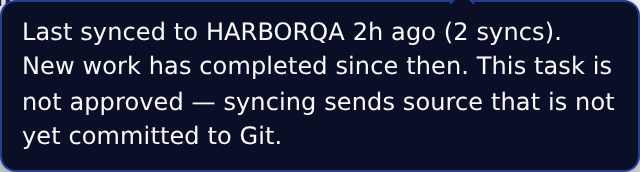
Staleness is a hint, not a gate — the Sync to IBM i button is available whether or not the last sync is stale, because there are other reasons to re-run one (a partially failed sync, a second target library, or files edited by hand in the container).
Each run sends the files you select from the task's changed-file list. A previous successful sync does not remove those files from the list, so you can send them again or choose a different target library.
For Profound UI deploy, the same metadata is recorded as for sync.
Authentication and Authorization
Sync runs bash sync_to_ibmi.sh inside the task container, which opens an SSH connection back to IBM i. Authentication depends on the credentials mode:
- Connection mode — uses the SSH user and key configured on the connection. No password is sent.
- Prompt mode — uses
sshpasswith the prompted user and password. The password is held in container memory only for the SSH handshake and is unset immediately after the master connection opens.
In both modes the IBM i user profile must have authority to:
- Create the target library (
CRTLIB) — or*USEand*ADDon a pre-existing library. - Create source physical files (
CRTSRCPF) and members (ADDPFM) in the library. - Run
Rfilefrom QShell to write member content.
If authentication fails, the sync log reports the failure and the operation exits with a distinct error so the UI can prompt for credentials again.
Notes
- Sync runs over a single multiplexed SSH connection, so successive operations within one sync don't pay multiple TCP/auth round-trips.
- Sync to IBM i is task-scoped — there is no environment-wide bulk sync. To sync across tasks, sync each task individually.
- Sync writes only the files you select. It does not delete members on IBM i for files removed from the repo; member deletion is a manual operation.