AI Provider Authentication
AI Provider Authentication connects CoderFlow to Claude (Anthropic), Codex (OpenAI), Gemini (Google), Bob (IBM), Grok (xAI), and Kimi (Moonshot AI) using OAuth or API-key accounts. This enables agents to run tasks using your existing subscriptions to these services without sharing raw credentials with users.
Note: A Claude subscription (OAuth) can run tasks, but cannot power server-side API-backed features: Ask CoderFlow help assistant, automatic task names, setup repository commit messages, objective drafts, automatic model routing, and fork handoffs. Add a server-wide API-key account for the selected Utility AI provider; Ask CoderFlow specifically requires a server-wide Claude API-key account. Personal API keys do not enable these server-wide features.
Overview
CoderFlow supports multiple accounts per provider, allowing teams to:
- Connect different accounts for different purposes (e.g., production vs. development)
- Share provider access across the team without sharing credentials
- Switch between accounts as needed
- Automatically refresh tokens to maintain continuous access
Provider authentication is configured globally and applies to all environments. The active account or the configured round-robin pool for each provider is used when launching tasks, and you can leave a provider with no active account selected.
Connecting Accounts
Navigate to Server Settings → AI Providers to manage AI provider accounts.
Adding an Account
- Click Add Account next to the provider you want to connect (Claude, Codex, Gemini, Bob, Grok, or Kimi)
- Optionally enter a label to identify this account (e.g., "Production", "Team Account")
- Click Open Sign-In Page to open the provider's authentication page
- Complete the sign-in process in your browser:
- Claude: Sign in and copy the authorization code displayed
- Gemini: Sign in and approve, then copy the authorization code shown on the Antigravity page (pasting the full callback URL also works)
- Codex: Sign in and copy the URL from your browser's address bar after the redirect
- Grok: Sign in on the displayed x.ai device-code page, confirm the user code, then return to CoderFlow and click I've signed in
- Kimi: Sign in on the displayed kimi.com device-code page, confirm the user code, then return to CoderFlow and click I've signed in
- Paste the code or URL into CoderFlow and click Complete Sign-In
The account will appear in your provider list. If this is your first account for that provider, it becomes the active account automatically.
Adding an API Key Account
API-key accounts are useful when you want CoderFlow to inject provider API keys into task containers or use provider APIs for helper features. Click Add Account, choose the API Key tab, enter a label and key, then save the account.
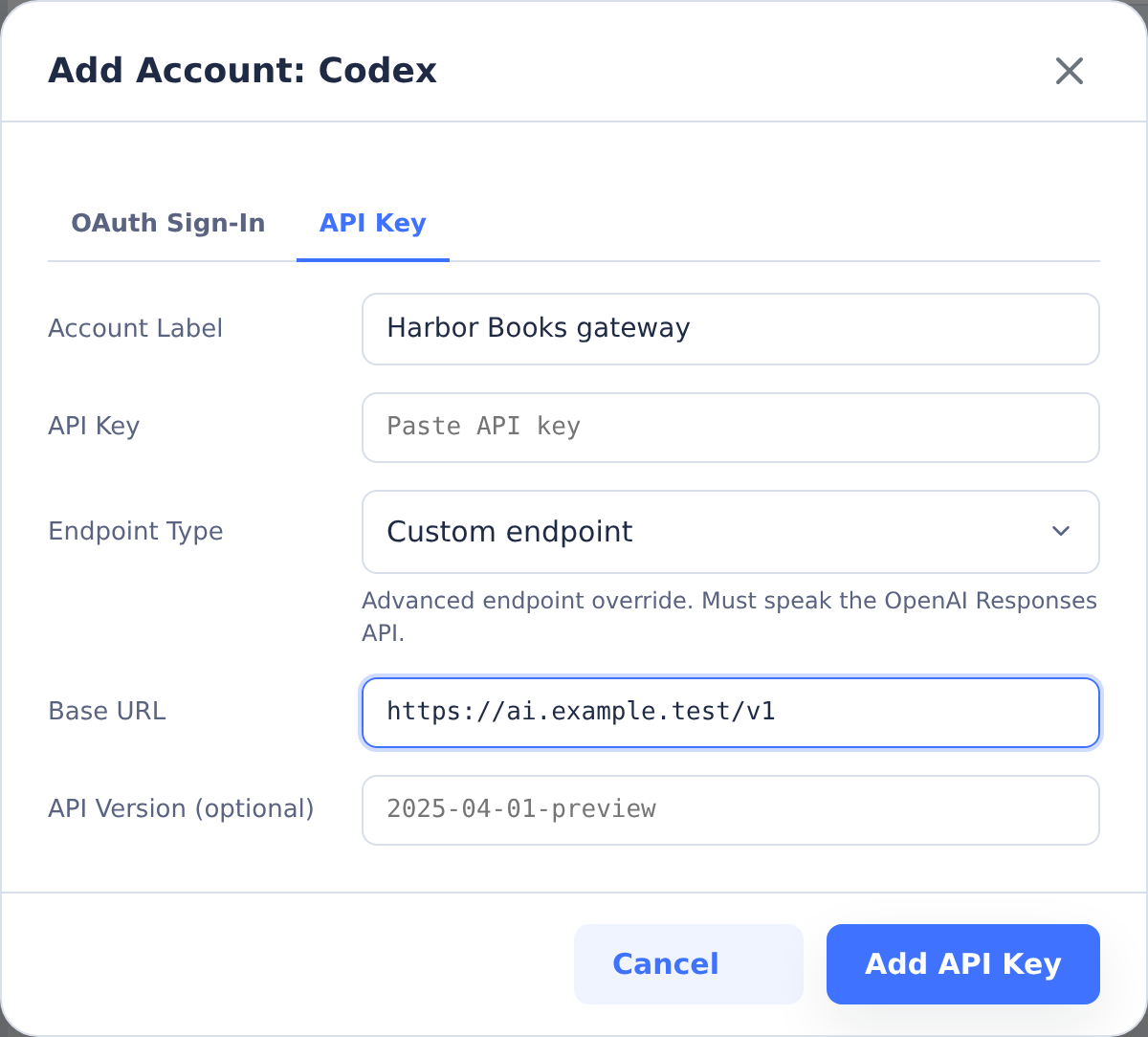
API-key accounts can also use a Custom Endpoint. Choose Custom endpoint from Endpoint Type and enter the endpoint's Base URL. Codex and Gemini accounts also accept an optional API Version. CoderFlow normalizes the endpoint and only sends custom endpoint environment variables when that API-key account is selected for the provider.
Common custom endpoint uses include:
- Azure or proxy-hosted Responses-compatible endpoints for Codex
- Anthropic-compatible gateways or on-prem proxies for Claude
- Gemini-compatible gateways
- Bob Shell endpoints that should receive
BOBSHELL_API_BASE_URL - The Moonshot Platform API or another Kimi-compatible Chat Completions endpoint for Kimi
Custom endpoints apply to task execution and to API-backed helpers such as task-name or commit-message generation when the helper uses that provider.
Endpoint Type Presets
Codex API-key accounts expose Endpoint Type presets so CoderFlow can build the Codex CLI provider config correctly. Codex CLI only speaks the OpenAI Responses API — chat-completions support was removed upstream in early 2026 (discussion #7782). All presets therefore wire to responses:
- Default provider endpoint: Use the Codex CLI's built-in provider behavior.
- Responses-compatible hosted: For hosted endpoints that speak the OpenAI Responses API. In practice this means a LiteLLM proxy in front of OpenRouter / Together / Groq / Fireworks, or any other Responses-speaking gateway. Direct OpenRouter/Together/etc. URLs no longer work because they only speak Chat Completions.
- Local Responses-compatible: For local servers that speak the Responses API. LM Studio is the most common option (native Responses support, default port 1234). vLLM and Ollama do not yet support Responses; front them with a LiteLLM proxy.
- Azure OpenAI: For Azure OpenAI resources. CoderFlow rewrites the runtime base URL to the Codex CLI
/v1/responsesshape automatically. API version is optional metadata; the v1 API surface does not require it. - Custom endpoint: Generic advanced override. The URL must speak the OpenAI Responses API.
If a hosted OSS provider (OpenRouter, Together, Groq, DeepInfra…) is what you want to use, see Walkthrough A below.
Before You Go Down the OSS Path
CoderFlow's first-class path is the Claude / Codex / Gemini subscriptions — they deliver the best results for the kind of multi-file, agentic coding work CoderFlow exists to support. Pursue open-source models only when you have a specific reason: a compliance requirement against the major providers, an air-gapped environment, or a per-task cost target the hosted subscriptions don't meet. For everyone else, OSS will be a downgrade in tool-call quality, multi-step planning, and refactor success rates.
If you've decided OSS is the right call, the walkthroughs below cover the two realistic paths.
Walkthrough A: Hosted OSS via OpenRouter (LiteLLM in front)
Use this path to drive frontier-class OSS models (Qwen3-Coder, DeepSeek V3.1, Kimi K2, GLM 4.5) without owning GPU hardware. This is the production-realistic option for OSS use. Since Codex requires the Responses API but OpenRouter only speaks Chat Completions, you run a small LiteLLM proxy that translates between them. LiteLLM lives outside CoderFlow — typically as a single Docker container on the same host as the server.
This walkthrough configures the server-wide Codex account and model. Per-user overrides live under Profile Settings → AI Providers (same forms, scoped to the signed-in user); per-environment model overrides live under Environments.
- Get an OpenRouter API key. Sign up at openrouter.ai, add credit, and create a key (format:
sk-or-…). Frontier OSS models run cents-per-task; budget accordingly for sustained use. - Write a LiteLLM config at
litellm-config.yaml:Themodel_list:- model_name: qwen3-coderlitellm_params:model: openrouter/qwen/qwen3-coderapi_key: os.environ/OPENROUTER_API_KEY- model_name: deepseek-v3.1litellm_params:model: openrouter/deepseek/deepseek-v3.1api_key: os.environ/OPENROUTER_API_KEYmodel_namekeys are what you'll type in CoderFlow's Codex Model field; thelitellm_params.modelvalues are OpenRouter's identifiers. - Run LiteLLM as a container:
docker run -d --name litellm -p 4000:4000 \-e OPENROUTER_API_KEY=sk-or-... \-v $PWD/litellm-config.yaml:/app/config.yaml \ghcr.io/berriai/litellm:main-latest \--config /app/config.yaml --port 4000
- Add a Codex API-key account in CoderFlow. Open Server Settings → AI Providers, click Add Account next to Codex, and choose the API Key tab. Label it
OpenRouter (LiteLLM), then configure the endpoint fields:- Endpoint Type:
Local Responses-compatible - Base URL:
http://host.docker.internal:4000/v1 - API Key: any non-empty string unless you configured a master key in LiteLLM
- Endpoint Type:
- Save and Test. Connection-successful means task containers can reach LiteLLM and LiteLLM can reach OpenRouter.
- Use for tasks, then in Server Settings → Models enter one of your LiteLLM
model_namealiases (e.g.qwen3-coder) in the Codex Model field. Save. - Launch a task with the Codex agent. Start with a small, low-stakes task to validate tool calls round-trip cleanly through the LiteLLM bridge before relying on it.
Caveats:
- LiteLLM is separate infrastructure your team has to run somewhere. The one-container setup above is fine for a single developer or small team; multi-user deployments may want auth and observability layered on.
- LiteLLM's Responses→Chat-Completions translation is not explicitly documented for OpenRouter as an upstream. The pieces fit on paper (LiteLLM exposes
/v1/responsesand auto-bridges to chat-completions providers, OpenRouter is OpenAI-style), but tool-call fidelity through the bridge isn't guaranteed. Verify with a trivial task first. - Some OSS models do not produce well-formed tool calls regardless of the proxy. Qwen3-Coder, DeepSeek V3.1, and Kimi K2 are the most reliable choices for agentic coding in early 2026.
Walkthrough B: Local OSS via LM Studio (Smoke Tests / Air-Gapped)
This path is useful for smoke-testing the Responses-API wiring, running offline or air-gapped, or handling trivial single-file tasks on local hardware. It is not production-grade for serious coding work unless you're running a workstation-class machine (M3 Max 128 GB unified, RTX 4090 + 64 GB RAM, etc.) with a 30B+ quantized coding model — and even then, expect a meaningful capability gap vs. the hosted frontier models from Walkthrough A or the Claude / Codex subscriptions.
LM Studio speaks the Responses API natively, so no proxy or translation layer is needed.
- Install LM Studio from lmstudio.ai on the machine that will host the model (typically the same host that runs CoderFlow).
- Download a coding model in LM Studio. Pick the largest variant your hardware can fit comfortably — Qwen3-Coder 32B-quantized is the practical floor for tool-call reliability; 7B-14B models will frequently mangle agentic flows.
- Start the server. In LM Studio, switch to the Developer tab and click Start Server. By default it listens on
http://localhost:1234/v1. Note the model identifier shown in the loaded model card — you'll need it in step 6. - Add a Codex API-key account in CoderFlow. Open Server Settings → AI Providers, click Add Account next to Codex, and choose the API Key tab. Give it a label like
LM Studio, then configure the endpoint fields:- Endpoint Type:
Local Responses-compatible - Base URL:
http://host.docker.internal:1234/v1(usehost.docker.internalso task containers can reach the LM Studio server on the host) - API Key: any non-empty string — LM Studio accepts anything by default
- Endpoint Type:
- Save the account, then Test it. A green "Connection successful" result confirms task containers can reach LM Studio.
- Select Use for tasks for the account, then go to Server Settings → Models and enter the LM Studio model ID in the Codex Model field. Click Save.
- Launch a task with the Codex agent. The first request will take a few seconds while LM Studio warms the model up.
Account Labels
Labels help identify accounts when you have multiple connected. Good label examples:
- Production
- Development
- Team Shared
- Personal
If you don't provide a label, the account email address is used when available. For Claude (which doesn't expose email through OAuth), a timestamp-based label is generated.
Managing Accounts
Setting the Active Account
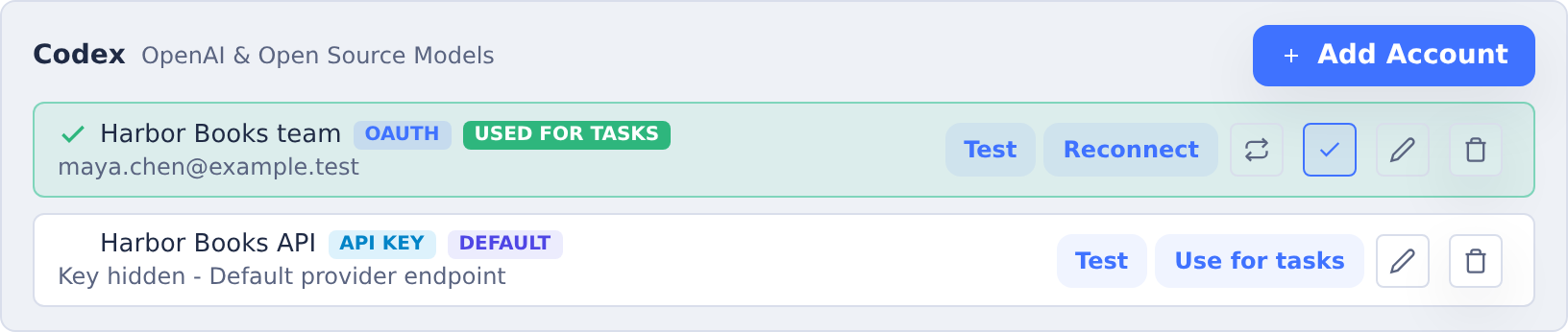
The active account (marked with a green checkmark and "Used for tasks" badge) is used for all task execution with that provider.
To change the active account, click Use for tasks next to the account you want to activate. Click the active account's checkmark button again to clear the selection entirely.
Changing or clearing the active account immediately affects new task launches. Running tasks continue using the account they started with.
Round-Robin OAuth Accounts
OAuth accounts can be added to a provider's round-robin pool. Click the round-robin button next to each OAuth account you want CoderFlow to rotate through. API-key accounts cannot participate in round-robin selection.
For task launches, CoderFlow resolves accounts in this order:
- A user- or task-specific preferred account, when one is selected
- The active API-key account
- The next OAuth account in the round-robin pool
- The active OAuth account
The round-robin cursor advances as task credential profiles are prepared. This spreads new tasks across a team account pool while preserving the ability to pin a single account by making it active and leaving round robin disabled.
Renaming Accounts
- Click the Edit (pencil) icon next to the account
- Enter a new label
- Click Save
Removing Accounts
- Click the Delete (trash) icon next to the account
- Confirm the removal
If you remove the active account, no other account is auto-selected. Tasks using that provider will fail until you choose another active account or connect a new one.
Token Refresh
OAuth tokens expire periodically. CoderFlow automatically refreshes tokens before they expire. Token refresh is managed by the Agent Keep-Alive service.
To configure token refresh, navigate to Server Settings → Agent Keepalive:
- Enable/Disable: Toggle automatic refresh for each provider
- Refresh Interval: Set how often to check and refresh tokens (1-24 hours)
- Status: View the last refresh time and next scheduled refresh
Failed refreshes are retried up to 3 times. If token refresh fails repeatedly (e.g., if you revoked access from the provider), you may need to reconnect the account.
Provider-Specific Notes
Claude (Anthropic)
- Uses Anthropic's OAuth flow with PKCE for security
- Displays an authorization code that you copy back to CoderFlow
- Email address is not available through OAuth (labels are especially useful)
- Access includes Claude Code inference capabilities
- An effort level (low, medium, high, xhigh, max) can be set per user, per environment, or per task; tasks pass it to the Claude Code CLI via
--effort(env var:CLAUDE_CODE_EFFORT_LEVEL) - The model can be set to Auto (Task Classifier) to let CoderFlow choose per task — see Automatic Model Selection
Codex (OpenAI)
- Uses OpenAI's OAuth flow with PKCE
- Redirects to a URL that you copy back to CoderFlow
- Email is extracted from the OAuth token
- Provides access to ChatGPT subscription models
- A reasoning level can be set per user, per environment, or per task; the valid values depend on the selected model
- The model can be set to Auto (Task Classifier) to let CoderFlow choose per task — see Automatic Model Selection
Gemini (Google)
- Tasks run the Antigravity CLI (
agy), Google's native-Go replacement for the deprecated Gemini CLI (Google ends OAuth Gemini CLI access on June 18, 2026) - Uses agy's own Google OAuth client with PKCE. After you sign in and approve, the Antigravity page displays an authorization code that you copy back to CoderFlow
- Email is fetched from Google's user info endpoint
- CoderFlow keeps the access token fresh and injects it into agy's token store, so agy never refreshes inside the container
- Re-link required: agy's backend only accepts tokens issued by agy's own OAuth client, so Gemini accounts connected before this change must be reconnected (the old Gemini CLI tokens are rejected)
- The Gemini Model and Gemini Effort Level settings are passed to agy as a pinned model slug (for example
gemini-3.8-flash-high). Gemini 3.6, 3.7 and 3.8 Flash offer medium/high, 3.5 Flash offers medium, and Gemini 3.1 Pro offers high (the slugs Antigravity documents); when no effort level is set, agy's default (medium, or high for 3.1 Pro) is used. Model IDs saved before the Gemini 3.x catalog (such asgemini-2.5-pro) run as Gemini 3.8 Flash. The live activity feed is reconstructed from agy's on-disk transcript
Bob (IBM)
- Uses IBM Bob Shell authentication
- Redirects through the Bob backend, which handles the OAuth flow
- The test action validates the account by refreshing the Bob token
- Task containers receive Bob credentials as a
.bobprofile; CoderFlow mounts the selected profile at/mnt/boband copies it to/home/coder/.bob - If no selected provider profile directory exists and the server has a
~/.bobdirectory, CoderFlow can mount that directory as a fallback
Grok (xAI)
- Uses xAI's OIDC device-code flow (auth.x.ai), so no callback URL is required
- CoderFlow displays both a sign-in URL and a short user code; sign in on any device, confirm the code, then click I've signed in
- Email and name are fetched from the OIDC userinfo endpoint
- Tokens are refreshed automatically; the test action validates by attempting a refresh
- Task containers receive Grok credentials as a
.grokprofile; CoderFlow mounts the selected profile at/mnt/grokand copies it to/home/coder/.grok - An effort level can be set per account from the provider settings; tasks pass it to the Grok CLI via
--effort. Valid values depend on the selected model:grok-4.7(the current flagship) andgrok-4.6acceptlow,medium,high,xhigh(defaulthigh);grok-4.5acceptslow,medium,high(defaulthigh);grok-4.3acceptslow(default),medium,high;grok-4.20-multi-agent-0309acceptslow,medium,high,xhigh(controls parallel agent count rather than depth)
Kimi (Moonshot AI)
- Uses the official Kimi Code device-code flow (auth.kimi.com), so no callback URL is required
- CoderFlow displays a sign-in URL and a short user code; sign in on any device, confirm the code, then click I've signed in
- The test action validates the account against Kimi's coding API
- Task containers receive Kimi credentials as a
.kimi-codeprofile; CoderFlow mounts the selected profile at/mnt/kimiand copies it to/home/coder/.kimi-code - Tasks run the official Kimi Code CLI in ACP (Agent Client Protocol) mode; follow-ups resume the same Kimi session when the effective model settings are unchanged
- The model is
k3on Kimi's managed coding API andkimi-k3on the Moonshot Open Platform; CoderFlow normalizes between the two aliases automatically based on the account's endpoint type - Kimi Code accounts can also select Kimi K2.8 Preview (
kimi-for-coding), which Moonshot describes as close to K3 with more efficient thinking. The Moonshot Open Platform has no K2.8 model ID, so custom endpoints should use K3 - A reasoning effort and a context window (256K standard; 1M on every Kimi Code plan for K2.8 Preview and on eligible plans for K3) can be set in Server Settings → Models, per account, per environment, or per task
CoderFlow maintains compatibility with Claude Code, Codex CLI, the Antigravity CLI (agy), Bob Shell, Grok Build, and Kimi Code by synchronizing the active account's credentials to the standard CLI credential files where applicable:
- Claude:
~/.claude/.credentials.json - Codex:
~/.codex/auth.json - Gemini (Antigravity CLI):
~/.gemini/antigravity-cli/antigravity-oauth-token - Bob:
~/.bob/credentials.json - Grok:
~/.grok/auth.json - Kimi:
~/.kimi-code/credentials/kimi-code.json
When you change the active account in CoderFlow, the CLI credential files are updated automatically. This allows you to use the CLI tools with the same account that CoderFlow is using.
Automatic Model Selection
Instead of picking a model yourself, you can select Auto (Task Classifier) in the Claude or Codex model picker. CoderFlow then sends the task's instructions to the server-wide Utility AI model (Claude Haiku by default), which rates the work as low, medium, or high complexity, and launches the task on the model configured for that tier. Out of the box the tiers map to:
| Complexity | Claude | Codex |
|---|---|---|
| Low — typo fixes, small config tweaks, single-file edits, simple lookups | Haiku 5.5 | GPT-6 Luna |
| Medium — a well-defined feature or bug fix, routine refactors, tests for existing code | Sonnet 5.5 | GPT-6 Sol |
| High — multi-file features, architectural or security-sensitive changes, debugging with an unclear cause | Opus 5.5 | GPT-6 Astra |
Auto is available anywhere a Claude or Codex model can be chosen: Server Settings → Models, a per-environment default, or a per-task override on the launch form. It is not offered for Gemini, Bob, Grok, or Kimi.
Classification happens once, when the task launches, and the task then records the concrete model it chose — the follow-up and resubmit forms show that model as the current selection rather than "Auto". Your effort or reasoning level selection is passed through unchanged.
Follow-ups. If you select Auto when sending feedback to a task, CoderFlow classifies that follow-up's own instructions and switches the task to the resulting model. A small follow-up on a task that started on Opus can therefore run on Haiku, and vice versa.
Requirements. Classification uses the server-wide Utility AI provider, model, and API-key account described in Automatic Names and Commit Messages. A Claude OAuth account cannot power it, and personal or task-specific accounts do not change its account selection.
If classification cannot run — no usable Utility AI API key, an unreachable endpoint, or an unreadable response — the task launches on the medium tier rather than failing. Check the server log for Task classifier fell back to the mid-tier model, which records the reason.
Choosing the models Auto may use
Administrators can change which model each tier launches in Server Settings → Models: expand Automatic model selection (Auto tiers) at the bottom of Task execution defaults. The section opens by itself when the Claude or Codex server default is Auto. Each of the three tiers has its own picker for Claude and for Codex; leaving a tier on Default keeps the built-in model shown in its label. The tiers save with the card's Save button.
Use this to narrow the range Auto chooses from. For example, to keep Auto from ever routing a coding task to Haiku, set the Claude Low tier to Sonnet 5; to let the hardest tasks use Fable, set the High tier to Fable 5.1. Picking the same model for two tiers is fine — that is how you express "never below Sonnet" or "never above Opus". A tier must name a model from the catalog; the save is rejected otherwise. The exception is Codex on a custom endpoint (LiteLLM, LM Studio, Azure), where any model ID the endpoint serves is accepted, as in the Codex Model field.
An environment can override the server-wide tiers, though there is no control for it in the environment editor yet. Add an auto_tier_models map to the environment's environment.json in the setup repository, keyed by agent and tier, for example { "claude": { "low": "claude-sonnet-5" } }. A tier that is absent inherits the server-wide choice, which in turn inherits the built-in default. The same catalog validation applies when the environment is saved through the API.
Only Auto is affected by these tiers. A model chosen explicitly for a task, environment, or server default always runs as selected, and the classifier itself keeps using the model configured in Server Settings → Models → Utility AI. To pin a task to a specific model, select that model instead of Auto.
Automatic Names and Commit Messages
CoderFlow uses provider APIs for these server-side features:
- Ask CoderFlow help assistant — answers questions about using CoderFlow; requires a server-wide Claude API-key account and configured documentation.
- Automatic task names — generates names from task instructions.
- Setup repository commit messages — generates commit messages in setup-repository git workflows, including Environments and Skills.
- Objective drafts — drafts objectives for task groups.
- Automatic model routing — classifies task complexity to choose a task model.
- Fork handoffs — prepares context for a forked task.
The last five features use Server Settings → Models → Utility AI, which selects the server-wide provider and model. On a fresh Essentials installation, the default is Claude Haiku. Utility AI supports Claude, Codex, Gemini, and Kimi. Ask CoderFlow has its own model setting and always uses Claude.
In Server Settings → AI Providers, click Add Account beside the required provider, choose API Key, and save the key. You can keep your OAuth account selected with Use for tasks; the API-key account can serve these helpers without becoming the task account. Utility AI uses the server's auxiliary account selection and its endpoint configuration. Personal API keys do not enable these server-wide features. Claude subscription OAuth cannot be used for them.
API usage for these helper features is typically low and billed separately from your subscription. Costs vary by usage and model.
Essentials onboarding
In Essentials setup → Bring your AI provider, an OAuth-only Claude setup shows a non-blocking notice when the server has no API-key account for Claude as the selected Utility AI provider. Add Claude API key opens the existing account dialog in Settings on its API Key tab. Return to the dashboard after saving; the wizard rechecks availability and removes the notice when a server key is available.
You can choose Continue or Skip for now without adding a key and still run tasks with your subscription. Add the key later to enable the API-backed features listed above. If you cannot manage server providers, ask a server administrator to add it.
Troubleshooting
"Provider not configured" Error
This error appears when launching tasks if no account is connected for the required provider, or if all connected accounts are currently unselected. Connect an account or mark one active in Server Settings → AI Providers.
Authentication Expired
If you see authentication errors during task execution:
- Check if the account still appears under AI Providers
- Try removing and re-adding the account
- Verify your subscription is still active with the provider
Token Refresh Failures
Check the server logs for refresh errors. Common causes:
- Provider subscription expired
- Access revoked from provider's settings
- Network connectivity issues
Re-authenticate by removing and re-adding the account to get fresh tokens.