Git Providers
Git Providers integrate with Git hosting services to provide automatic repository authentication. Once configured, agents can clone, fetch, and push to repositories without manual credential management.
Provider configuration is stored in git-providers.json in the server data directory (SERVER_DATA_PATH), with secret files under .git-provider-secrets in that directory. These secrets are encrypted at rest with the server's key, .user-secrets-key, in the server data directory. Existing plaintext secret files are converted when the host server starts; task-container App Servers read the files without migrating them. The dialog labels these credentials Saved securely.
Back up .git-provider-secrets/ together with .user-secrets-key. Without the original key, the encrypted secrets cannot be read, and re-entry is blocked while encrypted collections remain. The same key also protects personal secrets entered under Profile Settings → Secrets, personal IBM i passwords, Portal launch trust, MFA TOTP secrets, and the assistant telemetry endpoint and signing secret. Back up their files with the key too; see Lost server key. Older CoderFlow versions that predate Git provider encryption cannot read the encrypted credentials.
Lost server key
If .user-secrets-key is missing from the server data directory, an administrator should restore the original key from backup. If it cannot be restored, an administrator must complete these steps before credentials can be re-entered:
- Stop the server.
- In the server data directory (
SERVER_DATA_PATH), move.git-provider-secrets/aside without deleting it. Also moveuser-secrets.json,personal-ibmi-credentials.json, andportal-launch-trust.jsonaside if they exist. They share the same key, and Git provider saves will not create a new key while any of these encrypted collections remain. - Start the server.
- Re-enter the Git provider credentials in Settings → Git Providers; the next credential save creates a new key. Users must re-enter their personal secrets and IBM i passwords, and an administrator must set up Portal launch trust again.
- Keep the moved files in case the original key turns up. To bring the old values back, stop the server and restore that key together with its matching files, preserving the replacement key and files separately first.
After recovery with a new key, MFA users need an administrator TOTP reset and re-enrollment; CoderFlow has no recovery codes. Administrators must also re-enter the assistant telemetry endpoint and signing secret.
If the key file exists but a different valid key cannot decrypt a Git provider credential, re-entering that credential works without these steps.
Provider Types
Each provider type has its own setup process. GitHub providers are created through an automated wizard in CoderFlow. Azure DevOps providers require manual setup in the Azure Portal before adding the provider in CoderFlow.
GitHub
GitHub providers use GitHub Apps for authentication, providing fine-grained repository access without personal access tokens. CoderFlow automates the GitHub App creation process through a guided setup wizard.
Requirements
- You must be logged into GitHub before starting the setup wizard
- To install the app into an organization, you must be an organization owner
Supported Hosts
- github.com — Standard GitHub
- GitHub Enterprise Cloud — Hosted enterprise (*.ghe.com)
- GitHub Enterprise Server — Self-hosted enterprise instances
Permissions Requested
The GitHub App requests these permissions:
- Contents — Read and write (for clone/fetch/push)
- Metadata — Read-only (required by GitHub)
- Pull requests — Read and write
- Issues — Read and write
- Statuses — Read and write
- Checks — Read and write
Note: The Workflows permission is not included by default. Without it, GitHub rejects any push that adds or changes files under .github/workflows/ — in both credential modes. If agents will work on GitHub Actions workflows, see Allowing Changes to GitHub Actions Workflows.
For more details about GitHub Apps, see About GitHub Apps.
Setup Wizard
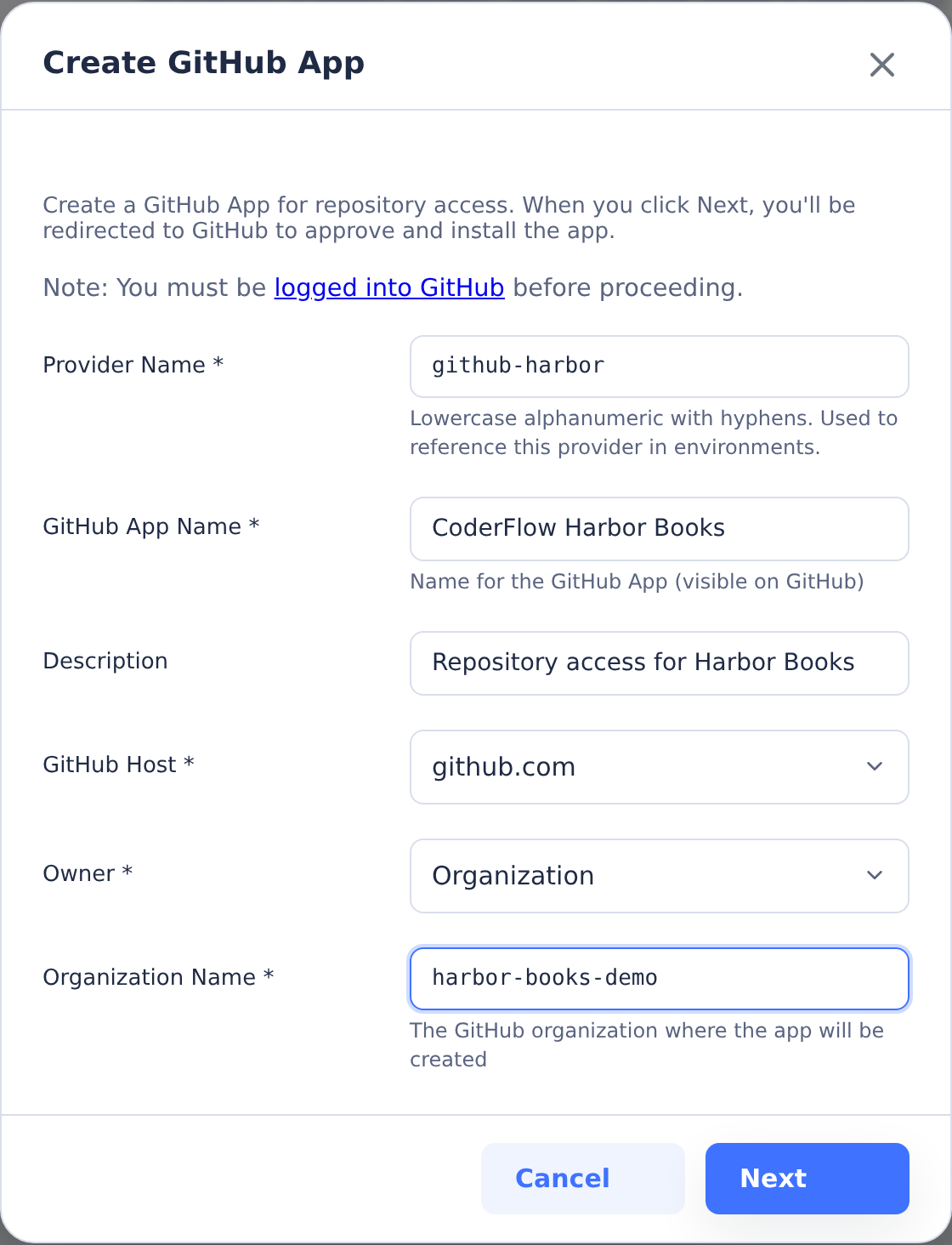
Navigate to Settings → Server Settings → Git Providers and click Add Git Provider to start the automated setup:
-
Configure the provider:
- Provider Name — Identifier for this provider in CoderFlow
- App Name — Name for the GitHub App (will appear in GitHub)
- Description — Optional description shown on the GitHub App page
- GitHub Host — Select github.com, GitHub Enterprise Cloud (ghe.com), or GitHub Enterprise Server
- Owner — Organization or Personal account
- Organization Name — Required if using an organization account
-
Create the GitHub App: Click Next to be redirected to GitHub. Review the app permissions and click "Create GitHub App" on GitHub to approve.
-
Install the App: After creation, you'll be redirected to install the app. Choose All repositories or select specific repositories, then click Install.
-
Complete: CoderFlow automatically captures all credentials and creates the provider. You'll see a success message with the new provider details.
After Setup
Use Test Connection on the provider to verify the configuration. You can edit the provider later to view or update settings.
Allowing Changes to GitHub Actions Workflows
GitHub treats workflow files (.github/workflows/*) as sensitive because they execute in CI with access to repository secrets. Any credential issued through a GitHub App — an installation token or a per-user token — is capped by the App's permissions, and the default permission set above does not include Workflows. A push that touches a workflow file is therefore rejected with an error like:
! [remote rejected] HEAD -> my-branch (refusing to allow a GitHub App to
create or update workflow `.github/workflows/deploy.yml` without `workflows`
permission)
This happens in both credential modes, even when the pushing user has permission to change workflow files on GitHub with their own account.
To allow it, grant the App the Workflows permission:
- On your GitHub host, open the App's settings: Settings → Developer settings → GitHub Apps → your CoderFlow app (under the organization or account that owns the App).
- Under Permissions & events → Repository permissions, set Workflows to Read and write, then save.
- GitHub sends the installation a permission-update request. An organization admin must approve it: Organization settings → GitHub Apps → Configure (next to the App) → review and accept the new permissions. Tokens keep the old permission set until this is approved.
- Retry the push (or the task approval). Credentials are minted fresh for every Git operation, so existing tasks pick up the new permission immediately — no need to relaunch them.
If a User Credentials push still fails after the installation approves the change, have the user disconnect and reconnect the provider in Profile Settings → Git Connections, then retry.
Security note: In User Credentials mode this grant does not let anyone do more than they already can on GitHub — the user's own permissions still apply (see How Permissions Are Enforced). In App Credentials mode it allows anyone who can run tasks against the repository to modify CI workflows, so keep the installation's repository access scoped accordingly and rely on branch protection and required reviews for sensitive repositories.
Azure DevOps
Azure DevOps providers use Service Principals (App Registrations) with OAuth 2.0 client credentials flow for authentication. This supports both Azure DevOps Services (cloud) and Azure DevOps Server (on-premises).
Prerequisites
- An Azure subscription with access to Microsoft Entra ID (formerly Azure AD)
- Owner or admin access to your Azure DevOps organization
- Permissions to create App Registrations in Microsoft Entra ID
In Azure Portal: Create App Registration
- Navigate to Microsoft Entra ID -> App registrations
- Click New registration
- Configure the application:
- Name — A descriptive name (e.g., "CoderFlow Git Access")
- Supported account types — "Single tenant only"
- Redirect URI — Select Web and enter
https://{your-coderflow-host}/api/git-oauth/callback
- Click Register
After creation, note the Application (client) ID and Directory (tenant) ID from the app's Overview page.
In Azure Portal: Create Credentials
Choose one authentication method:
Client Secret (simpler setup)
- In your App Registration, go to Certificates & secrets -> Client secrets
- Click New client secret
- Add a description and select expiration period
- Click Add and copy the secret value immediately (it won't be shown again)
Certificate (more secure, recommended by Microsoft)
- Generate a certificate with private key:
openssl req -x509 -newkey rsa:2048 -keyout key.pem -out cert.pem -days 365 -nodes -subj "/CN=CoderFlow"cat cert.pem key.pem > combined.pem
- In your App Registration, go to Certificates & secrets -> Certificates
- Click Upload certificate and upload
cert.pem - Keep
combined.pem(certificate + private key) for CoderFlow configuration
In Azure Portal: Add API Permission
- In your App Registration, navigate to API permissions > Add a permission > Azure DevOps > Delegated >
user_impersonation - Confirm adding the permission
This permission enables both app-level access (service principal) and user-level access (User Credentials mode).
In Azure DevOps: Grant Access
- Navigate to your Azure DevOps organization:
https://dev.azure.com/{org} - Go to Organization settings -> Users
- Click Add users
- Search for your App Registration by name or client ID
- Add it with the appropriate access level:
- Basic — For read/write access to repositories
- Stakeholder — For read-only access
- Optionally, add the Service Principal to specific project teams for granular access
For more details, see Use service principals in Azure DevOps
The steps above correspond to the Implementation guide sections:
- Step 1: Create your identity
- Option A: Create a service principal (application registration)
- Step 2: Add the identity to Azure DevOps
- Step 3: Configure permissions
In CoderFlow: Add the Provider
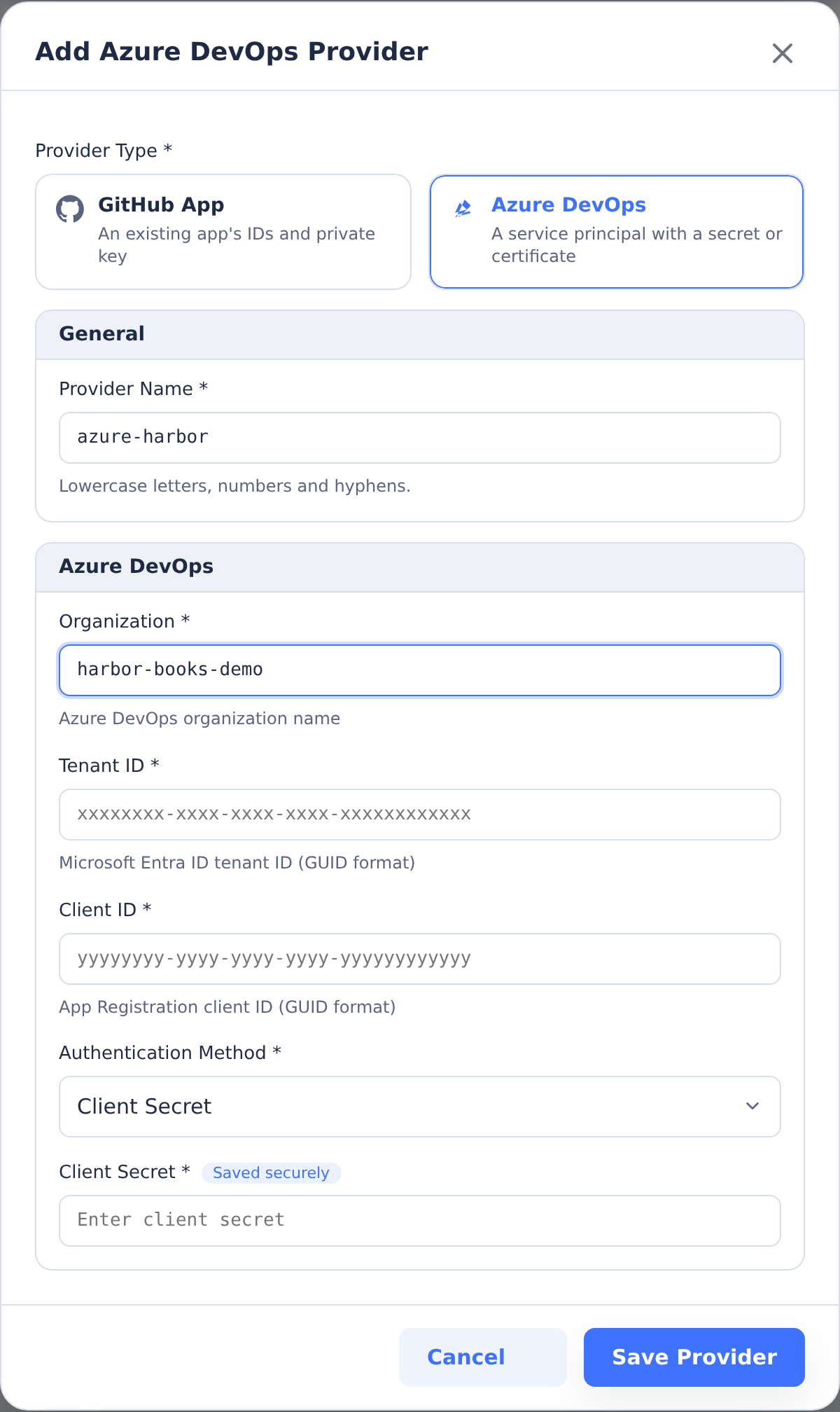
Navigate to Settings → Git Providers and click Add Git Provider, then choose Azure DevOps. The provider form starts with Provider Type cards for GitHub App and Azure DevOps, with Azure DevOps already selected from the type picker. Configure these fields below the cards:
- Provider Name — Identifier for this provider (lowercase, alphanumeric, hyphens)
- Organization — Your Azure DevOps organization name
- Tenant ID — Directory (tenant) ID from Azure Portal (GUID format)
- Client ID — Application (client) ID from Azure Portal (GUID format)
- Authentication Method:
- Client Secret — Enter the secret value from Azure Portal
- Certificate — Upload the PEM file containing both certificate and private key
After adding the provider, open it for editing and use Test Connection to verify the configuration. The type cards are hidden when editing, and the provider type cannot be changed. Leave a saved secret field blank to keep its existing value when keeping the same authentication method. Changing Authentication Method requires the new client secret or certificate; without it, the update is rejected and nothing changes. Save Provider shows validation errors beside the affected fields.
Using Providers in Environments
To add a repository using a Git Provider:
- Open an environment and go to the Repositories tab
- Click Add Repository
- Select a Git Provider from the dropdown
- Choose a repository from the list of repos the provider can access
See Environments - Repositories for more about repository configuration.
Authentication
Once a repository is associated with a Git Provider, authentication is automatic in all contexts:
- Builds — Repositories are cloned automatically with credentials injected by the build system.
- Tasks & Deployments — A built-in credential helper provides credentials transparently. Git operations (clone, fetch, push) work without additional configuration.
Repositories with a Git Provider ignore any PAT secrets configured for the same host.
Credential Modes
When adding a repository to an environment, you can choose how Git operations authenticate with the remote provider:
App Credentials (Default)
Authenticates with the Git provider using the application identity (GitHub App or Azure DevOps Service Principal).
- All pushes appear in provider audit logs as the app
- Provider-side rules (branch protection, required reviewers) see the app as the actor
- Simplified setup—no per-user configuration needed
User Credentials
Authenticates with the Git provider using the individual user's personal account via OAuth.
- Pushes appear in provider audit logs as the individual user
- Provider-side rules see the actual user as the actor—useful for branch protection policies that restrict who can push
- Requires users to connect their Git account before running tasks Note: Commit authorship (the name and email in the git log) is always set to the CoderFlow user, regardless of credential mode. Credential mode only affects how CoderFlow authenticates when communicating with the remote provider.
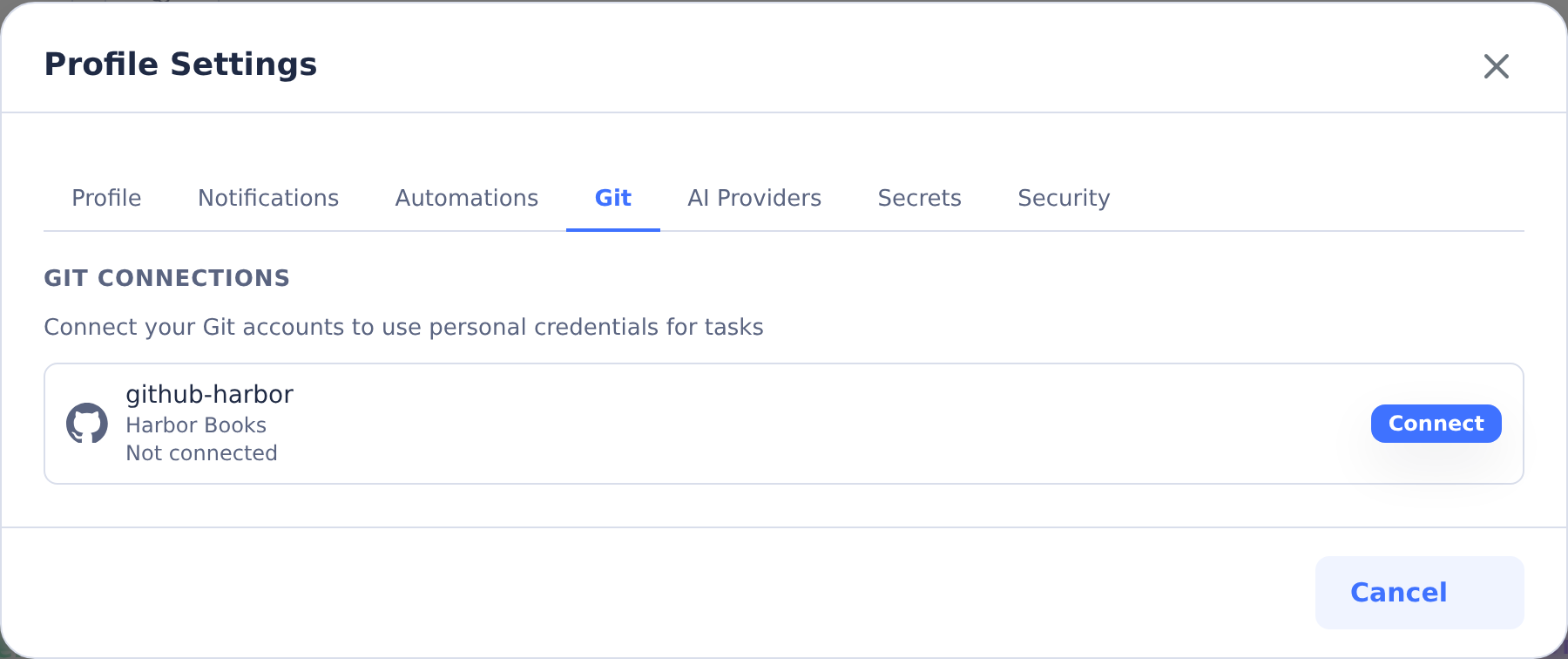
To use User Credentials, users must first connect their Git account in Profile Settings → Git Connections (see Connecting Your Git Account).
When a user attempts to run a task with User Credentials but hasn't connected their Git account, they'll be prompted to connect before the task can proceed.
Automation note: Shared environment automations use the configured app/provider identity for repository access. Personal automations run in their owner's credential context, so a repository configured for User Credentials uses that owner's connected Git account. Credentials are resolved again when each run starts; they are not stored in the automation definition.
How Permissions Are Enforced
Task containers never hold long-lived Git credentials. A built-in credential helper requests a short-lived credential from the CoderFlow server for each Git operation, and the server mints the right kind of token for the repository's credential mode:
Both token types are issued through the same GitHub App, so the App's permission set and the installation's repository access always apply — they are the ceiling for every operation. User Credentials adds a third check on top: the user's own GitHub permissions. Effective access in user mode is the intersection of all three, which means a user can never do more through CoderFlow than they could do on GitHub directly.
Two practical consequences:
- Provider-side errors can name the GitHub App even in User Credentials mode (for example, the workflow file rejection). This does not mean CoderFlow fell back to App Credentials — the push is still made and attributed as the user; the App's permissions are simply one of the gates it passes through.
- Broadening what users can do sometimes requires broadening the App, even when the users already hold that right on GitHub themselves.
Azure DevOps follows the same layered model with its Service Principal and delegated user tokens.
Connecting Your Git Account
Users can connect their personal Git accounts to use User Credentials mode:
- Click your profile icon in the navigation bar
- Select Profile Settings
- Open the Git tab. In Git Connections, click Connect next to a provider
- Authorize CoderFlow in the Git provider's OAuth flow
- After authorization, you'll be returned to CoderFlow
Connected accounts can be disconnected at any time from the same screen. Disconnecting revokes the OAuth token—you'll need to reconnect to use User Credentials for that provider again.
Note: Only providers that support User OAuth appear in the Git Connections section.
Troubleshooting
Push rejected: "refusing to allow a GitHub App to create or update workflow"
! [remote rejected] HEAD -> my-branch (refusing to allow a GitHub App to
create or update workflow `.github/workflows/deploy.yml` without `workflows`
permission)
The task's changes include a GitHub Actions workflow file, and the GitHub App does not have the Workflows permission. This occurs in both credential modes — User Credentials tokens are also capped by the App's permissions (see How Permissions Are Enforced). Grant the permission and approve it on the installation, then retry the push or approval: Allowing Changes to GitHub Actions Workflows. Nothing is lost — the task's commit remains in its container until the push succeeds.
Push or clone fails with "Repository not authorized for this container"
The repository was added to the environment after the task's container was created, or the repository URL changed. Start a new task, or fork the task so it launches with a fresh container that includes the repository.
User Credentials task prompts "Git account not connected"
The repository is configured for User Credentials but the user launching the task has not connected their account for that provider. Connect it in Profile Settings → Git Connections (see Connecting Your Git Account) and run the task again.