Jira
Jira integration connects CoderFlow to your Atlassian Jira instance, allowing users to create tasks directly from Jira issues and post task results back as comments. This keeps your issue tracker in sync with the work CoderFlow performs.
Overview
When Jira is configured:
- Import issues — Create CoderFlow tasks or objectives from Jira issues. The issue summary, description, type, status, priority, assignee, and labels are pulled in as context for the agent.
- Import comments — Optionally import comments from the Jira issue to give the agent additional context from team discussions.
- Post results — After a task completes, post the summary back to the Jira issue as a comment.
- Search — Search Jira by text or issue key from the Web UI when creating tasks.
- Link tracking — Tasks and objectives display a Jira badge linking back to the source issue.
Jira configuration is global — it applies to all environments and users on the server.
Prerequisites
- A Jira Cloud instance (e.g.,
https://your-company.atlassian.net) - An Atlassian account or service account with access to the projects you want to import from
- A Jira API token for that account
Personal Accounts vs. Service Accounts
CoderFlow supports two authentication modes:
Personal account — Uses a personal Atlassian API token. API calls go directly to your site URL (e.g., https://your-company.atlassian.net). This is the simplest setup and works well for individuals or small teams.
Service account — Uses an Atlassian service account with a scoped API token. Scoped tokens (required by service accounts) cannot access the site URL directly. Instead, API calls must go through https://api.atlassian.com/ex/jira/{cloudId}, where cloudId is your Atlassian site's unique Cloud ID.
We recommend using a service account in production. When CoderFlow posts comments back to Jira, they appear under the account that owns the API token. A named service account (e.g., "CoderFlow") makes it clear that comments were posted by an automated tool rather than a team member.
Setting Up a Service Account
Atlassian provides built-in service account functionality through the Atlassian Admin console:
- Go to admin.atlassian.com and navigate to your organization's settings
- Create a service account (e.g., named "CoderFlow")
- Grant the service account access to the relevant Jira projects
- Create an API token for the service account
For details, see Manage API tokens for service accounts in the Atlassian documentation.
Finding Your Cloud ID
Service account setup requires your Atlassian Cloud ID — a unique identifier for your Jira site.
The CLI wizard will attempt to fetch the Cloud ID automatically from your site URL. If that fails, you can find it manually:
-
Go to admin.atlassian.com → Settings → Products and locate your site details
-
Or fetch it directly:
curl https://your-company.atlassian.net/_edge/tenant_infoThe response contains a
cloudIdfield.
Creating an API Token
For a personal account:
- Go to Atlassian API Tokens
- Click Create API token
- Give it a descriptive name (e.g., "CoderFlow")
- Copy the token — you won't be able to see it again
For a service account, create the API token through the Atlassian Admin console as described above.
The API token authenticates as the associated account. The integration will have the same project access as that account.
Setup
Jira can be configured from the Settings page in the Web UI, using the interactive CLI wizard, or by editing the configuration file directly.
Web UI Setup (Recommended)
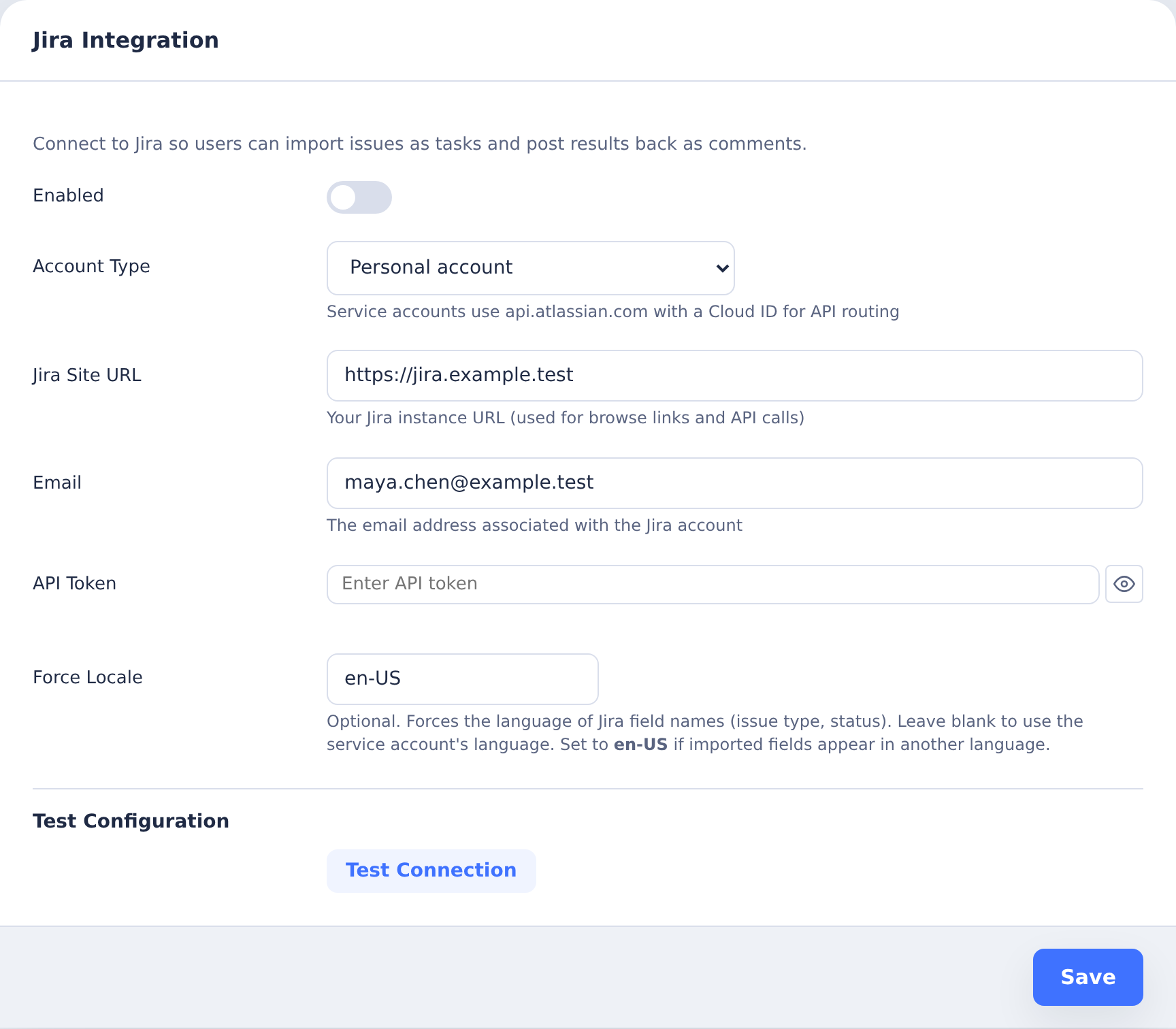
The easiest way to configure Jira is from the Settings page:
- Go to Settings → Jira
- Toggle Enabled on
- Choose your Account Type (personal or service account)
- Enter your Jira Site URL (e.g.,
https://your-company.atlassian.net) - For service accounts: click Fetch to auto-detect your Cloud ID, or enter it manually
- Enter the Email and API Token for the account
- Click Test Connection to verify the credentials
- Click Save
Changes take effect immediately — no server restart is needed. You can also use the Disconnect button to remove the configuration entirely.
CLI Setup
The server CLI provides a guided setup that tests the connection before saving:
coder-server jira connect
The wizard walks through the following steps:
- Account type — Choose between personal account (direct site URL) or service account (api.atlassian.com with Cloud ID)
- Jira Site URL — Your Jira instance URL (e.g.,
https://your-company.atlassian.net). Always required; used to generate browse links even when using api.atlassian.com for API calls. - Cloud ID (service accounts only) — The wizard will attempt to fetch this automatically. If that fails, you can enter it manually.
- Email — The email address for the account (for service accounts, this is the generated service account email, not your personal email)
- API Token — The Jira API token (for personal accounts, the wizard can open your browser to the token creation page)
- Test Connection — Verifies the credentials work before saving
On success, the configuration is saved and the server will use it automatically.
Manual Configuration
Create a jira.json file in your coder setup directory.
Personal account:
{
  "enabled": true,
  "baseUrl": "https://your-company.atlassian.net",
  "auth": {
    "email": "your-account@example.com",
    "apiToken": "your-api-token"
  }
}
Service account (with Cloud ID):
{
  "enabled": true,
  "baseUrl": "https://your-company.atlassian.net",
  "cloudId": "xxxxxxxx-xxxx-xxxx-xxxx-xxxxxxxxxxxx",
  "auth": {
    "email": "service-account@atlassian.net",
    "apiToken": "your-service-account-api-token"
  }
}
When cloudId is set, API calls go through https://api.atlassian.com/ex/jira/{cloudId}. The baseUrl is still required and is used to generate browse links (e.g., https://your-company.atlassian.net/browse/PROJ-123).
After creating or modifying the file, restart the server.
Environment Variables
The integration can also be configured via environment variables:
| Variable | Description |
|---|---|
JIRA_ENABLED | Set to true to enable Jira |
JIRA_BASE_URL | Jira site URL (e.g., https://your-company.atlassian.net) |
JIRA_CLOUD_ID | Cloud ID for service account mode (optional) |
JIRA_EMAIL | Account email (service account email for service accounts) |
JIRA_API_TOKEN | API token |
When JIRA_CLOUD_ID is set, API calls are routed through api.atlassian.com, enabling service account token support.
Managing the Integration
You can manage the Jira integration from the Settings → Jira page in the Web UI (configure, test, or disconnect), or use the CLI commands below.
CLI Commands
Use coder-server jira <command> to manage the integration:
| Command | Description |
|---|---|
connect | Interactive setup wizard |
status | Show current configuration |
test | Test the connection |
disconnect | Remove Jira configuration entirely |
Checking Status
coder-server jira status
Displays the configured site URL, Cloud ID (if set), API mode (personal or service account), email, whether the integration is enabled, and a partial view of the API token for verification.
Usage
Importing Issues in the Web UI
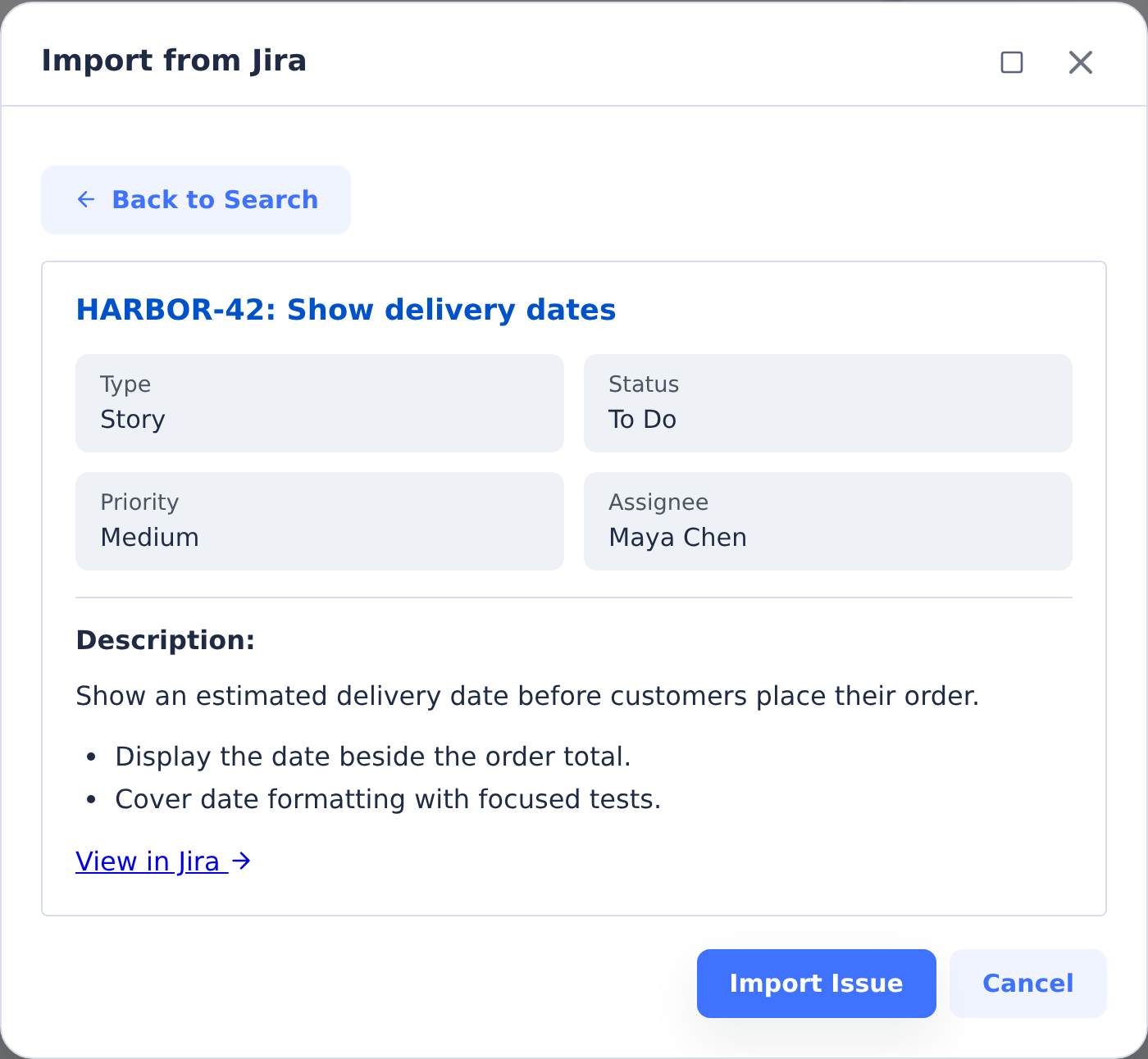
When Jira is enabled, an Import from Jira option appears in the task and objective creation menus:
- Click Import from Jira
- Search by issue key (e.g.,
PROJ-123) or text - Preview the issue details — summary, description, type, status, priority, assignee, and labels
- Click Import Issue to add the issue context to the composer, then review and submit the task or objective
The agent receives the full issue details as formatted instructions. If you provide additional instructions, they are appended to the Jira issue content.
Comments from the Jira issue can also be imported to provide the agent with additional context from team discussions.
Jira Badge
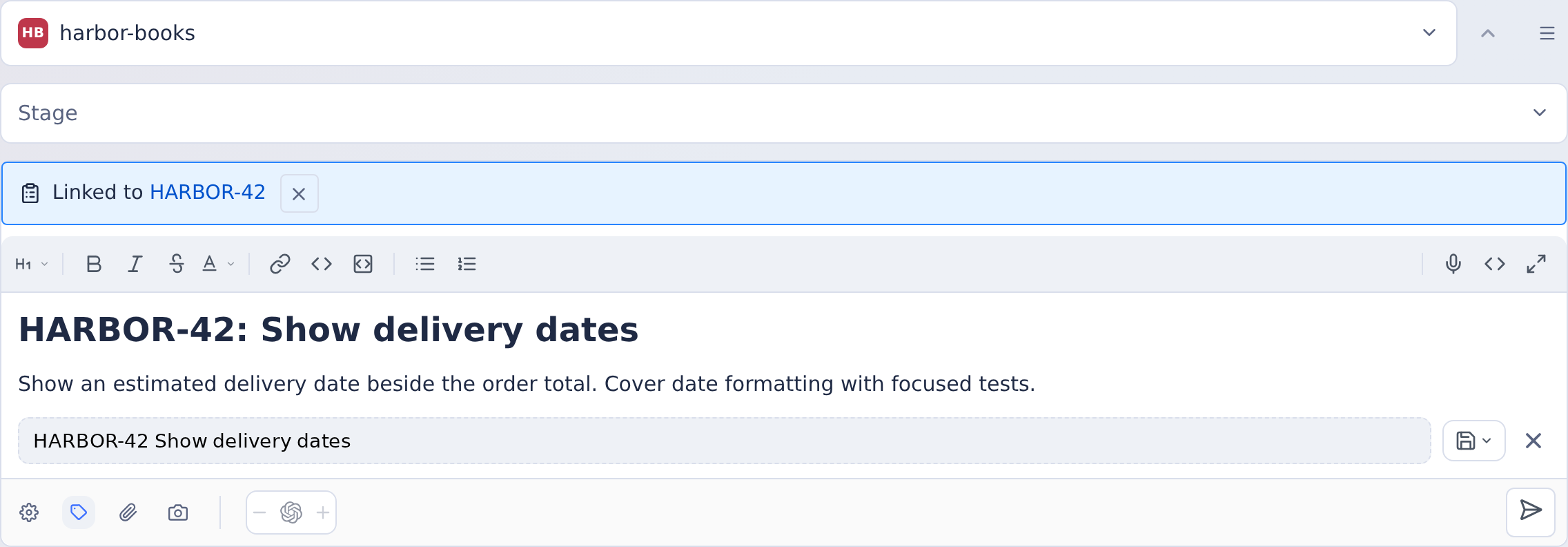
Tasks and objectives linked to a Jira issue display a badge with the issue key that links directly to the issue in Jira. You can unlink an issue from the badge if needed.
Posting Results to Jira
After a task completes, you can post the task summary back to the linked Jira issue as a comment using the Post to Jira button on the task page. Comments are converted from Markdown to Atlassian Document Format automatically.
If you're using a service account, these comments will appear under the service account name (e.g., "CoderFlow") rather than a personal account.
Troubleshooting
"Jira integration not enabled"
This appears when users try to import issues but Jira is not configured. Go to Settings → Jira in the Web UI, or run coder-server jira connect from the CLI.
Authentication Failed (Service Accounts)
If you see Client must be authenticated to access this resource when using a service account token:
- Confirm you have set a
cloudIdin your configuration — service account tokens cannot authenticate against the site URL directly - Verify the
cloudIdis correct for your Jira instance - Use the service account email address, not a personal email
- Regenerate the API token through the Atlassian Admin console and update the configuration
Authentication Failed (Personal Accounts)
- Verify the email address matches the Atlassian account
- Regenerate the API token — tokens can expire or be revoked
- Ensure the account has access to the projects you're importing from
- Run
coder-server jira testto verify the connection
Issue Not Found
- Check the issue key format — it must be
PROJECT-123 - Verify the authenticated account has permission to view the issue
- The project may use a different key than expected — check in Jira
Connection Timeout
- Verify the site URL is correct and accessible from the server
- Check network connectivity between the CoderFlow server and Atlassian
- Ensure no firewall rules are blocking outbound HTTPS to
*.atlassian.netorapi.atlassian.com