Microsoft Teams
The Microsoft Teams integration connects CoderFlow to Teams chat. Users create and follow up on CoderFlow tasks by talking to the CoderFlow bot — mentioning it in a channel or group chat, or messaging it in a personal (1-on-1) chat. Task results are posted back to the same conversation where the request started.
Teams configuration is global. It applies to all environments and all users on the server.
What "Teams chat" means
This integration works only with Teams chat messages directed at the bot. It is purely conversational. Specifically:
- CoderFlow does not join, watch, or record meetings.
- It does not read meeting transcripts or recordings.
- It has no view of who is present in a channel, meeting, or chat. The only people it knows about are those who send it a message.
- It reacts to a message only when the bot is directly addressed — mentioned in a channel or group chat, or messaged in a personal chat. It does not act on general conversation.
What Teams Can Do
When Teams is configured:
- Channel and group-chat mentions — Mention the CoderFlow bot with task instructions to start a task.
- Personal chats — Send the bot a direct message to create a task; no mention needed.
- Follow-ups — Continuing the conversation issues follow-ups on the same task rather than starting a new one (see How tasks map to conversations).
- Account linking — Each user links their Teams identity to their CoderFlow account once, after which Teams-created tasks run under their CoderFlow permissions.
- Completion replies — Completed, failed, and interrupted task status is posted back to the Teams conversation.
How tasks map to conversations
A conversation maps to a single ongoing task:
- If there is no task to continue in that channel, group chat, or personal chat, your message creates a new task.
- If there is an existing task for that conversation, your message continues it as a follow-up instead of starting a new one.
This holds across a server restart — CoderFlow remembers which conversation belongs to which task, so a follow-up after a restart still continues the right task rather than spawning a duplicate.
Prerequisites
- An Azure subscription with rights to create an Azure Bot resource and an App registration (or an administrator who can).
- Teams administrator permission to allow custom (uploaded) apps — needed to install the app package.
- A public HTTPS URL for this CoderFlow server, reachable from the internet. Microsoft's cloud calls the bot messaging endpoint from outside your network, so it cannot reach a VPN-only or localhost URL. For local testing, front the server with a tunnel (for example a dev tunnel or ngrok).
- The same public HTTPS base URL for CoderFlow task links and account-link callbacks.
- CoderFlow administrator access to Settings → Teams.
The Teams bot messaging endpoint is:
https://<your-coderflow-server>/api/teams/messages
Part A — Microsoft / Azure side
A1. Create the Azure Bot resource
- Azure Portal → Create a resource → search "Azure Bot" → Create.
- Bot handle: a unique display name, e.g.
coderflow-bot. - Subscription / Resource group: pick or create.
- Pricing tier: F0 (Free) is fine for testing.
- Type of App:
- Single Tenant — recommended for internal, single-organization use (locks the bot to one tenant). You will need the tenant's Directory (tenant) ID.
- Multi Tenant — only if other tenants must be able to install the app.
- Creation type: Create new Microsoft App ID (lets Azure create the app registration for you).
- Create, then wait for deployment to finish.
The app type you choose here must match the App Type you set in CoderFlow (Part B).
A2. Generate the client secret
- Open the bot's App registration (from the Azure Bot resource → Configuration → click the Microsoft App ID → Manage; or go to Entra ID → App registrations and find it).
- Certificates & secrets → New client secret → set a description and expiry → Add.
- Copy the secret Value immediately (not the Secret ID — the Value is shown only once). This is the Client Secret for CoderFlow.
- From the app registration Overview, note:
- Application (client) ID → CoderFlow's Microsoft App ID
- Directory (tenant) ID → CoderFlow's Tenant ID (only needed for single-tenant)
A3. Set the messaging endpoint
-
Go back to the Azure Bot resource → Settings → Configuration.
-
Set the Messaging endpoint to:
https://<your-coderflow-server>/api/teams/messages -
Apply / Save.
A4. Add the Microsoft Teams channel
- Azure Bot resource → Settings → Channels.
- + Add a channel → Microsoft Teams → agree to the terms → Apply / Save.
- Confirm the Teams channel shows as Running.
Part B — Configure CoderFlow
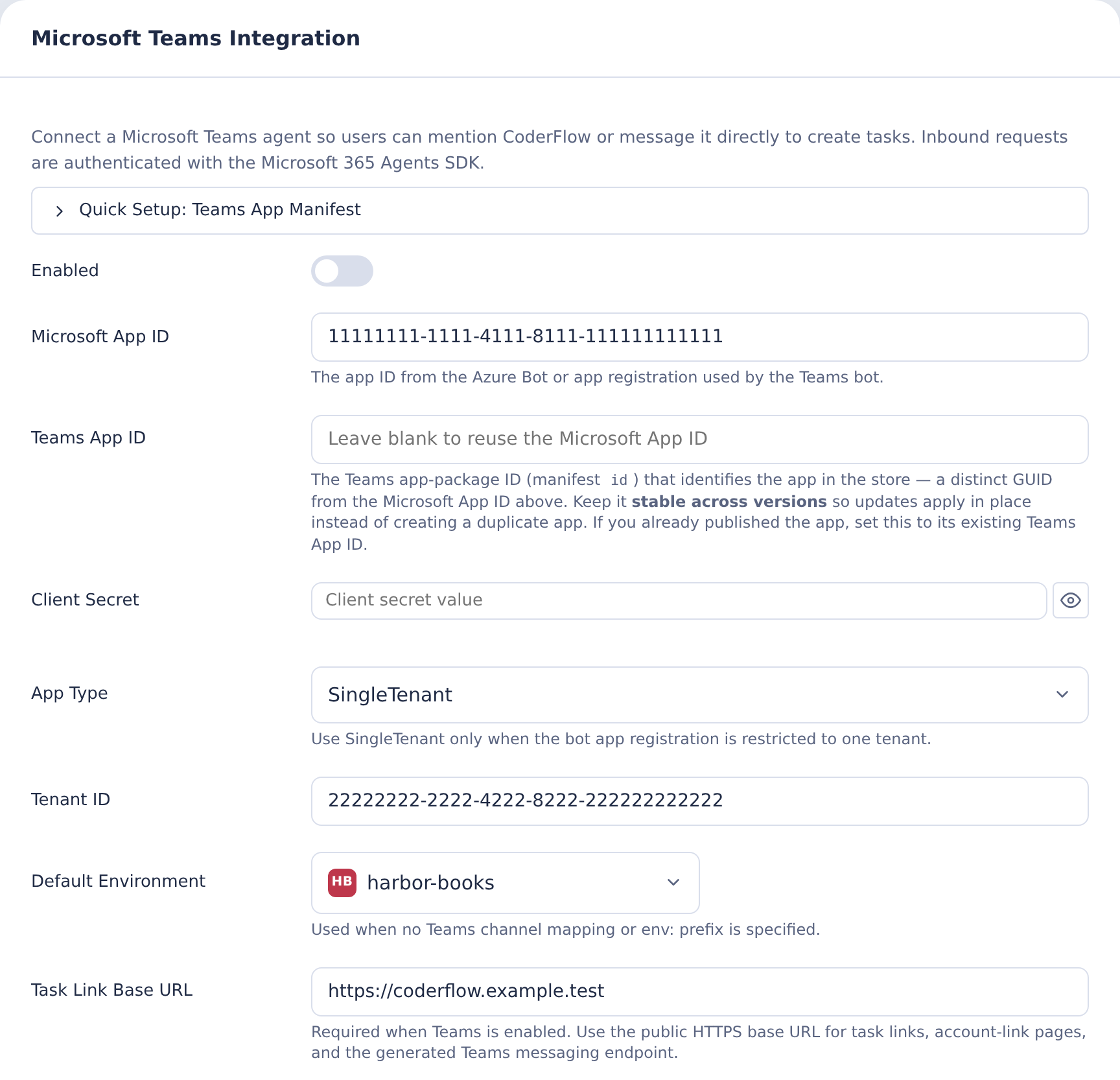
In CoderFlow, go to Settings → Teams (the Microsoft Teams Integration panel):
- Enabled: turn on.
- Microsoft App ID: the Application (client) ID from A2.
- Client Secret: the secret Value from A2. (Leave this blank on a later save to keep the stored secret.)
- App Type: must match A1 —
SingleTenantorMultiTenant. - Tenant ID: only if App Type is
SingleTenant(the Microsoft Entra Directory/tenant ID from A2). - Task Link Base URL: the public HTTPS base URL of this server (e.g.
https://coder.example.com). Required when Teams is enabled — it is used for task links, account-link pages, and the generated messaging endpoint. - (Optional) Default Environment — see Choosing an Environment.
- Save.
Use Validate Configuration to confirm the saved App ID and secret can initialize the Microsoft Bot Framework connection. The full end-to-end test is to message the bot from Teams.
Task Link Base URL is required for account linking. The link command will not issue a URL while it is empty.
Part C — Build and install the Teams app package
Teams needs an app package: a .zip containing manifest.json plus two icons (color.png and outline.png).
- In Settings → Teams, expand Quick Setup: Teams App Manifest.
- Confirm the messaging-endpoint preview shows
…/api/teams/messages. - Click Download App Package (.zip) to get a ready-to-upload package (manifest plus placeholder
color.pngat 192×192 andoutline.pngat 32×32). Replace the placeholder icons with your own branding before publishing. You can instead click Copy to copy just the manifest and build your own package. - In Teams: Apps → Manage your apps → Upload an app → Upload a custom app, and choose the zip.
- If you don't see that option, a Teams administrator must enable custom-app uploads (Teams admin center → Teams apps → Setup policies → Upload custom apps = On), or publish it org-wide via Teams admin center → Manage apps.
- Add the app to a personal chat and/or a channel or team.
The generated manifest enables bot scopes for personal chats, teams/channels, and group chats.
Rolling it out to other users: sideloading only installs the app for you. To let others use it, publish it to your org (Developer Portal → Distribute → Publish to your org, or admin center → Manage apps → upload/approve) and set its Availability to Everyone. Each user then installs it themselves by opening Teams → Apps → search "CoderFlow" / Built for your org → Add — it will not appear in their app rail or Chat search until they add it. See Troubleshooting if a user can't find it.
Updating an installed app
To change the app later (for example after enabling conversation history, which adds permissions to the manifest), bump the App version field next to the manifest before downloading the package. A higher version (e.g. 1.0.1) lets Teams treat the re-upload as an update in place instead of requiring you to delete and re-add the app.

Part D — Test the integration
- Personal (1-on-1) chat with the bot. Send a request, e.g. "Fix the login button alignment in the web app." CoderFlow creates a task and replies with a task link.
- Link your account. Send
linkto the bot in the personal chat; it replies with a one-time URL. Open it while signed in to CoderFlow in the same browser (see Account Linking and Identity). - Channel. In a channel where the app is installed, @mention the bot with a request. In channels the bot replies only when mentioned.
Account Linking and Identity
CoderFlow confirms that every incoming message genuinely came from Microsoft Teams before acting on it, and Teams tells CoderFlow which Teams user sent each message. CoderFlow still needs to know which CoderFlow account that Teams user corresponds to, so that tasks run with the right permissions and are attributed correctly. That connection is made once, by the user, through account linking.
Before a user can create CoderFlow tasks from Teams:
- In Teams, send
linkto the CoderFlow bot in a personal (1-on-1) chat. For security, the bot only issues link URLs in a personal chat — never in a channel where others could see it. - The bot replies with a one-time link that expires after a short time (10 minutes).
- Open that link in a browser where you are already signed in to CoderFlow. Completing both halves — proving who you are in Teams and who you are in CoderFlow — is what ties the two identities together.
- The page confirms the Teams account is linked.
After linking, every task you create from Teams runs under your CoderFlow user and permissions. If an unlinked user tries to create a task, the bot asks them to link first and no task is created. You can unlink a Teams identity anytime from your CoderFlow profile under Connected Accounts.
Choosing an Environment
When a Teams message creates a new task, CoderFlow resolves the environment in this priority order:
-
Inline
env:<name>syntax in the message — for example, mentioning the bot in a channel with:@CoderFlow env:frontend fix the layout bug on the login pageIn a personal chat, just include the prefix:
env:frontend fix the layout bug. -
Channel mapping — a Teams channel or conversation that an admin has pre-assigned to an environment.
-
Single permitted environment — if you can create tasks in only one environment, it is chosen automatically.
-
Default environment — the default configured in Settings → Teams.
If more than one environment is still possible and no default is set, the bot asks you to specify env:<name>. You can only select environments you have permission to create tasks in.
Channel Mappings
Channel mappings let admins pre-assign a Teams channel or conversation to a CoderFlow environment. Messages in that channel use the mapped environment unless the message includes an explicit env:<name> prefix.
In the Channel Mappings subsection of the Teams settings panel:
- Click + Add Channel Mapping.
- Easiest way to fill in the IDs: in Teams, open the channel → … → Get link to channel, then paste that URL into the mapping's link box to auto-fill the Team ID and Channel ID. You can also enter the IDs manually.
- Select an Environment.
- Save.
Mappings accept a Team ID (optional), a Channel or conversation ID, and an environment.
Conversation History
Optionally, a task created from Teams can include recent messages from the channel or chat as context, so the agent understands what led up to the request.
In Settings → Teams:
- Fetch Conversation History — turn on to include recent conversation messages in new tasks. Enabling it adds resource-specific consent (RSC) read permissions to the generated manifest, so the app must be re-uploaded and re-consented by a team owner or chat member.
- History Message Limit — how many recent messages to include (1–50; default 20).
Security
The Teams messaging endpoint is a public HTTPS URL, so it is reachable from the internet. Several protections apply:
- Every request is authenticated first. Incoming messages are validated through the Microsoft Bot Framework, which verifies that each request genuinely originates from Microsoft on behalf of your registered bot. Requests that do not pass authentication are ignored — no task is created and no reply is sent.
- The bot only acts when directly addressed. In a channel or group chat it responds only when mentioned; in a personal chat it responds only to messages sent to it. It does not act on general conversation.
- Only the messaging endpoint is exposed. The public listener serves just the bot messaging endpoint. The CoderFlow web application, its authenticated APIs, and the account-link page are not reachable through it. The account-link page is served only by the main application and requires a signed-in CoderFlow session.
- Tasks run with the user's own permissions. A task created from Teams runs under the linked CoderFlow user and is limited to the environments that user is allowed to create tasks in. Unlinked users cannot create tasks.
- Optional dedicated listener. To keep the main CoderFlow application off the public internet, a deployment can serve the messaging integrations on a separate listener and expose only that port. This shared listener also serves Slack. It is network route and port isolation on the same server process — it reduces the public route surface but is not a separate process, user, container, or privilege boundary. See the messaging-integrations listener for the environment variables.
- Credentials at rest. The Teams app credentials are stored in
microsoft-teams.jsonin the server's data directory with owner-only read/write permissions. - Completion replies after restart. CoderFlow stores a reference to the originating conversation so it can post task results back even after a server restart.
Troubleshooting
The bot does not respond
- Confirm the Azure Bot messaging endpoint is exactly
https://<server>/api/teams/messages. - Confirm the endpoint is reachable from the public internet over HTTPS. Microsoft's cloud cannot deliver to a VPN-only or localhost URL.
- Confirm the App ID and client secret in CoderFlow match the bot registration.
- Check the server logs for Teams turn errors.
The bot replies in "Test in Web Chat" but not in Teams
Web Chat is enabled on every Azure Bot by default; Microsoft Teams is a separate channel that must be added. If Web Chat works but Teams messages never reach the server (nothing in the logs, nothing on a packet capture), the Teams channel is almost certainly not connected.
- Azure Bot resource → Channels → confirm Microsoft Teams is listed and Running. If not: + Add a channel → Microsoft Teams → accept terms → Apply.
- Confirm it is the same Azure Bot whose App ID the manifest's
botIduses — a previous app may have left a second bot registration. - Routing is keyed on the bot's App ID, so reinstalling the Teams app does not change it; the channel connection does.
401 / authentication errors
App ID/secret mismatch, an expired client secret, or the App Type in CoderFlow not matching the Azure Bot's app type (single vs. multi tenant).
"Link your Microsoft Teams user…"
The Teams user is not linked to a CoderFlow user. Send link to the bot in a personal chat and open the returned URL while signed in to CoderFlow in the same browser.
If the bot cannot generate a link, confirm Task Link Base URL is set in Settings → Teams.
The link page says "expired"
The link is one-time and lasts about 10 minutes. Send link again to get a fresh one.
"link only sent in one-on-one chat"
Run link in a personal chat with the bot, not in a channel.
Multiple environments are available
Add env:<environment-name> to the message, configure a Teams channel mapping, or set a default environment in Settings → Teams.
Can't upload the app
A Teams administrator has not enabled custom-app uploads. See Part C.
A user can't find the app to send link (it works for you, not for them)
link requires a one-on-one chat, which needs the app installed in the user's personal scope. A team-scope install (or your own Developer Portal sideload) is not enough: it lets members @mention the bot in that team but does not put the app in each member's personal apps. And the left-rail ⋯ (More apps) flyout and Chat search only show apps that are already installed — a user will not find a newly-published app there.
The reliable path: each user adds it from the store.
- In Teams, open Apps (left rail) → search CoderFlow, or browse Built for your org.
- Open it → Add. This installs it in personal scope and opens a 1:1 chat with the bot.
- In that 1:1 chat, send
link(no @mention needed).
Admin prerequisites so the app appears in the store for users:
- Published to your org: Developer Portal → your app → Distribute → Publish to your org (or admin center → Manage apps → upload/approve). This is what puts the package under Built for your org.
- Availability: admin center → Manage apps → the app → Availability = Everyone (or a group including the user). In the Manage apps list, an
--in the Available-to column means Everyone (org-wide default), not "no one" — open the app to confirm. (Per-user app permission policies have been retired; access is now controlled here in Manage apps.) - App status must be Unblocked.
Manage apps → Install → "Install for everyone" and app Setup policies are meant to pre-install/pin the app so it appears in users' app rail automatically — but do not rely on it appearing there on its own. In practice users may still need to add it from the store as above. Availability/install changes can also take up to ~24 hours to propagate.
An outdated or duplicate app is published to your org
Teams routes an app by its manifest id (the Teams app ID). If a package is re-uploaded with a different id, it becomes a second app instead of an update, and the org catalog can keep serving a stale version (for example, an old package with the wrong websiteUrl/privacyUrl host or :port). Symptoms: admin center → Manage apps shows an older Published version than the one you built, or two entries for the same app.
- Keep the Teams app
idstable across versions so bumping the App version updates it in place. - Block or remove the stale entry in Manage apps, publish the current package, and re-set its availability.
- The website/privacy/terms URLs drive tabs, SSO, and link-outs — not bot message routing — so a wrong host there is a hygiene issue, not why messages fail to route.