Providing Feedback
After a task starts running, you can provide follow-up instructions to guide the agent toward better results. Feedback helps the agent adjust course, fix errors, or add missing features.
Follow-Up Instructions (R Hotkey)
The fastest way to send feedback while viewing a task.
Keyboard Shortcut
Press R while viewing a task detail to open the follow-up input under the Latest Update section. Alternatively, use the follow-up box at the bottom of the activity feed.
This works on completed tasks that have an active container. If the container is stopped due to inactivity, you can start it first by clicking the "Start" button.
How Follow-Ups Work
- Type your feedback in the markdown editor
- Paste screenshots or images if needed, attach files, logs, etc.
- Press Cmd/Ctrl+Enter or click "Submit"
- Agent resumes work, incorporating your feedback, and the status changes back to "running"
- View new activity in the feed as the agent processes your instructions

Using the Feedback Widget
If your environment has an Application Server with Launch URL's enabled, you can use the Testing Menu to launch a copy of your application in a separate browser tab. This runs the application either directly within the container or through a proxy. Both methods support the Feedback widget.
Widget UI
The feedback widget appears as a floating icon in the corner of your application. Click the icon to open the feedback panel. The panel includes:
- Latest Agent Activity Feed that shows the most recent agent actions that are updated live as the agent runs
- Markdown Editor for formatted feedback, including the ability to paste images and drag/drop attachments
- Screenshot Tool to take annotated screenshots of the application you are running
- Element Selector Tool to provide context-based information by selecting HTML elements on the screen
- Context Selection to send to the agent - DOM, Rich Display data, 5250 buffer data, etc. depending on the application type
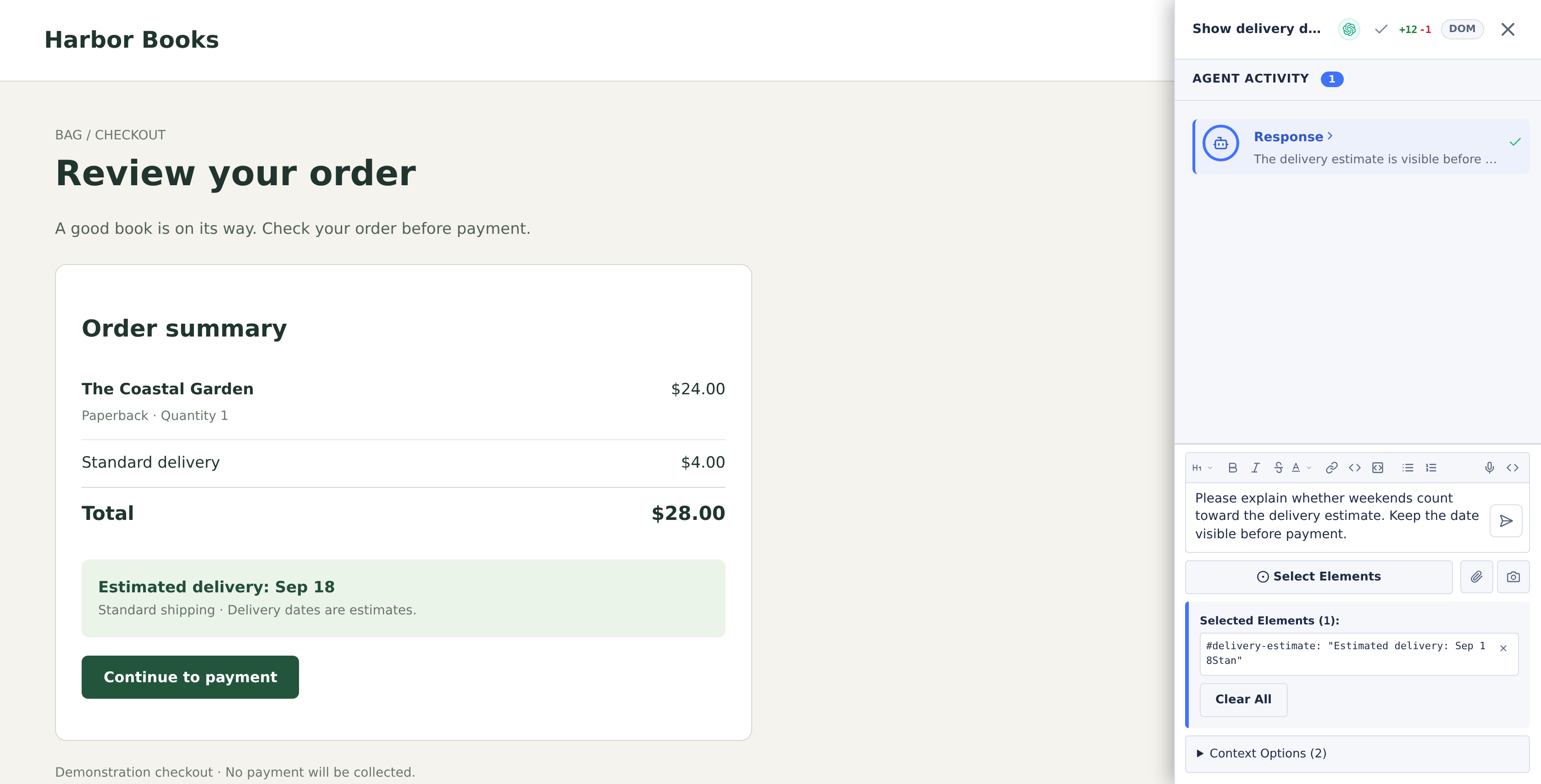
The task name and Agent Activity identify the task that will receive your follow-up.
Feedback from Judge Tasks
Judge tasks can identify issues and generate automated feedback for execution tasks. When a completed judge task is selected in the Judge Panel, it may present suggested feedback for the associated execution task along with a severity level.
You can click the Send as Follow-up... button to send this feedback directly to the execution task. Before the feedback is sent, you have the option to edit or augment it in the markdown editor that appears. Once you confirm, the feedback is submitted, and the execution task will resume work based on the provided instructions.
In the confirmation dialog you can also enable Re-run judges to verify the fix. When this is checked, the same judges automatically re-evaluate the variant once it finishes addressing the feedback, producing a follow-up verification judgment that confirms whether the fix landed.
That covers one round. To repeat it without sending each round by hand, enable Keep reviewing until Pass when you launch a review. CoderFlow then sends the feedback itself after every review and stops once the review passes, the rounds run out, or the variant stops changing code. See Keep Reviewing Until Pass.