QA Mode
QA Mode lets you capture observations from a running application and turn them into objectives. Instead of writing requirements from scratch, you interact with your application while a proxy captures screenshots, DOM elements, and screen data—giving AI agents the exact context they need to understand what you want.
How It Works
QA Mode creates a transparent proxy between you and your application. As you navigate and interact:
- Screenshots are captured and can be annotated
- DOM elements can be selected for inspection
- 5250 terminal buffers are recorded (for terminal applications)
- Rich Display data is captured (for RDF applications)
All captured context is bundled into objectives that agents can interpret and act on.
Accessing Applications via Proxy
When QA Mode is enabled for an environment, you access your application through a special proxy URL provided in the CoderFlow interface. The proxy:
- Injects a feedback widget into your application's pages
- Rewrites URLs so assets load correctly through the proxy
- Handles redirects transparently
- Preserves normal application functionality while adding observation capabilities
Your environment's QA URLs are displayed in the environment settings or when starting QA Mode.
Capturing Context
The feedback widget appears as a floating panel on your application. It captures multiple types of context depending on your application type:
Screenshots
Click Capture Screenshot to snapshot the current page. Screenshots appear in the widget and can be edited with the built-in annotation tools—add highlights, arrows, or text to clarify what you're pointing out.
DOM Elements
Use Select Elements to highlight and capture specific parts of the page:
- Click elements to select them (they highlight with an overlay)
- Right-click to deselect
- Click Done when you have selected the elements you need
- Captured DOM includes element hierarchy and attributes, helping agents understand page structure
5250 Terminal Buffers
For terminal-based applications, QA Mode automatically captures:
- Current screen buffer contents
- Screen state and field positions
- Optional full screen payload for detailed context
Rich Display Data
For Rich Display (RDF) applications, the widget captures:
- Structured widget data and hierarchy
- Field values and display properties
- Rendering context that helps agents understand the UI
Creating Objectives
Once you've captured context, create an objective directly from the widget:
- Enter a title describing the work
- Write instructions explaining what you want the agent to do
- Review the captured context shown in the widget
- Leave Create as objective checked and click Create Objective
The objective is created with your instructions plus all captured context—screenshots, selected elements, and application data. Agents see exactly what you saw when you created the objective.
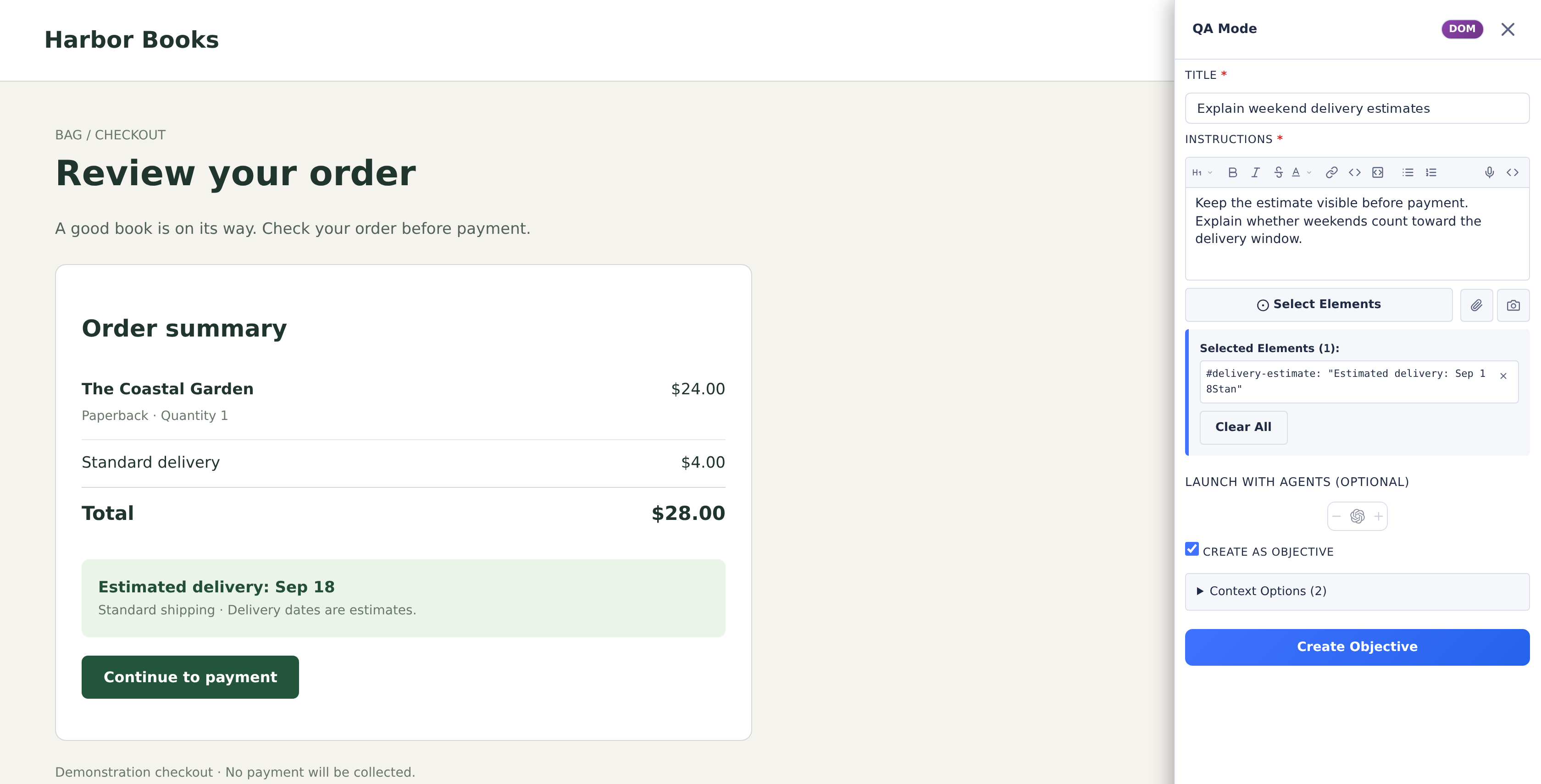
Launching Tasks from QA Mode
When creating an objective, you can optionally launch tasks immediately:
- Leave Create as objective checked
- Under Launch with agents (optional), increase the count for each agent you want to use
- Click Create Objective + 1 Task (or the corresponding task count)
This creates the objective and immediately launches one or more tasks from it. Each task receives a copy of the instructions and captured context.
If you prefer to review the objective first, skip the launch option. You can always launch tasks later from the objectives view.
Best Practices
Capture before explaining: Take screenshots and select elements first, then write your instructions. This ensures you have visual context to reference.
Annotate meaningfully: Use the screenshot editor to highlight the specific area you're discussing. A circle around a button is clearer than describing its location in text.
Be specific about the problem: Captured context shows what the application looks like—your instructions should explain what's wrong and what you want instead.
Combine context types: For complex issues, capture a screenshot AND select relevant DOM elements. More context helps agents understand the full picture.