Staged Tasks
A staged task prepares the full execution environment—container, repositories, dependencies—but pauses before the agent starts working. This gives you a chance to inspect the environment, refine your instructions, or attach additional context before committing to agent execution.
When to Use Staged Tasks
Staged tasks are useful when:
- You want to verify setup: Confirm the container started correctly and repositories are checked out to the right branches before the agent begins
- Instructions depend on environment state: You need to observe the prepared environment to write effective instructions
- Complex or high-risk work: For critical changes, reviewing the starting state adds confidence before execution
Creating a Staged Task
On the home page, enter your instructions and choose an environment and agents. Click Name and save (the tag icon, or F2), then open the Stage task or save as objective menu and choose Stage Task (Ctrl+Shift+Enter). You can also stage a task when launching from an objective.
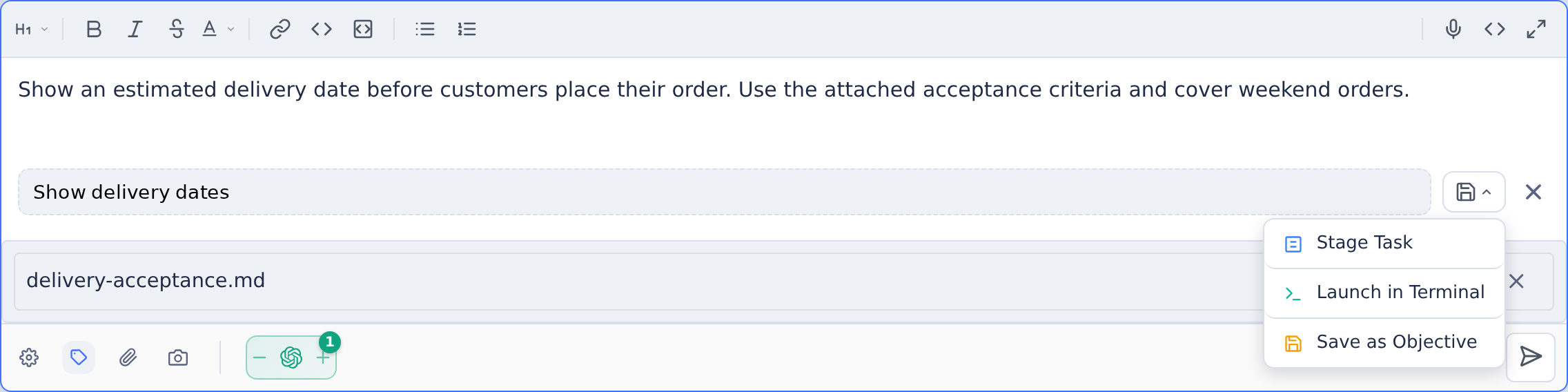
The system will:
- Build and start the container with all dependencies
- Clone and sync repositories to the specified branches
- Run environment setup scripts
- Stop before executing the agent
- Mark the task as "staged" and wait for your instructions
The container is fully prepared, but the agent is idle. You can take your time reviewing and preparing before starting execution.
Inspecting the Environment
While a task is staged, you can:
- Open a terminal: Access the container directly to inspect files, run commands, or verify setup
- Open VS Code: Launch a VS Code session (browser-based) connected to the container for a full IDE experience
- Start an application server: If your environment includes an app server, start it to test web interfaces
- Run IBM i sessions: For IBM i environments, launch 5250 or Rich Display sessions to interact with legacy applications using the temporary library list assigned to the container
- Review branches: Confirm the correct branches are checked out in each repository
- Check dependencies: Verify build tools and runtime dependencies are available
- Test manually: Run your application or tests to ensure the environment is ready
This inspection step catches configuration issues before you spend agent time on a broken environment.
Starting Execution
When you're ready for the agent to begin:
- Open the staged task
- Open the reply composer and write or refine your starting instructions
- Attach any additional files or screenshots
- Submit to start execution
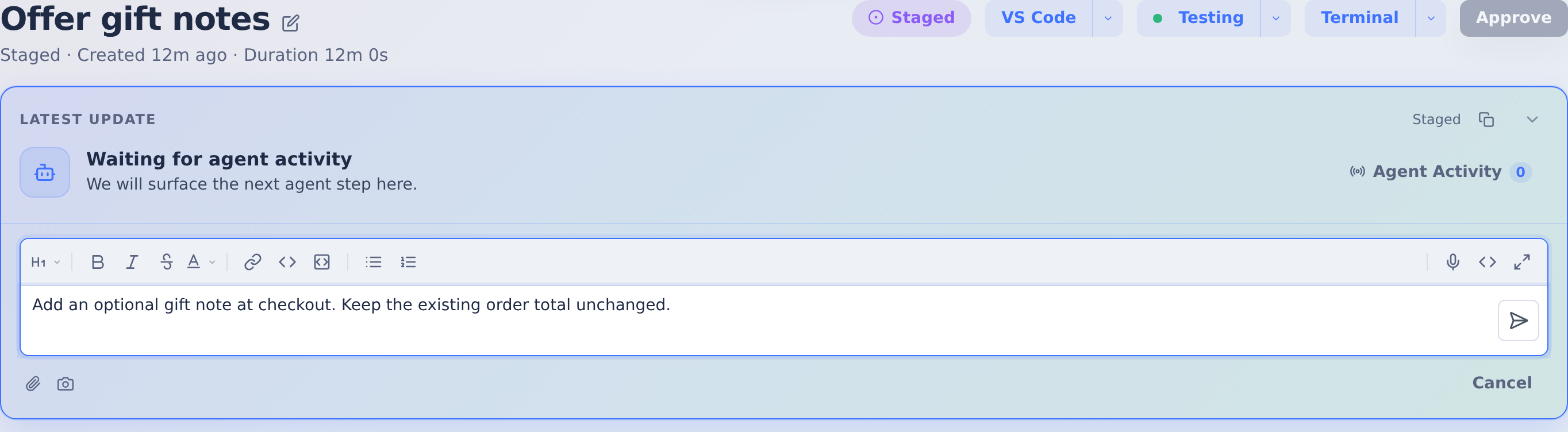
On mobile, tap Start in the bottom toolbar to open the composer, then enter and submit your instructions.

The agent immediately begins working with your finalized instructions. The task transitions from "staged" to "running," and you can monitor progress in real-time.
Staged Tasks vs. Regular Tasks
| Aspect | Regular Task | Staged Task |
|---|---|---|
| Container setup | Automatic | Automatic |
| Agent starts | Immediately after setup | When you explicitly start it |
| Instruction timing | Provided at creation | Can be refined before start |
| Environment inspection | After agent runs | Before agent runs |
| Use case | Well-defined work | Exploratory or high-stakes work |
Choose staged tasks when you need the extra control. For routine work where you're confident in your instructions and environment, regular tasks are more efficient.