Task Power Features
The task page includes tools for branching, recovering, sharing, and reshaping work after a task has already run. Use these features when you need to compare another approach, recover from a bad turn, or turn useful task context into future work.
Sharing Tasks
Task links are normal CoderFlow links. They do not bypass authentication, and copying a link does not change who can see the task.
Use the Share button in the task header to copy:
- Copy Task Link - a direct link to the current task
- Copy Task Group Link - a link that opens all loaded variants in the group
- Copy Task ID - the task identifier for chat, tickets, or support notes
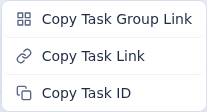
The task page also keeps its URL in step with what you are looking at. Selecting a variant in a group, or opening the AI Review dialog on a particular judgment, is recorded in the address bar, so copying the URL at that moment sends someone to the same place rather than to the top of the task. Browser Back closes the review dialog instead of leaving the page.
By default, tasks are shared with users who have tasks:view permission on the task's environment. The task owner, or an environment admin with the matching _any permission, can open More actions and choose Make Private to lock the task.
When a task is private:
- The owner can still view and change it.
- Environment admins with
tasks:view_any,tasks:change_any, or related_anypermissions can still operate on it. - Other environment members no longer see it in task lists or task stats, and direct links return a permission error.
Choose Make Shared from the same menu to restore the environment-level sharing behavior.
Export and Import Tasks
Sharing a link works only for people who can reach the same server. Export packages a task into a portable ZIP file instead, so it can be archived or recreated on a different CoderFlow server.
Exporting
Open More actions on the task page and choose Export Task..., or run coder export. Exporting requires permission to view the task.
The package contains:
- The task's persisted output and activity history
- Task metadata, including its name, environment, agent, and instructions
- Container logs
- A workspace delta: the files the task added or modified, plus the list of paths it deleted
Runtime-only server material, such as generated MCP configuration, is deliberately left out.
What the workspace delta carries
The delta is derived from git's view of each repository in /workspace - the same view that produces the changed-files list in the approve dialog. Because it inherits each repository's .gitignore, installed dependencies such as node_modules and the .git directories themselves never travel with the package. A representative export shrinks from hundreds of megabytes to the size of the source the task actually touched.
Two consequences are worth knowing:
- Files in
/workspacethat no repository owns are not carried. They are environment scaffolding rather than a task's result; the manifest records them if you need to check. - Content that git ignores is not carried, even when it matters. If a task's result depends on an ignored file, export with the full workspace instead.
There is no per-file size limit. A file the task changed is carried whatever its size - a cap that dropped one large file and shipped the rest would produce a package that looks complete and is not. The delta as a whole is bounded, at 256 MB and 20,000 files; a delta over either bound is not carried at all and the export says why, rather than being quietly truncated to fit. What a capture could not carry is recorded in the manifest whether or not an archive came out of it.
If a repository the changed-files list names cannot be read in the container, the delta is refused rather than shipped without it - a partial capture that looks complete is worse than none. The export names the repositories involved so you can retry or fall back to a full workspace.
coder export --workspace=full opts back into an exact archive of the entire /workspace, and --workspace=none omits the workspace entirely.
An export contains your task's source changes and stored metadata. Treat the file with the same care as the source code it contains, and check what it holds before sending it outside your organization. A full-workspace export additionally contains everything else in /workspace.
Capturing a workspace depends on the task's container still being retained (see Container Lifecycle) and, for a delta, still running - the capture reads git inside it. When no workspace can be captured, the export still succeeds with output, logs, and metadata, and records why the workspace is absent. A task that was itself created by an import keeps its stored snapshot, so exporting and importing the same work repeatedly does not lose the workspace.
Importing
Open the quick actions menu on the home page and choose Import Task..., then select the .zip file. The package decides what you get, whichever view you started the import from: an exported objective comes back as an objective, a finished task comes back finished and ready to continue, and anything captured mid-run lands staged and waits for a prompt. Pinned tasks come back pinned.
The CLI chooses explicitly with --mode, and also accepts a plain local workspace directory, which it packages for you before uploading:
| Mode | Result |
|---|---|
preserve (default) | Whatever the package was: an objective as an objective, a finished task as a finished task, anything else staged. |
objective | A reusable objective with no container, ready to launch later. |
staged | A staged task with its container prepared and the workspace applied, paused before the agent runs. |
running | A task that starts work immediately, queueing first if no agent slot is free. |
CoderFlow imports into the environment named in the package, falling back to your default environment and then to the server default; --environment overrides all of them. The import is refused if the environment that resolves does not exist on this server, or if you do not have tasks:create permission for it. A plain workspace directory carries no package metadata, so it depends entirely on those defaults - name an environment explicitly to be sure it lands where you intend.
How the workspace is applied
A delta is merged into the workspace the destination environment set up for itself: the carried files are written over what is there, the deleted paths are removed, and everything else - dependencies, unrelated sources - is left alone. Nothing is wiped.
The two halves apply together or not at all. Deleted paths are resolved before any of them is removed, so a path that would escape the workspace refuses the whole list rather than being discovered halfway through; and if any declared deletion cannot be completed, the carried files are not written and the task fails instead of being handed over as ready. A workspace missing half of a delta is neither the task's result nor the destination's own state.
A full-workspace package, including one exported by an older CoderFlow version and any plain workspace directory, still replaces /workspace outright. That is what a full archive means: it is the whole workspace, so overlaying it would leave stale files behind.
A delta records the base commit, remote, and branch each repository was exported from; remote URLs are stripped of any credentials before they are written to the package. When the task committed its work, the recorded base is the point that work branched from rather than the container's own HEAD, so a destination sitting on the original base still matches. When the destination differs on any recorded field - including when it reports nothing at all, such as a repository with no commits - the import reports the difference and applies the delta anyway, because the package carries whole files rather than a diff and applies the same either way.
Pass coder import --require-matching-base to refuse the import instead. The check compares against repositories that only exist once the destination container has cloned them, which happens after the import is accepted, so a refusal appears as a failed task rather than a failed command. The task's error names the repositories that diverged.
Uploads are limited to 2 GB by default. A server admin can change this with the TASK_IMPORT_MAX_FILE_SIZE_BYTES environment variable.
Fork a Task
Forking creates an independent task from a finished task's current state. Use it when you want to continue from the same context without changing the original task.
- Open a task that is completed, failed, or interrupted.
- Open More actions.
- Choose Fork Task.
- Choose the AI provider and the context for the fresh agent session, then confirm the fork.
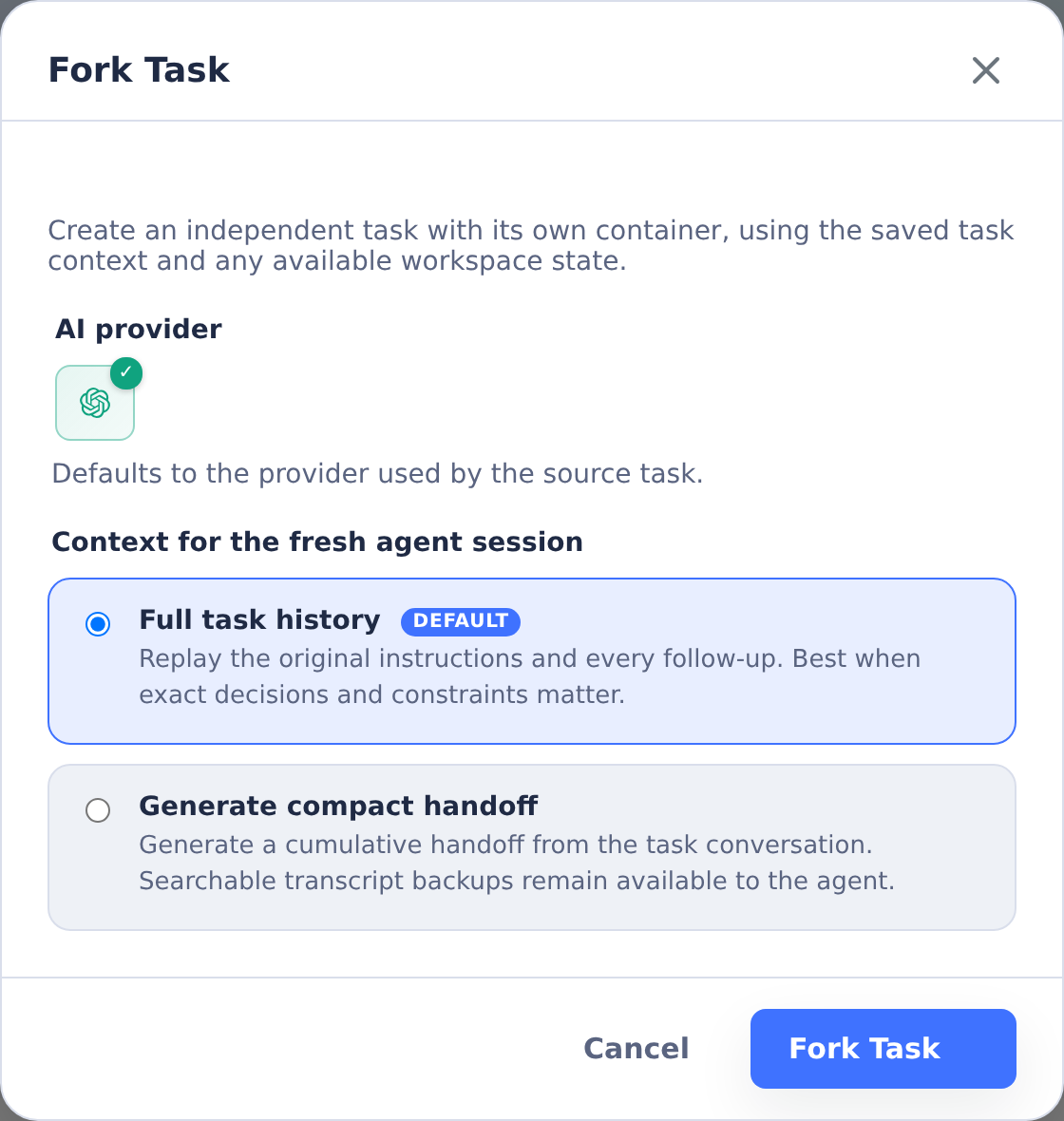
The fork gets its own task ID, container, task history, branch selections, attachments, and copied workspace state. If the original task container is still running, CoderFlow captures the live workspace state; otherwise it falls back to saved task state when available.
Lineage links work in both directions. The fork page shows its Forked from link, while the original task page lists its direct Forked tasks with links back to each accessible fork. For a heavily forked task, the first five appear initially; choose +N more to show the rest.
Choosing fork context
The fork dialog offers two ways to carry the source task's context into the fork's first follow-up:
- Full task history (default). The fork replays the original instructions and every prior follow-up verbatim. Best when exact wording, decisions, and constraints matter.
- Generate compact handoff. CoderFlow generates a cumulative handoff summary of the task conversation using a configured AI provider API key. The fresh agent session starts from this concise summary instead of the full instruction history, which keeps its context window small on long-running tasks.
A compact fork also stores complete backups under /task-output/fork-context/ in the fork: a readable transcript, the exact raw event stream, the original instructions, and the follow-up history. The agent is pointed at these files and can consult them when the handoff alone is not enough.
Compact handoff generation needs an API key for at least one supported provider. If generation is unavailable or fails, the fork is still created and automatically falls back to full task history; CoderFlow tells you when this happens.
On the forked task's page, a chip next to the Forked from link shows which context mode the fork used. For a compact fork, click the Compact handoff chip to read the generated handoff that the agent received.
Forks are useful when:
- The first approach is close, but you want to explore a different direction.
- A task failed after producing useful local changes.
- You want to keep the original result untouched while trying follow-up work.
A fork starts as a separate task that can be continued with a normal follow-up. It is not a replacement for resubmitting the same task to multiple agents.
Rewind a Task
Rewind lets you move the conversation context back to an earlier follow-up point. Use it when the agent took a wrong path and later follow-ups are making the task worse.
- Open the task page.
- Click the Follow-Ups count in Task Details.
- Choose Rewind to initial or Rewind to #N.
- Optionally explain why you are rewinding.
- If available, check Also rewind files to this point.
- Submit a normal follow-up to continue from the rewind point.
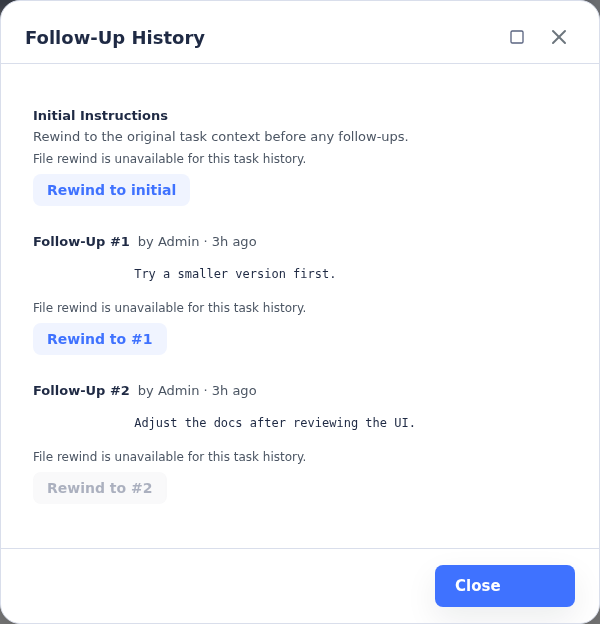
Rewind points are based on the initial task instructions and each follow-up instruction. Rewinding to follow-up #2, for example, keeps the initial task and the first two follow-ups as the active conversation branch, then excludes later follow-ups from the replay context.
Conversation vs. File State
Every rewind prepares conversation context. File rewind is separate and appears only when CoderFlow has enough turn-patch metadata to restore files safely.
If you do not rewind files, the agent keeps the current filesystem. CoderFlow warns the agent when the current files may contain changes from after the rewind point, but you should still check the changed files before relying on old context.
If you do rewind files, CoderFlow tries to restore repository contents to the selected point and then refreshes the changed-files view.
Rewind requires the task container to be available and not actively running. If the container has stopped, start it before rewinding.
Resubmit a Task
Resubmit starts new task runs from the same task setup. It is best when you want a fresh attempt with the same environment, branches, and base instructions.
- Open More actions.
- Choose Resubmit Task.
- Select one or more agents.
- Edit the instructions if the next attempt should differ.
- Attach any new files or screenshots.
- Decide whether to add the new run as a variant.
- Click Launch.
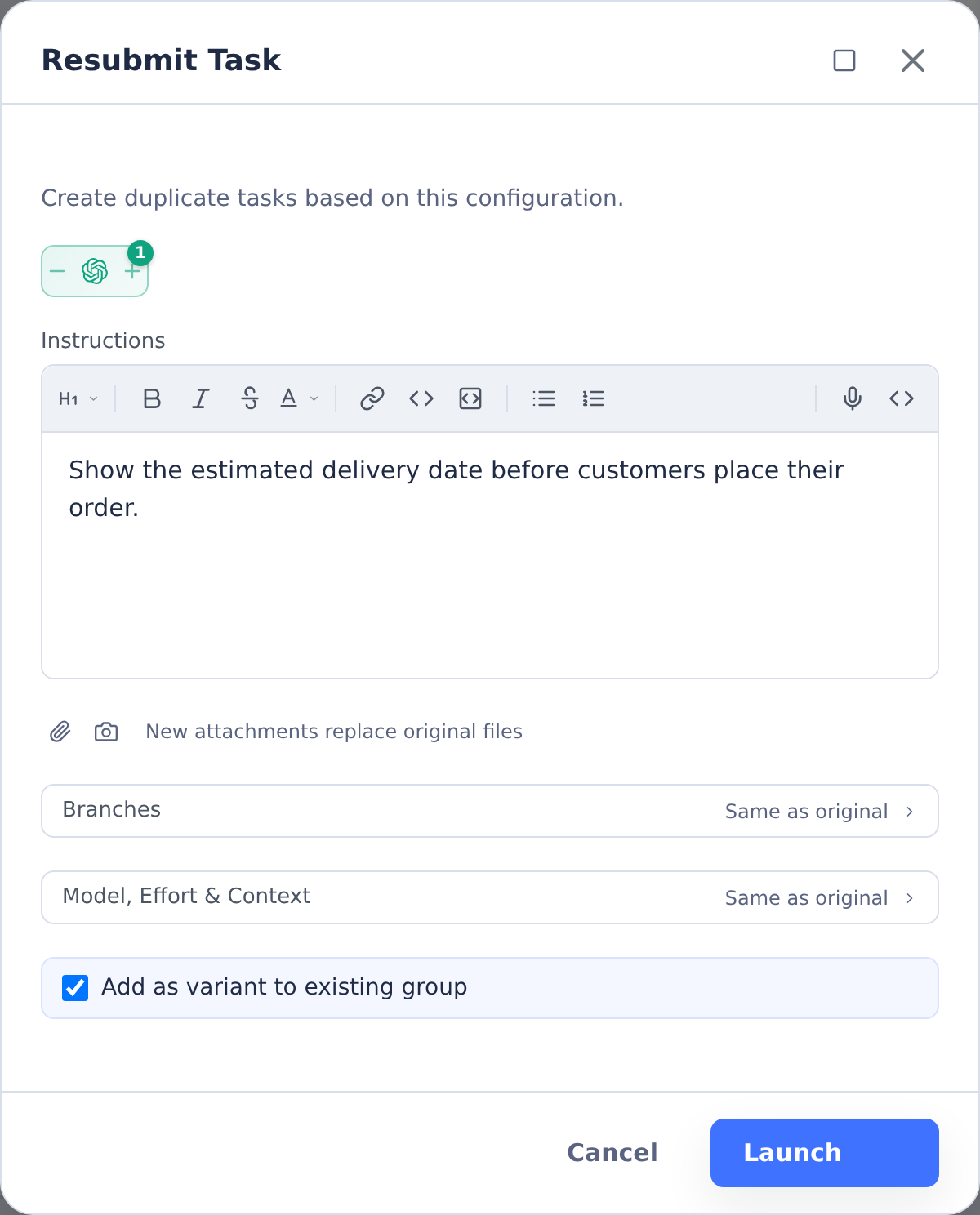
Resubmit preserves the original branch selections, environment variables, Jira link, source objective link, and task files. New attachments are added to the copied task files and replace files with matching names.
You can launch more than one agent from the resubmit dialog. If you select multiple agents, CoderFlow creates a task group for the new runs. If you check Add as variant to existing group, CoderFlow adds the new tasks to the current group instead.
Resubmit is different from a follow-up:
- A follow-up continues the same task and container.
- A resubmit creates new task IDs and new containers.
- A fork creates one independent continuation from the current task state.
Save as Objective
Use Save as Objective when a task has useful instructions that should become reusable planning context.
- Open More actions.
- Choose Save as Objective.
- Review the pre-filled name, environment, agents, and instructions.
- Edit the instructions into objective-quality requirements.
- Click Save Objective.
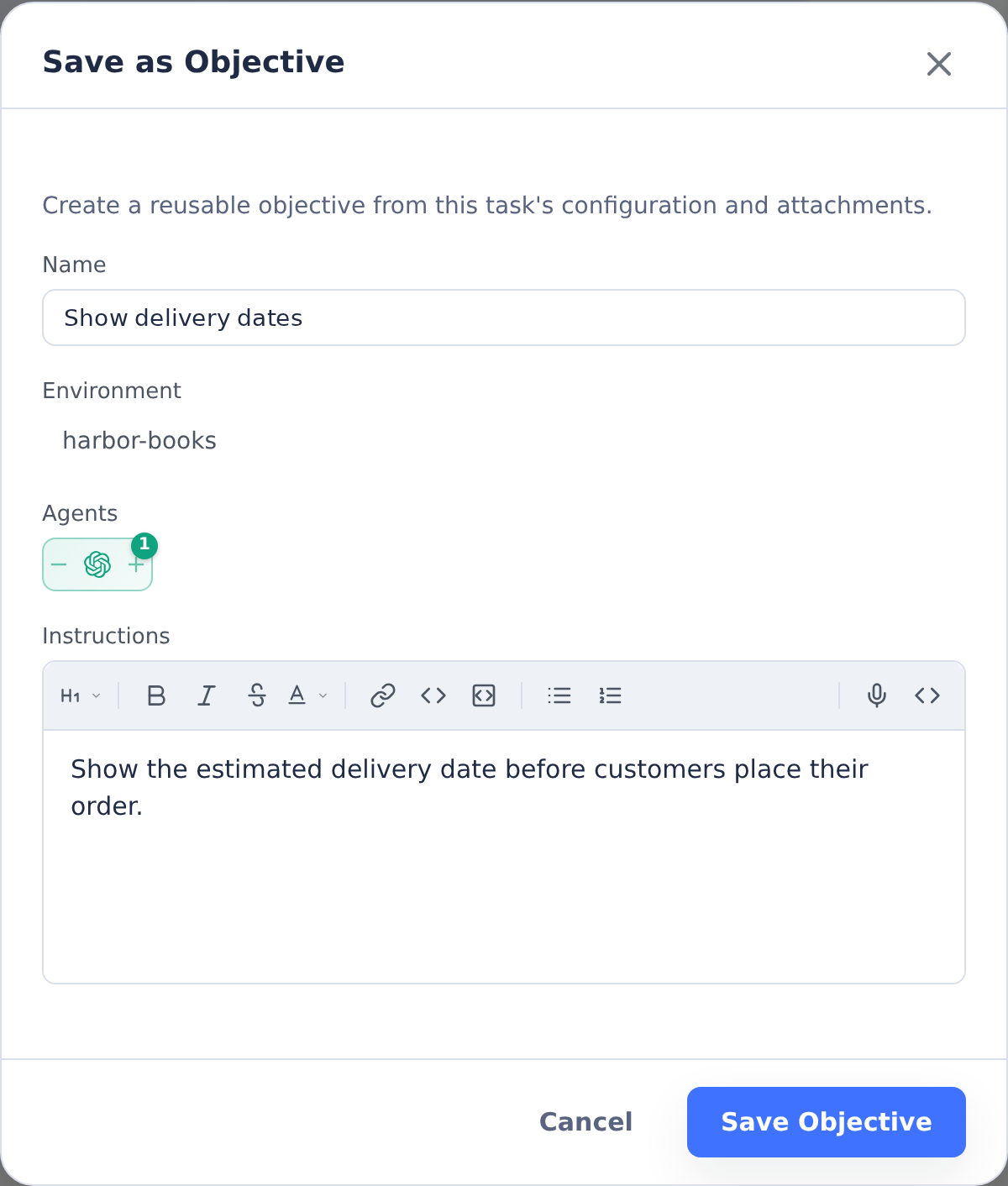
The new objective keeps the task's environment, branch selections, Jira link, and supported agent settings such as Claude effort level or Codex reasoning level. It does not automatically summarize the task result for you, so revise the instructions before saving if the task outcome changed what the next agent should do.
Snooze a Pin
When a task is pinned, the pin control offers Snooze in addition to Unpin. Snoozing hides the task from regular task listings until a time you choose, then returns it automatically, without unpinning it. You can still find it in the dedicated Snoozed view. Its container remains subject to the pinned 48-hour inactivity stop threshold and normal stopped-container removal rules; snoozing does not provide container protection. See Container Lifecycle.
- Open the pin menu on the pinned task.
- Choose Snooze.
- Pick a quick preset or an exact date and time, then confirm.
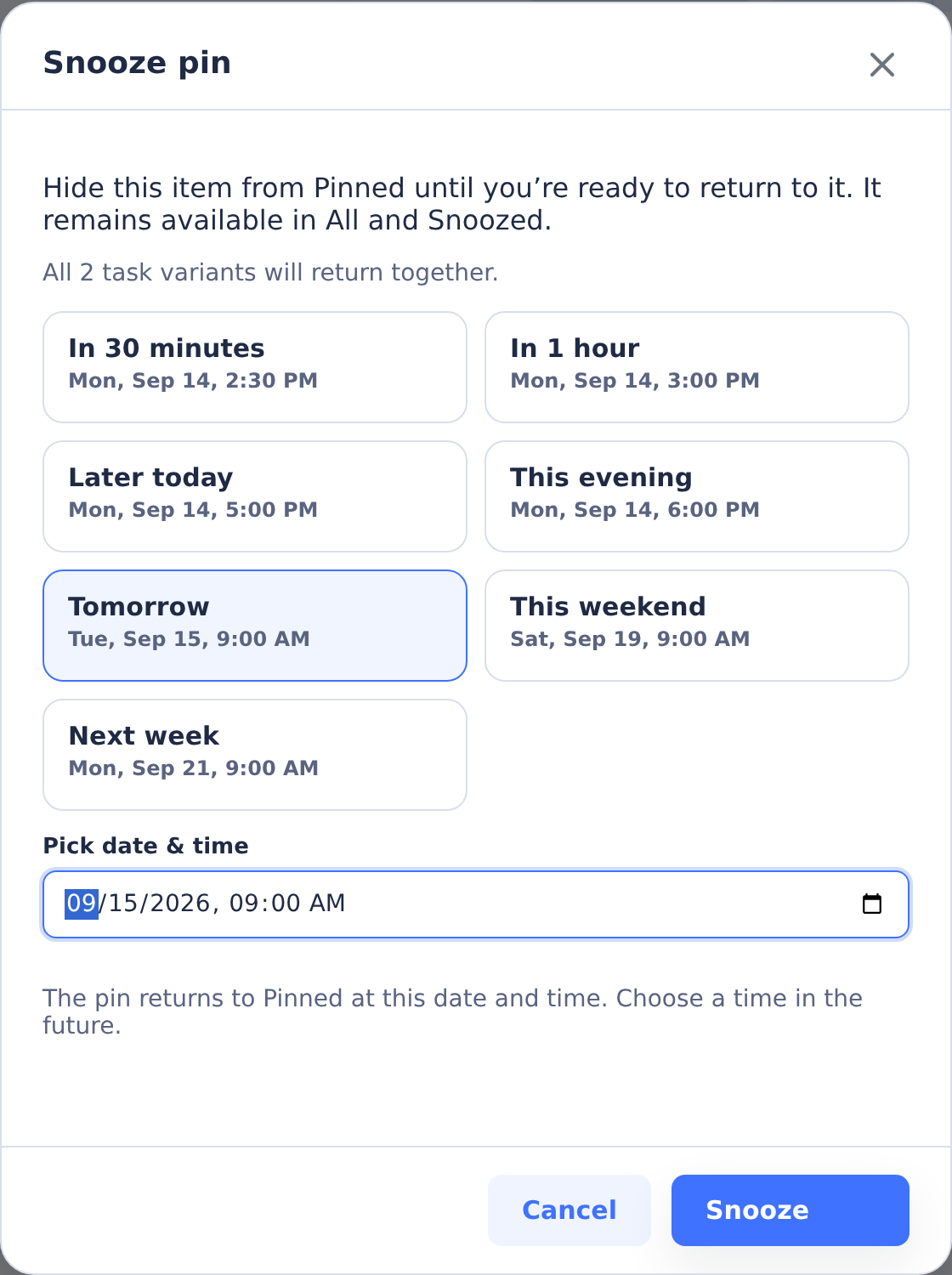
While a task is snoozed the control shows Change snooze (to pick a new return time) and lets you Pin now to bring it back immediately. Every change shows an undo toast. Snoozing a grouped task snoozes all of its variants and their judge together, so they return as one item.
For the full snooze workflow, presets, and the "Notify when snoozed tasks return" preference, see Snoozing a Pin and Notifications.
Activity Snapshots
When a task page opens, CoderFlow loads a small activity snapshot before replaying the full activity stream. This snapshot scans the tail of the task's debug stream and shows the latest agent response in the Latest Update area quickly.
The snapshot is not a separate artifact you manage. It is a fast first view while the full activity feed loads. If the task has no activity stream yet, the task page simply waits for the normal feed.
The same scan supplies Last Activity in the task's Details card, which shows when the agent was last active as both a relative time and a full timestamp. It keeps counting up while a task runs, so a long-running task shows how recently it did something rather than only when it started.
Task Output Files
Agents write their results to /task-output in the container. Two of those files are referenced often enough that the task page opens them directly instead of sending you to the file browser:
/task-output/summary.md- Opens the task's Summary section, expanded./task-output/commit-message.txt- Opens a Commit Message dialog showing the commit message the agent proposed, with Copy and Open raw file.
The links appear wherever the agent mentions these files in its activity feed. Any other file path still opens in the files panel as usual, and the match is on the exact path - a summary.md elsewhere in a repository is treated as an ordinary file.
Customize the Task Page
The task page layout is local to your browser. These controls help keep busy tasks readable:
- Drag a section by its handle to reorder the page.
- Collapse a section by clicking its header.
- Hide a section with the
xcontrol in the section header. - Use Show to restore one hidden section, or Show All from the dropdown when multiple sections are hidden.
- Use Hide all sections to clear the page quickly.
- Use Reset Layout to restore the default order and clear hidden or collapsed section state.
- Use the expand control on a section to view it full screen.
Dragging is disabled while a section is expanded. Resetting the layout also clears saved hidden and collapsed state for the task-page sections.
Reorder Variant Tabs
When a task group is open, variant tabs can be reordered by dragging them. The order is saved to the task group, so it follows the group view instead of being only a local browser preference.
Use tab ordering to put the most important variants first before comparing, judging, or approving a winner.