Task Templates
Task templates are reusable task definitions with parameters. Define a template once, then run it with different inputs—whether for a single item or hundreds at once.
What Are Templates?
A template combines:
- Instructions: The task description agents will follow
- Parameters: Variables that customize the task for specific inputs (like which file to process)
- Prompts: UI elements that let you select parameter values (file browsers, dropdown lists, etc.)
Templates are configured per environment by administrators. When you run a template, you provide values for its parameters, and the system creates tasks with those values filled in.
Running a Template
- Open Tasks and select your environment in the launcher.
- Open the task template picker and choose a template.
- Use Preview template to read its instructions before launching.
- Fill in the required parameters. Use a parameter’s chooser button when it offers a list.
- Select an agent and use the launch button to create the task.
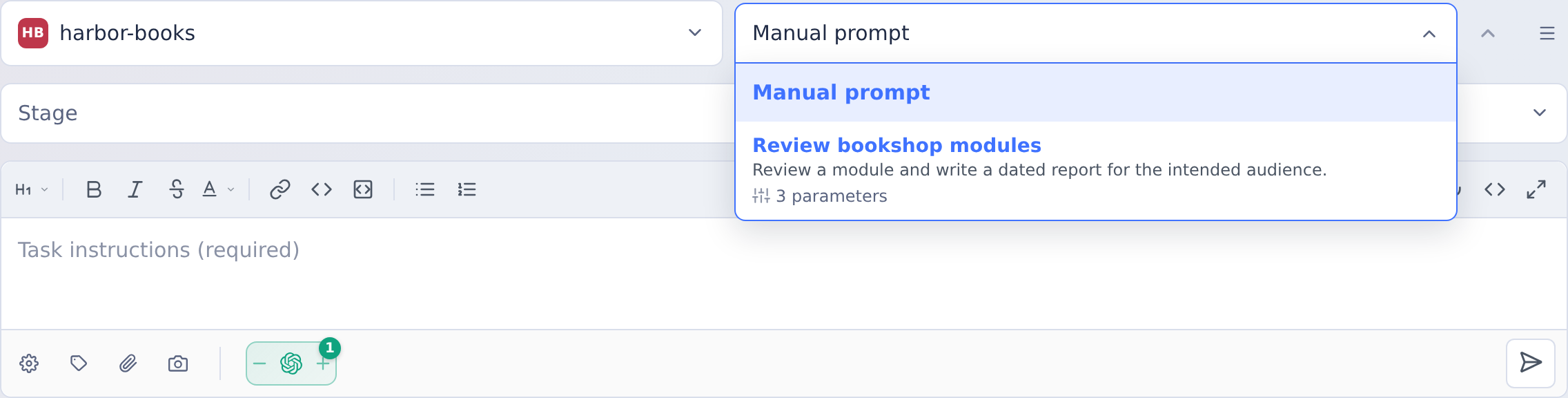
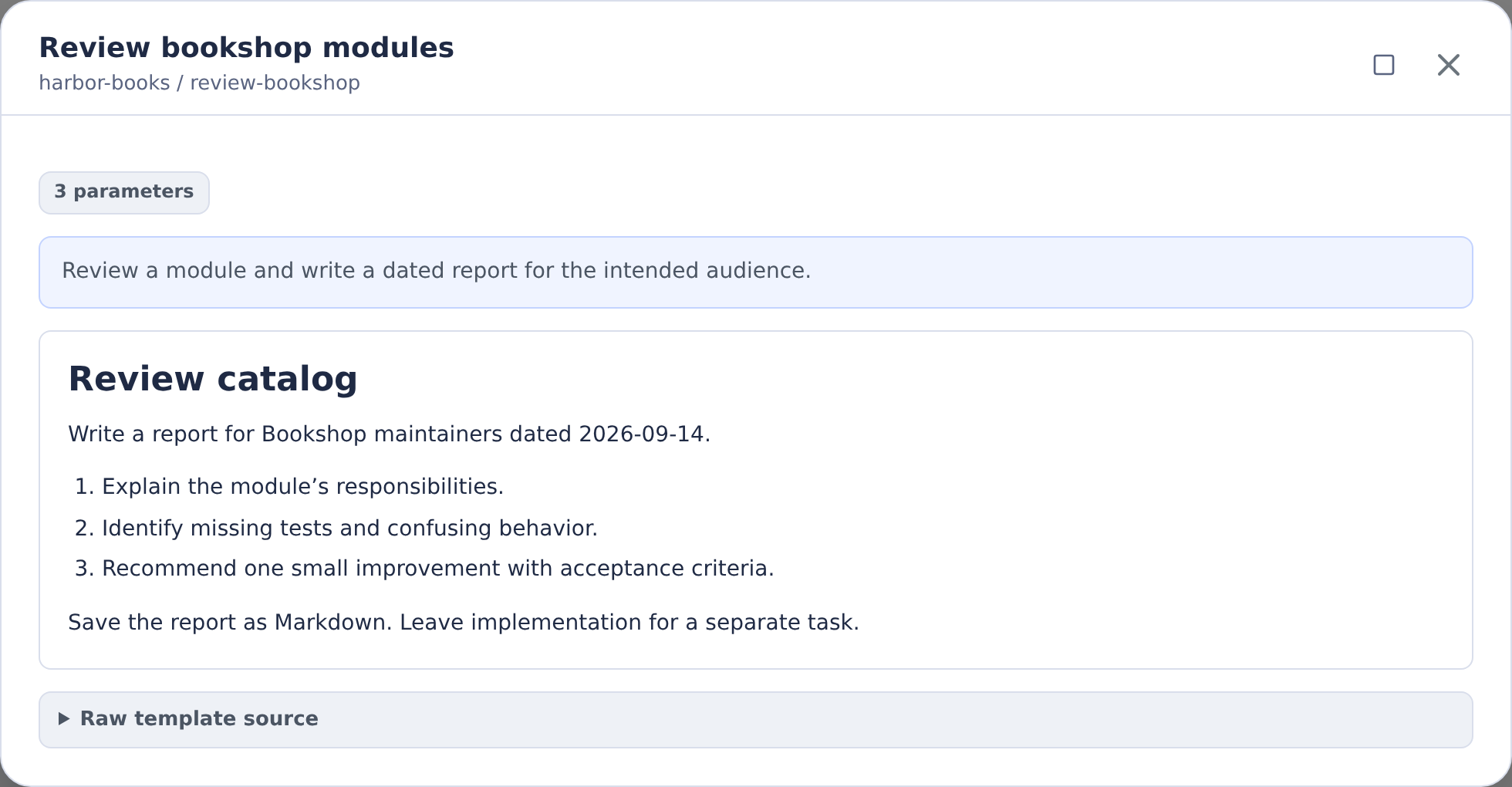
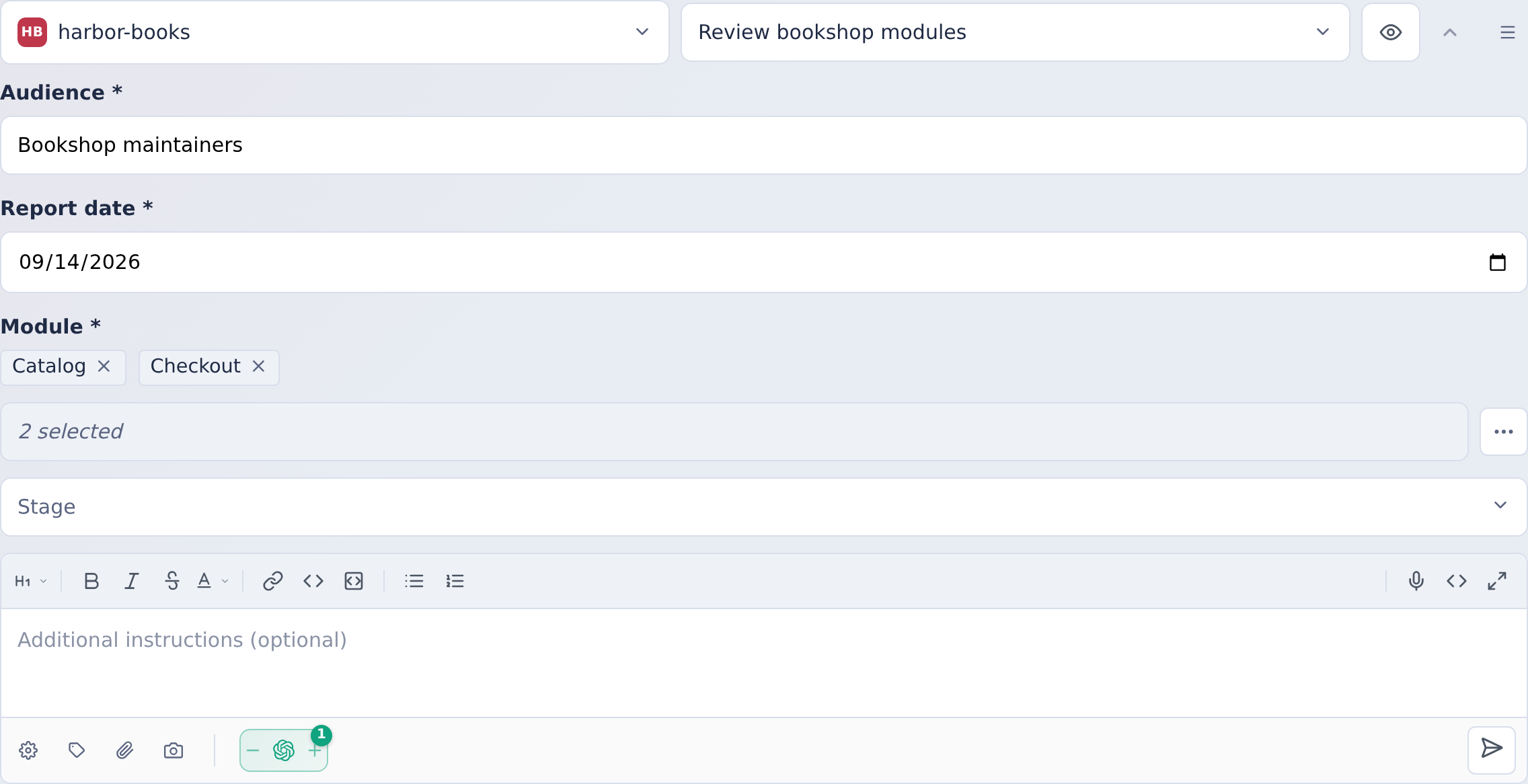
This example combines an audience, a report date and two modules. Select just one module when you want a single task.
The template renders with your parameter values and launches as a normal task. You can monitor progress, review results, and approve changes just like any other task.
Batch Processing
Templates become especially powerful when you need to process many items. Select multiple values for a parameter and run the template against all of them at once—turning weeks of manual work into overnight batch operations.
See Batch Processing for details on multi-select parameters, cartesian products, and workflow best practices.
Common Use Cases
Templates are commonly used for code modernization, refactoring, testing, and documentation tasks.
See Template Examples for specific use cases including RPG modernization, language migration, and batch refactoring patterns.
Configuration
Templates are defined in your environment's configuration. Administrators create templates with:
- Markdown instructions containing parameter placeholders
- Parameter definitions specifying prompts and validation
- Multi-select settings for batch processing
Boolean parameters (type: "boolean") render as checkboxes. A required boolean parameter still allows either checked (true) or unchecked (false) values, so templates can branch on the user's explicit choice.
Date parameters (type: "date") render as date pickers. Their values, including default values, use the YYYY-MM-DD format—for example, 2026-09-02—so the selected date can be inserted directly into a prompt.
When a template with date parameters runs from an automation, each date can instead be set relative to the run date (for example, the first day of the previous month) so the window moves with every scheduled run. See Date Placeholders.
See Environments in the Administration section for configuration details.