Task Visualizations
Agents can capture screenshots and screen states from applications they interact with. These visualizations let you inspect the application state alongside the agent's written summary and test results.
What Gets Captured
Depending on the tools and application, agents can capture:
- 5250 terminal screens: Character-based displays from IBM i systems and legacy applications
- Rich Display screens: Modern web interfaces built with Profound UI or similar frameworks
- Web page screenshots: Browser-rendered pages the agent navigated to
Capture availability depends on the testing tools and instructions configured in the environment. Ask the agent to save useful screenshots and include them in its output summary.
Viewing Visualizations
After a task completes, you can view the captured screens:
- Open the task detail page
- Look for captured screens in the Output Summary section
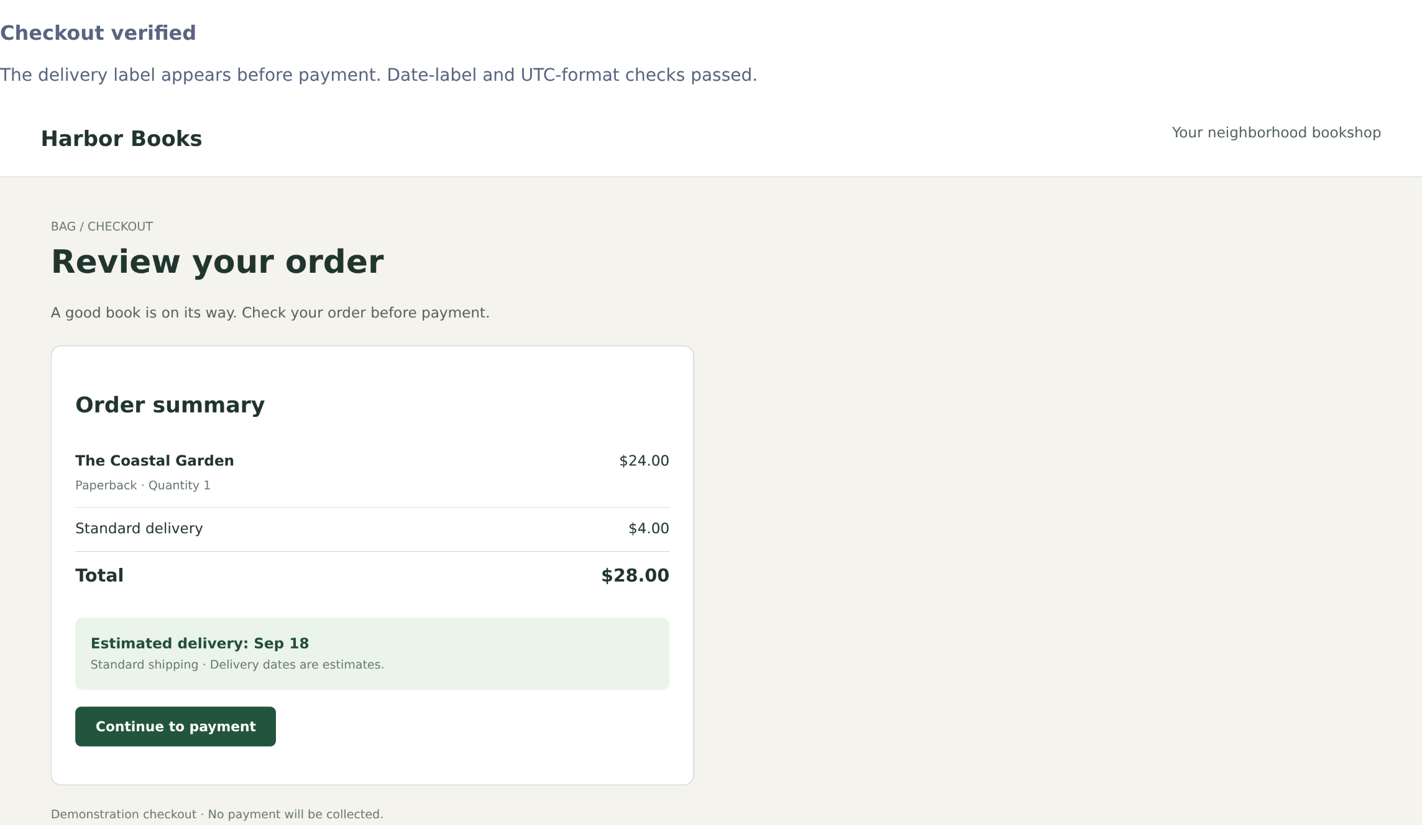
The image shows the captured screen. Read the surrounding summary for the test or session context; a screenshot alone does not establish that a test passed.
Click an image attachment chip on the task page to open the viewer, where you can zoom in or download the full image.
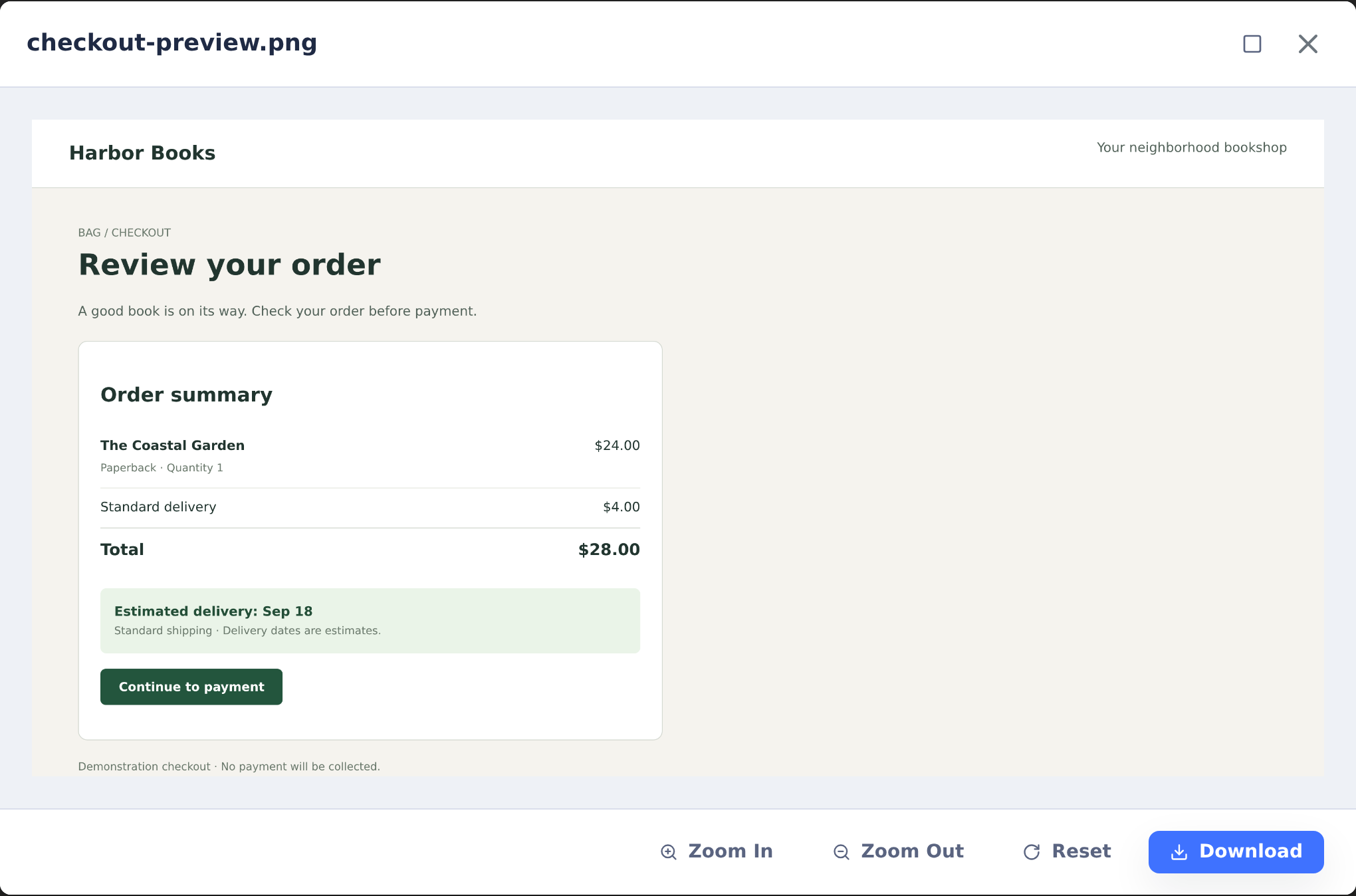
For 5250 screens, visualizations render in a terminal-style format with proper formatting and colors. For web interfaces, you see the page as it appeared in the browser.
Why Visualizations Matter
Visualizations help you:
- Verify agent work: See exactly what the agent tested, not just what it reported
- Debug issues: When something goes wrong, screenshots show the application state
- Document changes: Captured screens serve as visual evidence of testing
- Understand legacy systems: 5250 screens are rendered in a readable format even if you're unfamiliar with terminal interfaces
Configuration
Visualizations require environment-level configuration to render certain screen types (especially 5250 screens). If visualizations aren't appearing for your environment, ask your administrator to check the environment settings.
See Environments in the Administration section for configuration details.