Test Definitions
Test definitions are reusable commands that appear in the Testing menu and can be run as standalone test tasks. They let teams standardize common checks such as unit tests, linting, browser smoke tests, IBM i compile checks, or targeted test-file runs.
Use test definitions when the command should be available to every user of an environment. Use a one-off command when you only need to run something once.
Where Tests Live
Tests are stored in the environment's tests.json file in the coder setup repository:
environments/
  my-environment/
    environment.json
    tests.json
The file is a JSON object. Each key is the test name users see in the UI and CLI.
{
  "unit": {
    "description": "Run the unit test suite",
    "command": "npm test"
  },
  "lint-and-types": {
    "description": "Run linting and TypeScript checks",
    "commands": [
      "npm run lint",
      "npm run typecheck"
    ]
  }
}
If tests.json is missing, the environment simply has no named test commands.
Schema
Each test definition can include:
| Field | Required | Purpose |
|---|---|---|
description | No | Text shown in the Testing menu and coder test --list. |
command | Yes, unless commands is present | Single shell command to run. |
commands | Yes, unless command is present | Array of commands joined with &&. |
parameters | No | Prompted values substituted into the command. |
repos | No | CLI local-state filter. Omit for all repos, list repo names for selected repos, or use [] to skip local state. |
Commands run in an ephemeral test container for the selected environment. Test tasks are visible in CoderFlow, stream output, and finish with the command's exit code.
Parameters
Parameters let users customize a test before it runs. Use ${parameter_name} placeholders in the command or commands:
{
  "single-file": {
    "description": "Run one test file",
    "command": "npm test -- ${test_file}",
    "parameters": {
      "test_file": {
        "type": "files",
        "description": "Test file",
        "required": true,
        "prompt": {
          "type": "files",
          "label": "Choose a test file",
          "path": "/workspace/app/tests",
          "pattern": "*.test.js"
        }
      }
    }
  }
}
Common parameter fields:
| Field | Purpose |
|---|---|
type | The parameter type. Use text, list, command, or files for prompted inputs. Boolean values can be authored, but the test run dialog passes them as normal substituted values. |
label | Short display label. |
description | Help text shown near the input. |
required | Blocks the run until a value is provided. |
default | Default value. |
allowCustomValue | Set to false when users must pick from the prompt choices. |
prompt | Prompt configuration for lists, dynamic commands, and file browsers. |
The Web UI collects parameter values before submitting the test. The server validates required parameters and substitutes ${name} placeholders before running the command.
Prompt Types
Use a list prompt when choices are known ahead of time:
{
  "parameters": {
    "mode": {
      "type": "list",
      "required": true,
      "prompt": {
        "type": "list",
        "label": "Mode",
        "options": [
          { "value": "fast", "label": "Fast" },
          { "value": "coverage", "label": "Coverage" }
        ]
      }
    }
  }
}
Use a command prompt when choices should be discovered from the repository or environment:
{
  "parameters": {
    "package": {
      "type": "command",
      "required": true,
      "prompt": {
        "type": "command",
        "label": "Package",
        "command": "find packages -maxdepth 1 -mindepth 1 -type d -printf '%f\\n' | sort",
        "parser": "lines"
      }
    }
  }
}
Use a files prompt to browse files or directories:
{
  "parameters": {
    "source_member": {
      "type": "files",
      "required": true,
      "prompt": {
        "type": "files",
        "label": "Source member",
        "path": "/workspace/app/QRPGLESRC",
        "pattern": "*.{rpgle,sqlrpgle}",
        "include": "files"
      }
    }
  }
}
Dynamic prompt commands can use parsers:
| Parser | Expected output |
|---|---|
json | JSON array of strings or { "value", "label", "description" } objects. |
lines | One choice per non-empty line. |
git-branches | Output from git branch or git branch -r. |
files | File paths, displayed by basename. |
Prompt commands run in a temporary environment container. Keep them read-only and fast.
Multiple Selections
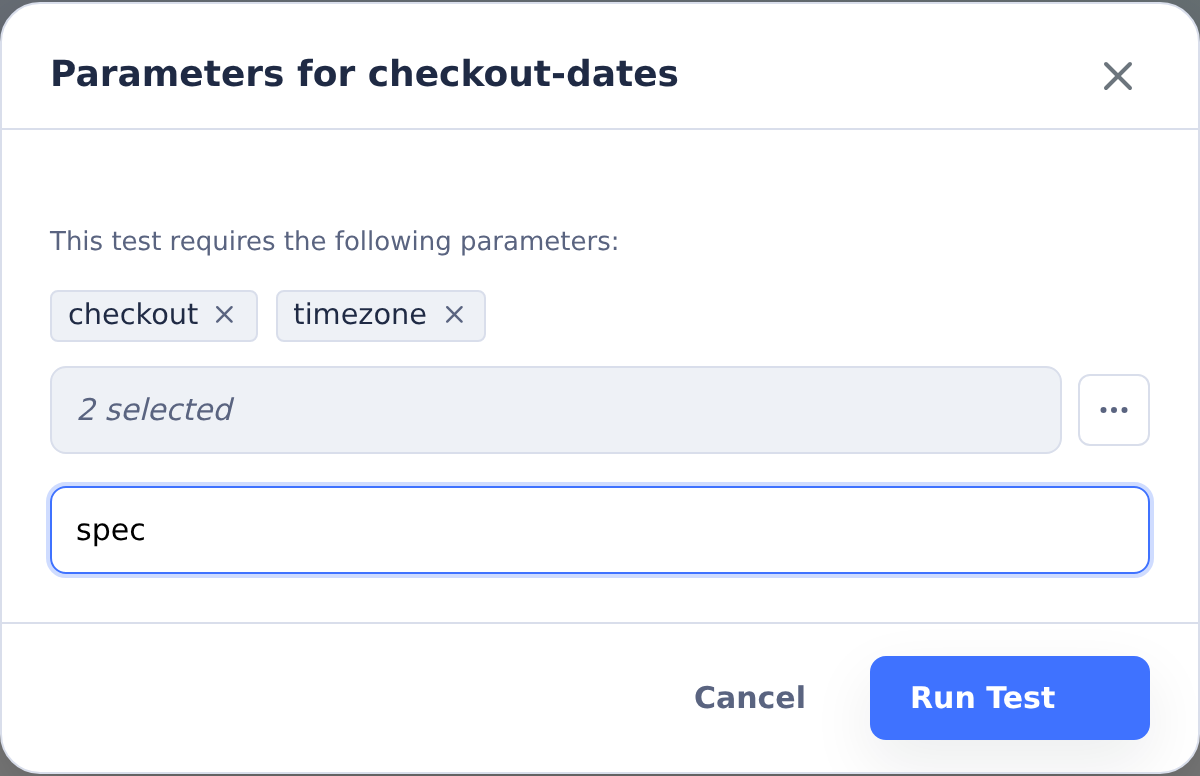
Set prompt.multiSelect to true when users can pick more than one value:
{
  "parameters": {
    "test_file": {
      "type": "files",
      "required": true,
      "prompt": {
        "type": "files",
        "label": "Test files",
        "path": "/workspace/app/tests",
        "pattern": "*.test.js",
        "multiSelect": true
      }
    }
  }
}
When a multi-select parameter has several selected values, CoderFlow expands the test into combinations and runs each substituted command in sequence inside one test task. If multiple multi-select parameters are used, CoderFlow runs the cartesian product of the selected values. The server rejects runs with more than 100 combinations.
Repository Local State
The CLI uses repos to decide which local repository changes to capture before running a test:
{
  "unit": {
    "description": "Run app unit tests",
    "command": "npm test",
    "repos": ["app"]
  },
  "env-info": {
    "description": "Print environment details without syncing local changes",
    "command": "node --version && npm --version",
    "repos": []
  }
}
Behavior:
- Omit
reposto capture local state for all configured environment repositories. - Set
reposto selected repository names to capture only those repos. - Set
reposto an empty array to skip local state capture.
The Testing menu starts test tasks from the server-side environment state. The CLI local-state behavior applies to coder test.
Running From The Testing Menu
Users run configured tests from a task page:
- Open the Testing menu.
- Choose one or more test commands.
- Fill in any required parameters.
- Click Run.
- Review the streamed output and exit code.
See Testing Menu for the runtime flow.
Running From The CLI
Use coder test --list to inspect named tests:
coder test --list --env=my-environment
Run a named test:
coder test unit --env=my-environment
Run a one-off command instead of a named definition:
coder test --cmd="npm test -- --runInBand" --env=my-environment
coder test supports --env=<environment>, --environment=<environment>, --cmd="<command>", --list, and --no-local-state.
The CLI lists and runs named test definitions, but it does not currently provide an option for passing named parameter values to tests. Run parameterized tests from the Web UI, or call the test-task API with test_parameters.
Authoring Workflow
- Open the environment's Tests tab or edit
tests.jsondirectly. - Add a short name, description, and command.
- Use
commandswhen the test has ordered steps that should stop on the first failure. - Add parameters for values users should choose at run time.
- Add
reposwhen CLI local-state capture should be limited. - Save, commit, and push the setup repo change.
- Confirm the test appears in the Testing menu and in
coder test --list.