Testing Menu
The Testing menu provides tools to verify that agent changes work correctly. Start your application server, run test commands, and interact with your running application—all from the task toolbar.
What is an Application Server?
An application server is the runtime environment where your code executes. In CoderFlow, the application server:
- Runs your application so you can test it interactively
- Exposes web URLs you can click to open the running application
- Enables manual testing and validation of code changes
- Captures screens for visualization and documentation
Application servers are configured per environment by administrators. See Environments in the Administration section for configuration details.
Container Mode vs Proxy Mode
Environments can be configured with one of two application server modes:
Container Mode
The application runs inside the task container itself. When you start the server, a command executes within the container (like npm start or a custom startup script), and the application begins listening for requests.
This mode is fully self-contained—the application runs in the same isolated environment where the agent made its changes.
Proxy Mode
Requests are forwarded to an external application server running outside the container. This is common when connecting to:
- Remote IBM i systems
- Shared development servers
- External testing platforms
In proxy mode, CoderFlow acts as an intermediary, forwarding your requests to the external server and returning responses.
Starting and Stopping
Starting the Application Server
- Open a task with an application server configured
- Open the Testing menu in the toolbar
- Click Start Server or use Start Server & Launch to start and open a URL in one step
- Wait for the server to initialize
You can view server logs from the Testing menu while the server is running.
Stopping the Application Server
Open the Testing menu and click Stop Server. The server also stops automatically when:
- The task is paused or stopped
- The container is removed
Launch URLs
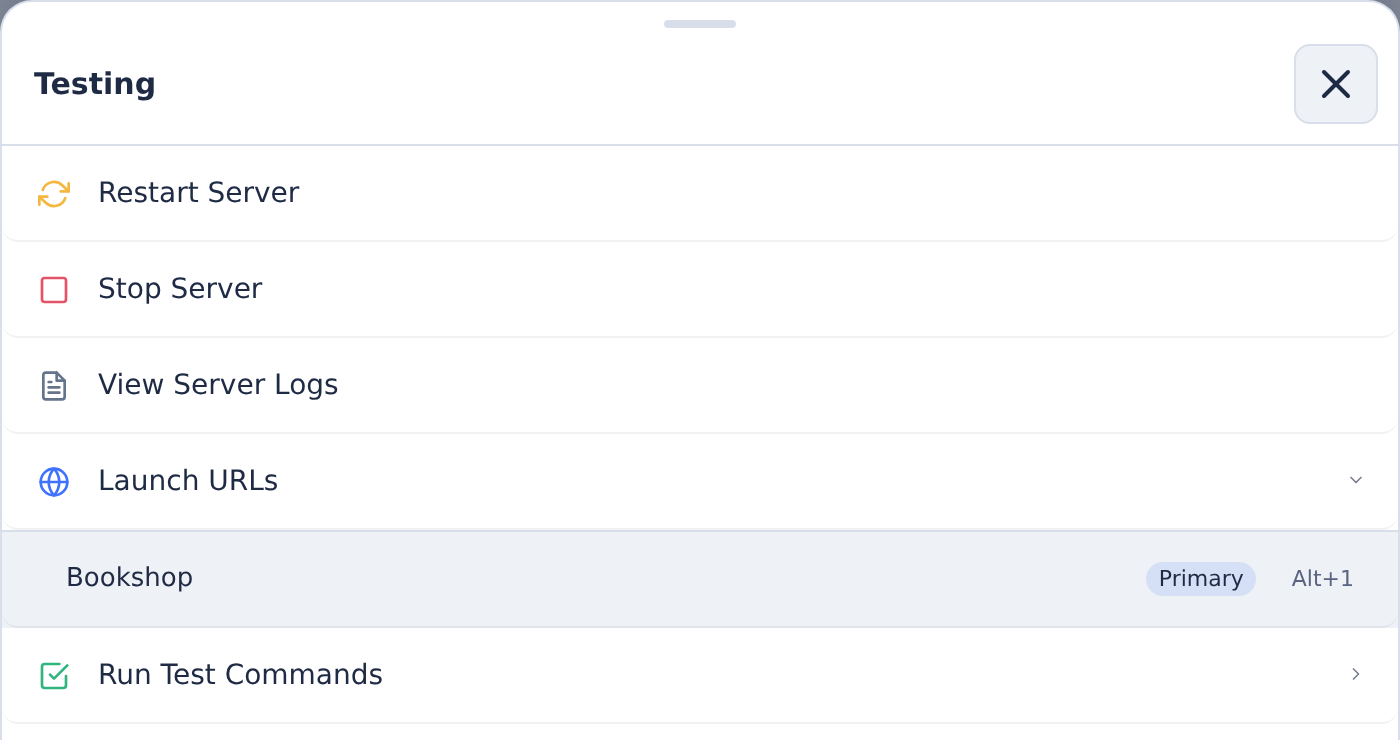
Launch URLs are pre-configured links that open specific pages in your running application. They appear in the Testing menu under Launch URLs (when the server is running) or Start Server & Launch (to start and open in one step).
Click any launch URL to open that page in a new browser tab. Common examples include:
- Application home page
- Admin dashboards
- Specific features or modules under development
Launch URLs are defined in the environment configuration. If you need different URLs, ask your administrator to update the environment settings.
Running Tests
The Testing menu also provides access to test commands configured for your environment. These can include unit tests, integration tests, linting, or any custom commands your team has set up.
Executing a Test
- Open the Testing menu
- Find your test under Run Test Commands
- Click the test name
- If the test has parameters, select or enter values when prompted
- Click Run to execute
Test output streams in real-time. When complete, you'll see the exit code—0 means passed, non-zero means failed.
Tests with Parameters
Some tests accept parameters to customize what runs. For example, a unit test might let you select which test file to run, or choose between debug and coverage modes. The UI prompts you for these values before execution.
If a test supports multiple selections, you can run the same test against several files or configurations in one go.
Viewing Results
Test output appears in a results panel showing:
- Real-time command output
- Pass/fail status
- Exit code
- Error messages and stack traces (if failed)
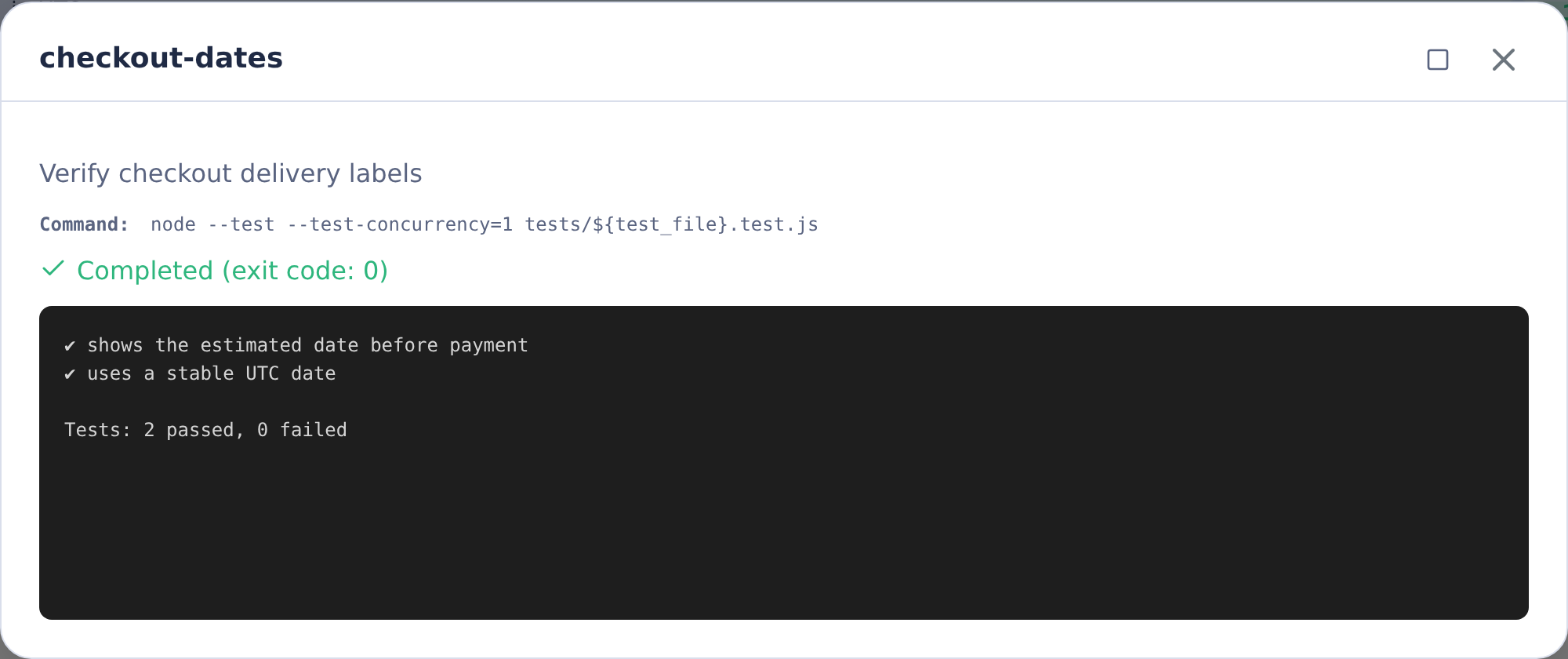
Use test results alongside manual application testing to validate that agent changes work correctly.
Providing Feedback
If you find issues while testing, you can provide feedback in two ways:
From the task detail page: Return to CoderFlow and send follow-up instructions describing what needs to change.
From the application itself: Use the feedback widget injected into your running application. This lets you capture context directly—take screenshots, select DOM elements, or record screen state—without leaving the application. Your feedback is sent to the agent along with the captured context.
The in-app feedback widget is especially useful when issues are easier to show than describe.
Testing Workflow
A typical testing workflow:
- Agent completes a task with code changes
- Run automated tests from the Testing menu to catch obvious issues
- Start the application server and open a launch URL
- Manually test the changes—verify the fix works, check for regressions
- If issues are found, provide feedback (from the app or task page)
- When satisfied, approve and deploy the changes
Combining automated tests with hands-on verification gives you confidence that the changes are ready for production.