See CoderFlow Work, Step by Step.
Follow one request from a plain-language description to an approved change in 8 short steps. These are real CoderFlow screens with demonstration data.
Want to get hands-on with the real app? Explore CoderFlow →
-
Step 1 of 8
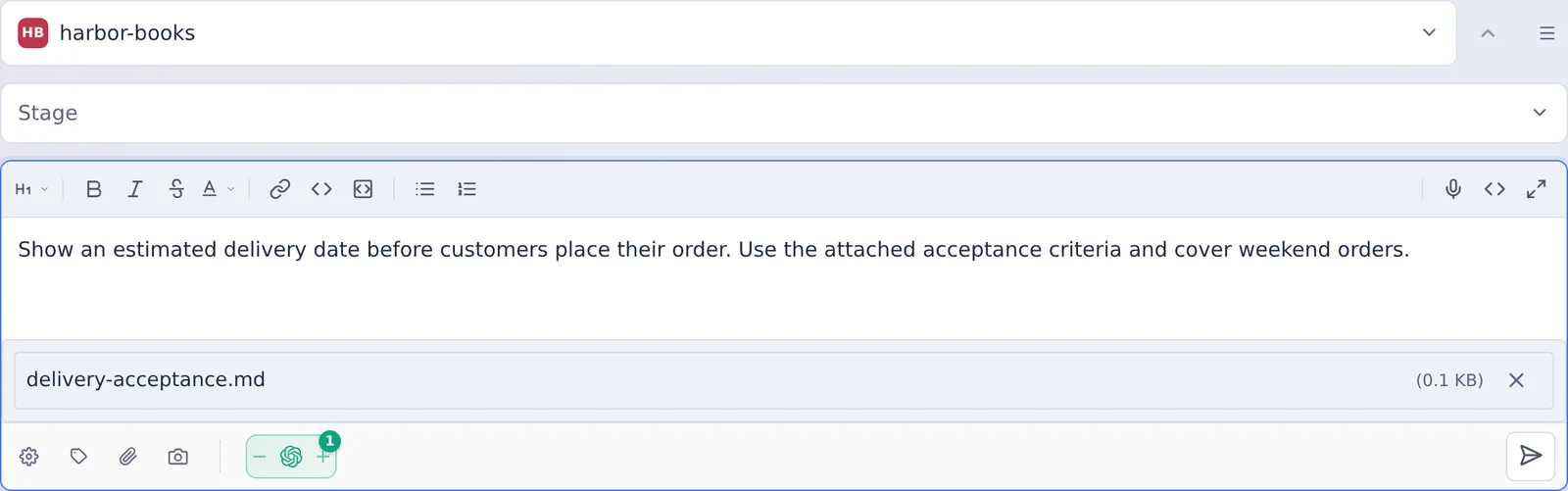
Describe What You Need
Write the request in plain language and attach anything that helps, such as acceptance criteria or a screenshot. Then pick which AI agents should work on it.
-
Step 2 of 8
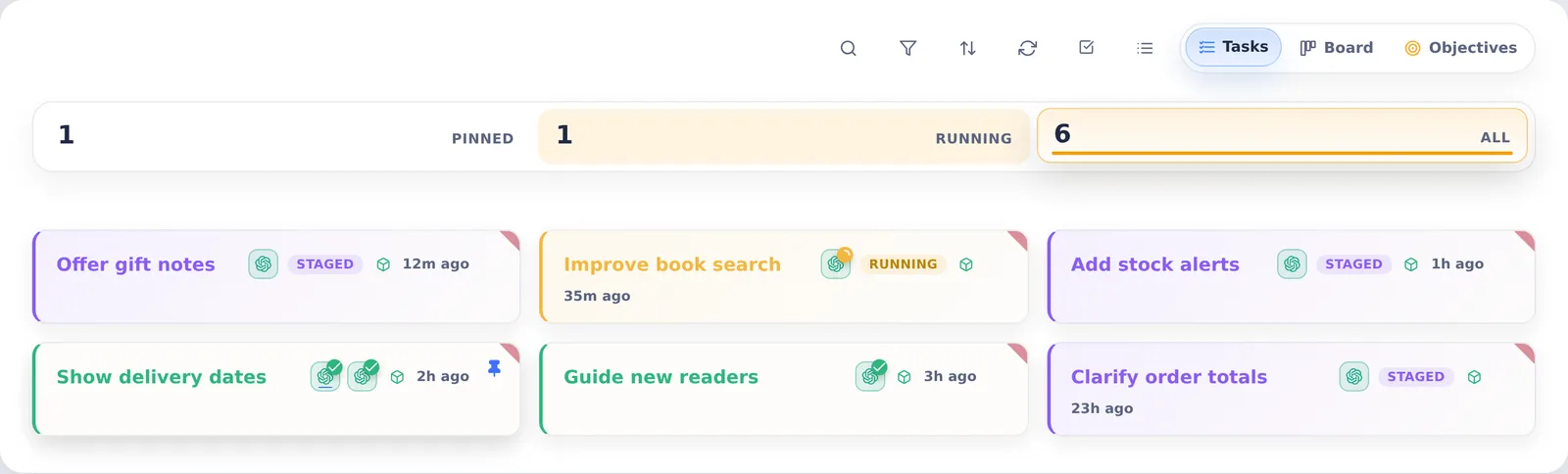
Agents Work in Parallel
Every task runs in its own isolated container, so several agents can work at the same time without touching each other's work. Follow each one from running to ready for review.
-
Step 3 of 8
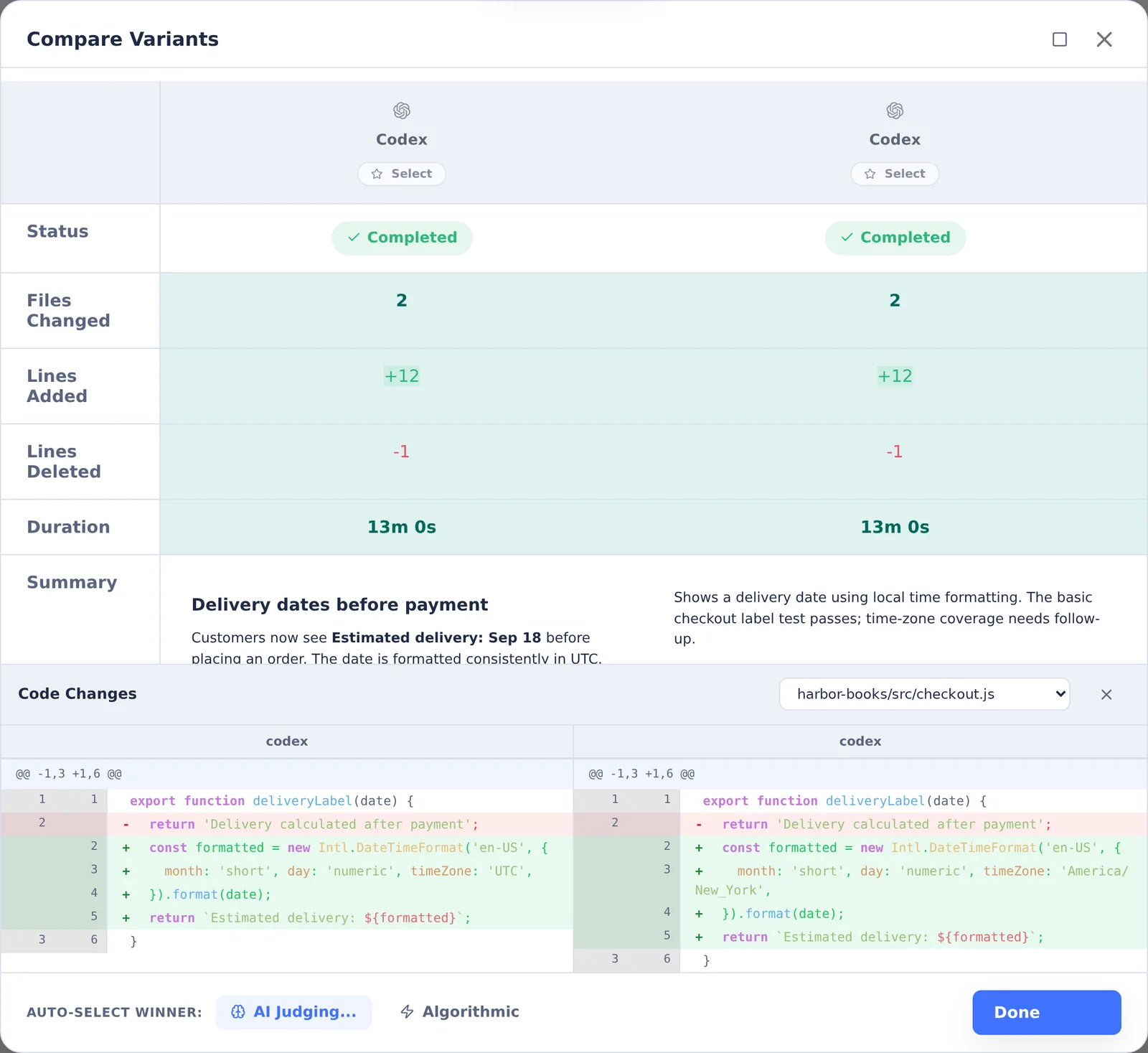
Compare Different Approaches
Run up to five variants per agent, across several agents, and compare them side by side: files changed, lines added, time taken and a summary of each.
-
Step 4 of 8
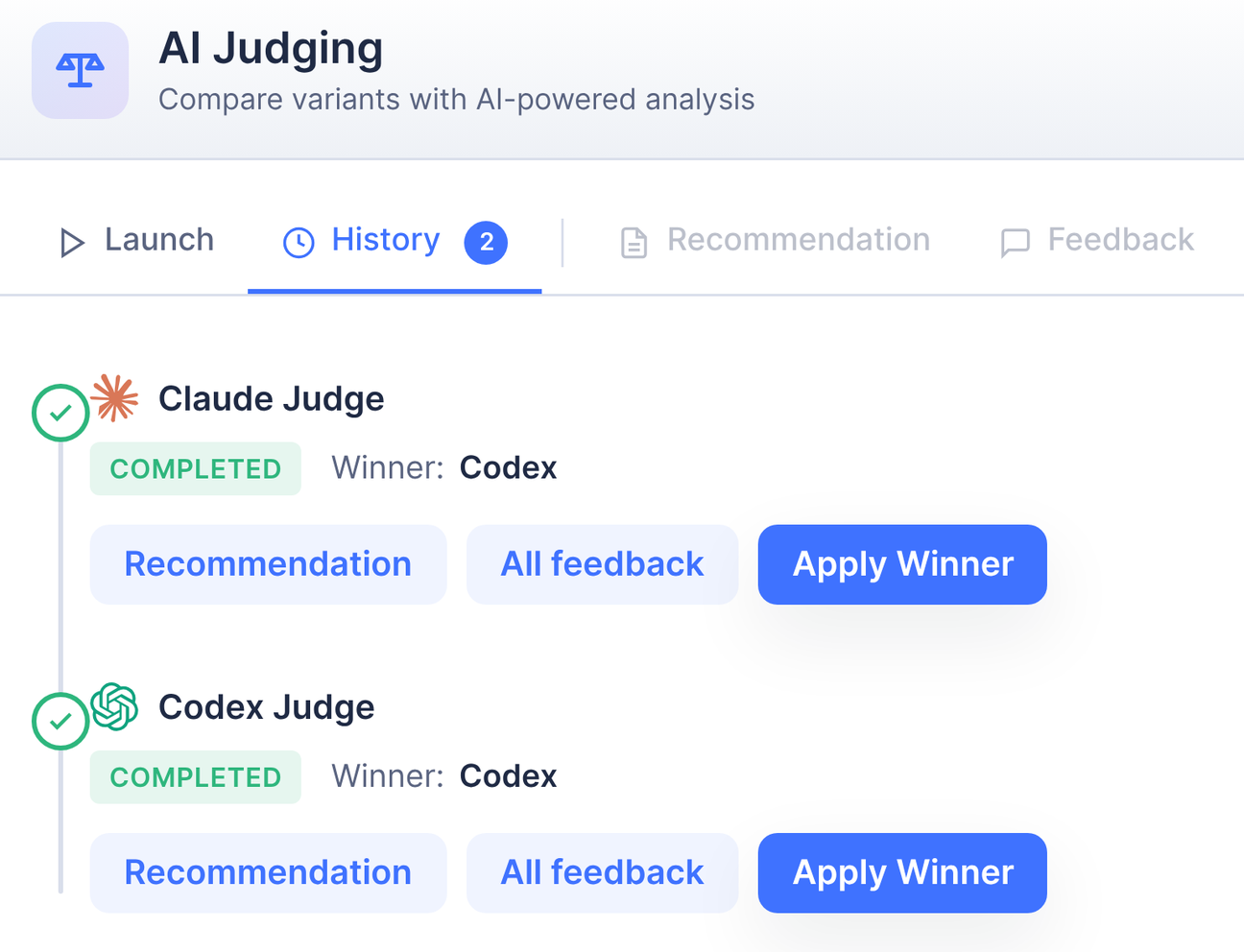
Get a Second Opinion From an AI Judge
A judge reviews the variants without knowing which agent wrote them, recommends a winner and suggests improvements you can send back as a follow-up. Judges can read but never change the work.
-
Step 5 of 8
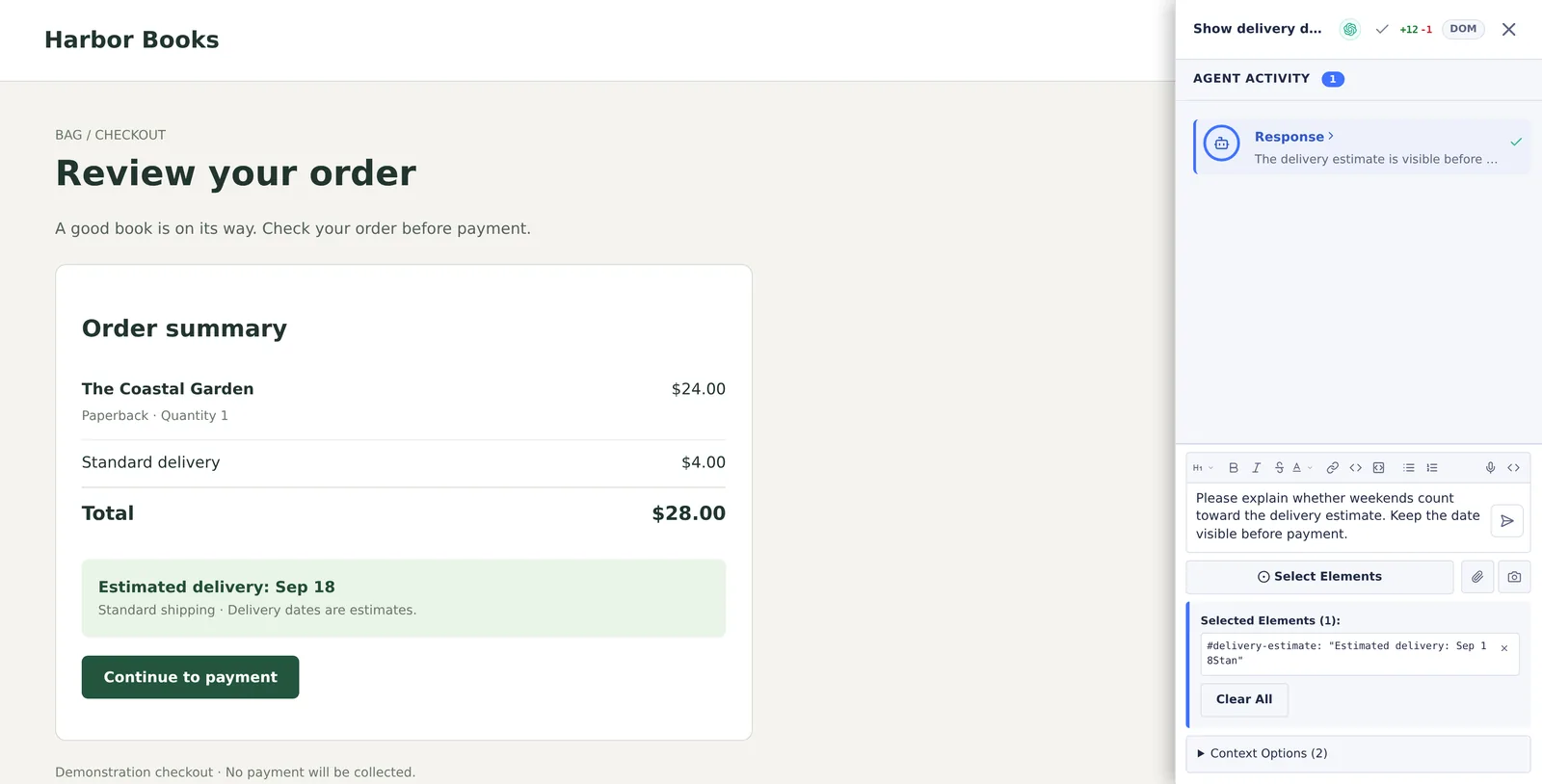
Try the Running App
Preview the app running inside the task, point at anything on the screen and ask for a change right there. Browser testing with Playwright is built into every task.
-
Step 6 of 8
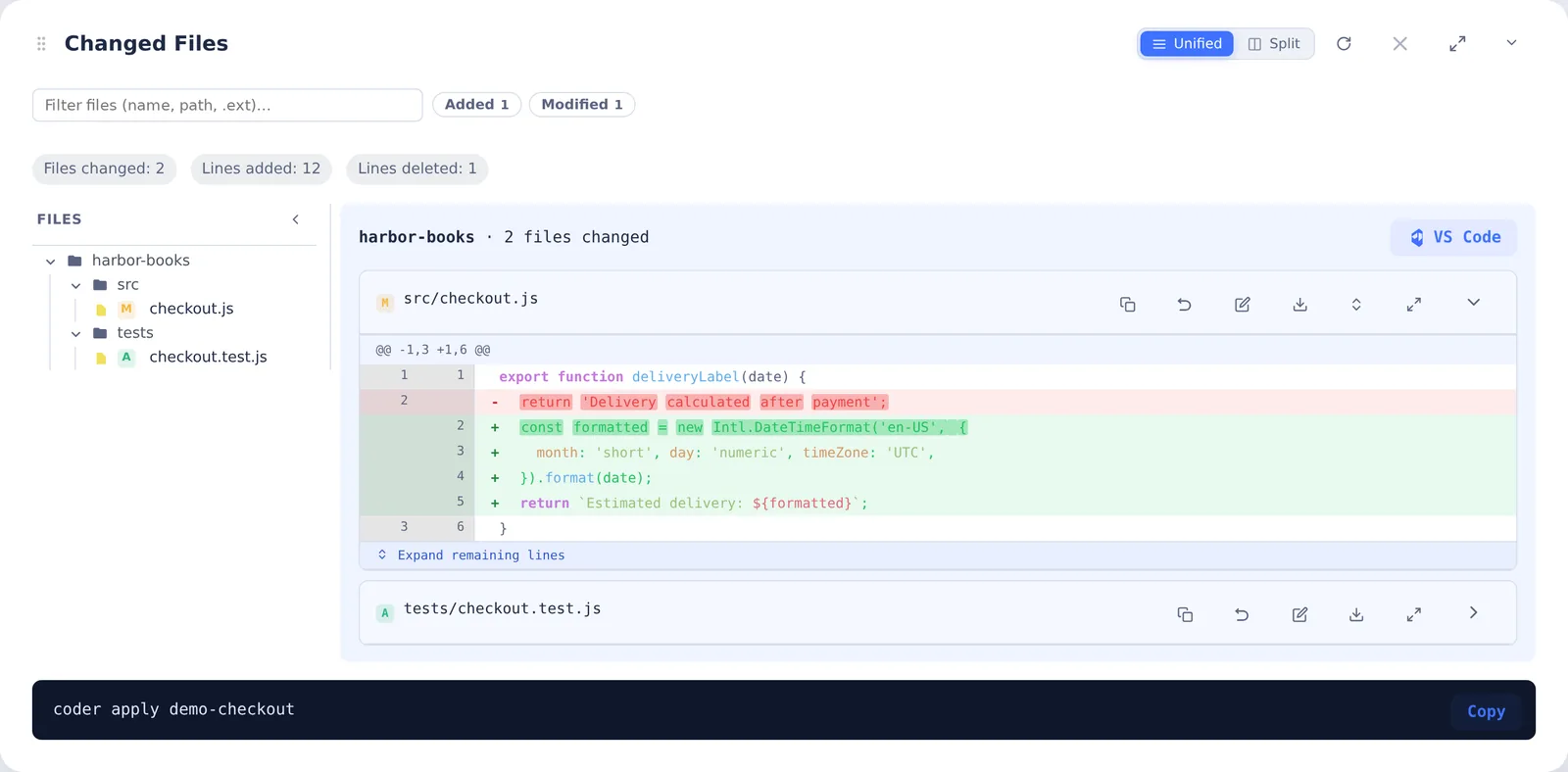
Review Every Change
See exactly which files changed, line by line, before anything ships. Developers can also open the change in VS Code or apply it locally.
-
Step 7 of 8
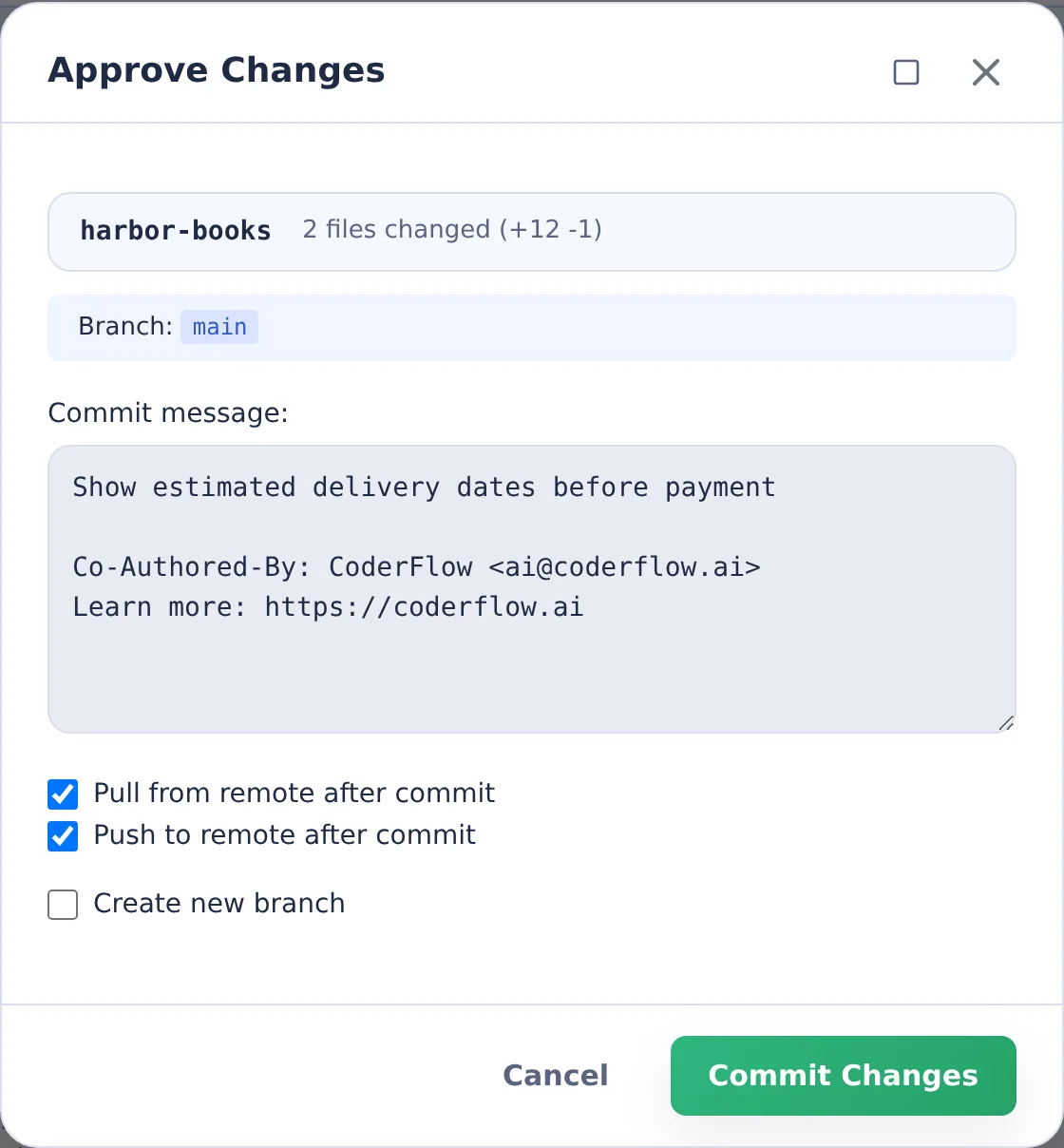
Approve It
A person approves every change. CoderFlow commits and pushes it, or creates a new branch or pull request, and records who approved what and when.
-
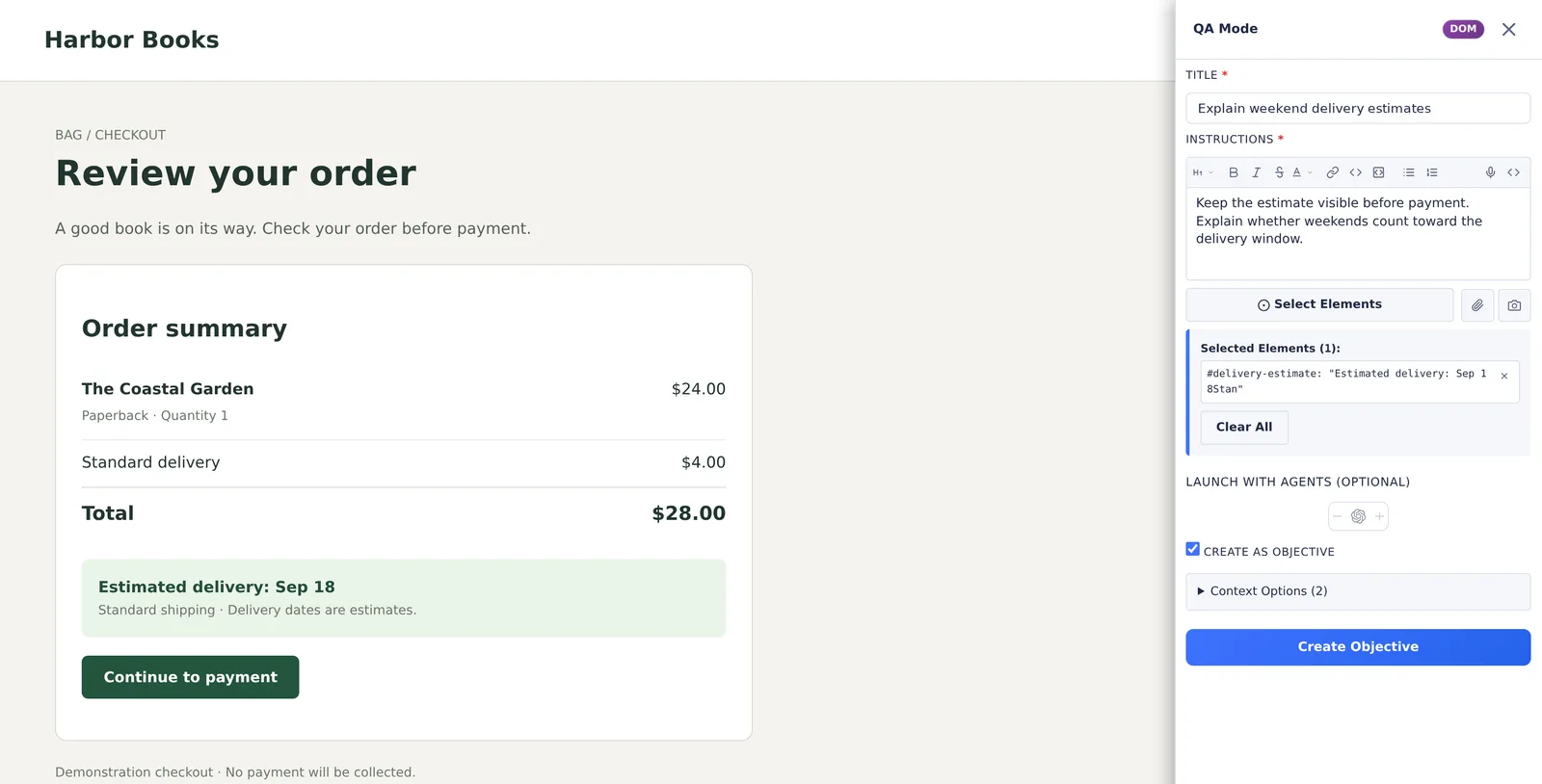
Step 8 of 8
Bring Testers and Business Users In
In QA Mode, testers select elements on the page, add notes and screenshots, and turn them into work for the agents. Business users can ask questions and send requests to IT from CoderFlow for Business.
That's the quick look. Want more? Get hands-on with the real app in Explore CoderFlow, or see it on your own work.
Two Ways to Get Started.
Talk to sales about the full platform, hosted on CoderFlow Cloud or on your own servers. Or start with a Reimagine engagement: bring a real problem and leave with a production-ready result.
Want the details first? Read the platform overview or the security overview.