You can get data out of PDFs and emails without retyping it by using a tool that reads each document, pulls out the fields you need and fills in a review screen beside the original. A person checks the entry, corrects anything that is off and approves it, and the tool saves it to your system. CoderFlow builds that tool around the invoices, forms and emails you actually receive, and you try it on real paperwork before you approve it.
Demonstration data · Fictional company
Transcript: How to get data out of PDF invoices and emails, with a person checking
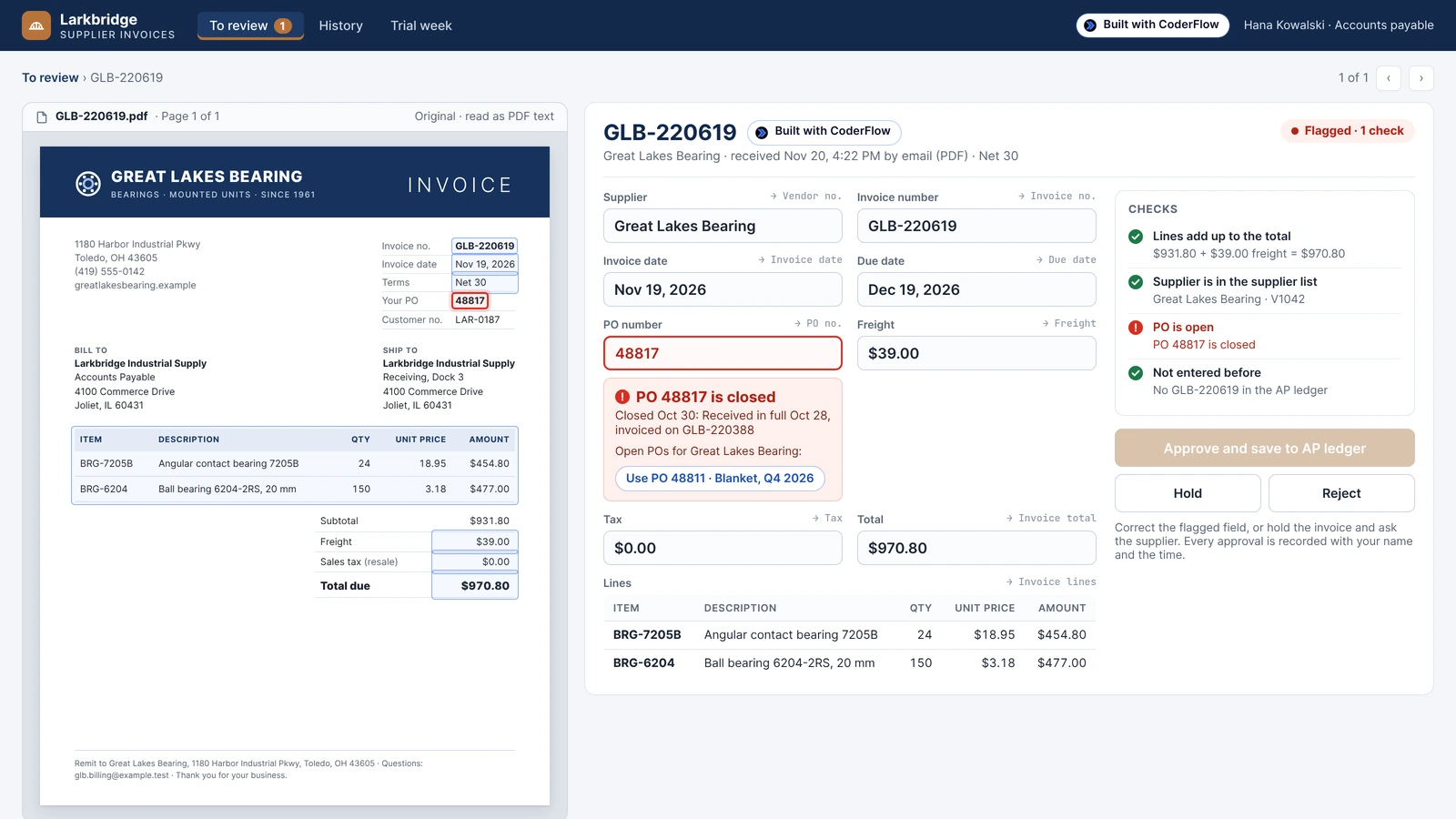
[The result first: an invoice beside its original in Larkbridge's own app, built with CoderFlow, with a closed purchase order flagged.]
At Larkbridge, accounts payable retypes every invoice.
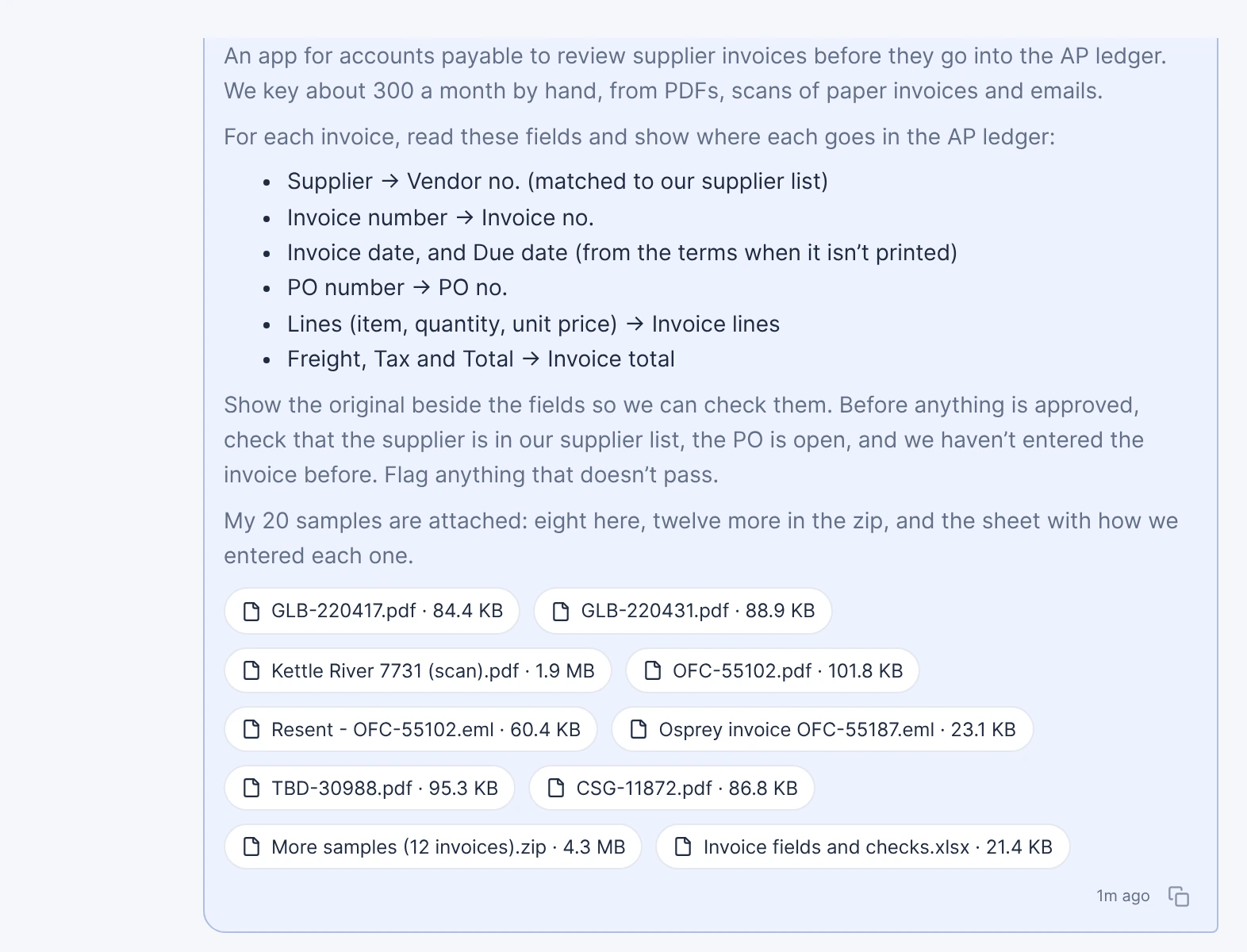
[CoderFlow for Business: Hana describes the app she needs, "An app for accounts payable to review supplier invoices before they go into the AP ledger".]
So in CoderFlow for Business, Hana builds a tool herself.
[Her 20 samples attached: eight files, a zip of twelve more and the sheet with how AP entered each one, a scanned paper invoice among them.]
First, she attaches twenty real invoices, messy scans too,
[The fields and where each goes in the AP ledger, then the checks: the supplier is in the supplier list, the PO is open, the invoice wasn't entered before.]
then lists the fields to read, and the checks to run.
[The report assistant builds it: "Your report assistant is working…", "This can take several minutes."]
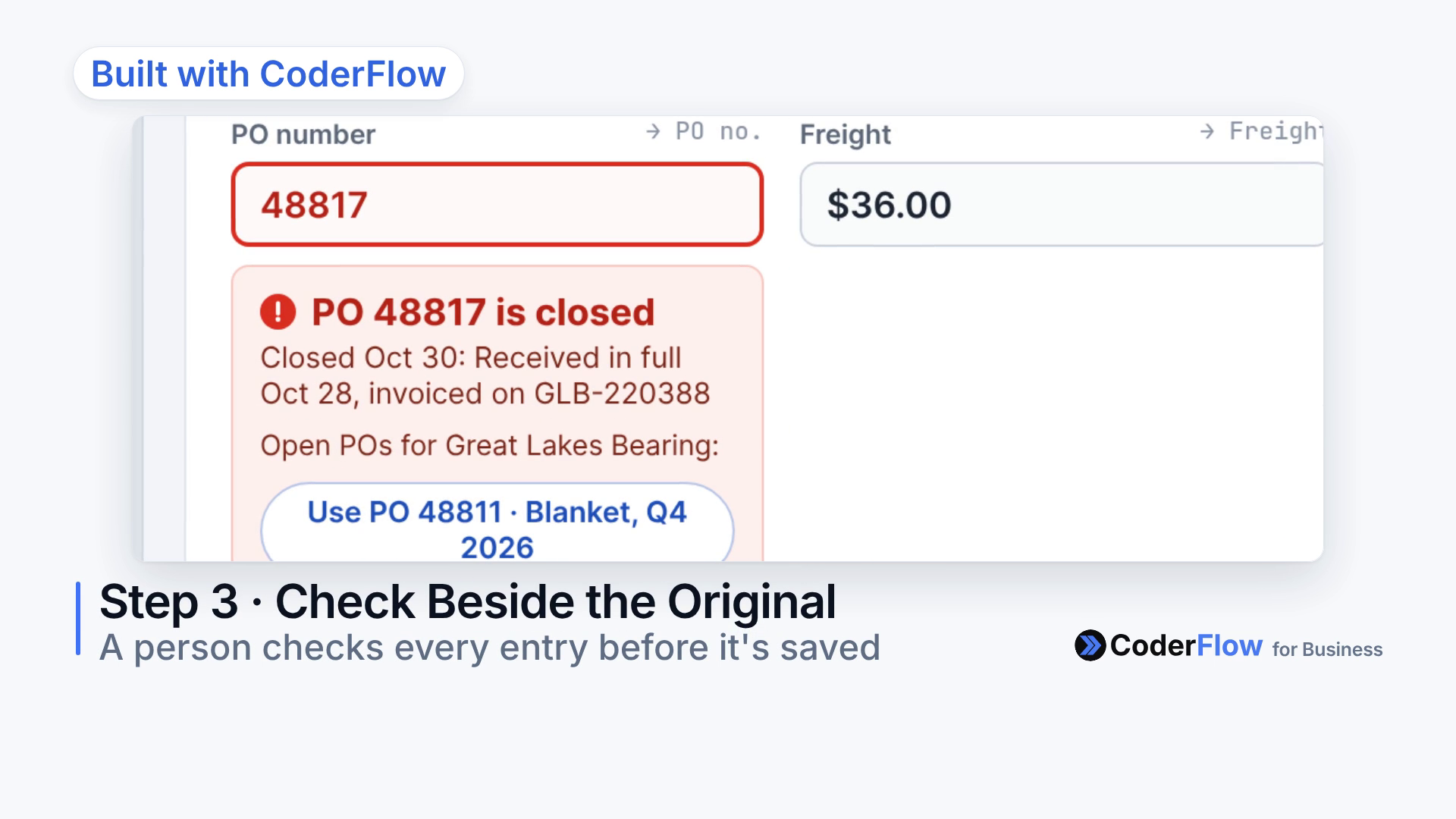
[Her private preview: Larkbridge's own app, built with CoderFlow. Invoice GLB-220431 beside its original, the PO number flagged: "PO 48817 is closed".]
Minutes later, her preview flags a closed purchase order,
[She picks the open purchase order, every check passes, and she approves the entry into the preview's test ledger.]
so she picks the open one, and approves the entry.
[She asks for a refinement in plain words: "Flag a total that doesn't add up, like Kettle River's 7731."]
Then she asks for one more check, in plain words,
[The second preview on a messy scan: the total flagged, "Lines add up to $622.40; the total says $631.40".]
and now a total that doesn't add up is flagged too.
[She uses this version: the app becomes her report, Supplier Invoice Intake.]
When it's right, she sends it to IT for testing.
[Request for IT, from her report: "Please test Supplier Invoice Intake before AP relies on it".]
[IT's dashboard: the task for REQ-000155, completed, started by the Request intake automation.]
And in IT, an agent picks it up automatically,
[The samples test: "20 of 20 as expected: every field matches AP's entry; 16 pass every check, 4 flagged".]
and tests it on all twenty samples: every field matches.
[Approve Changes: ops-tools, "Add Supplier Invoice Intake, built by AP in CoderFlow for Business (REQ-000155)".]
So Maya, in IT, approves the change,
[Task Details: Duration 24m 42s, Approved by Maya Chen.]
[IT's answer to Hana: Ready to try, "Tested on your 20 samples… It's approved into IT's ops tools, so approvals now save to the AP ledger."]
and tells Hana it's ready to try.
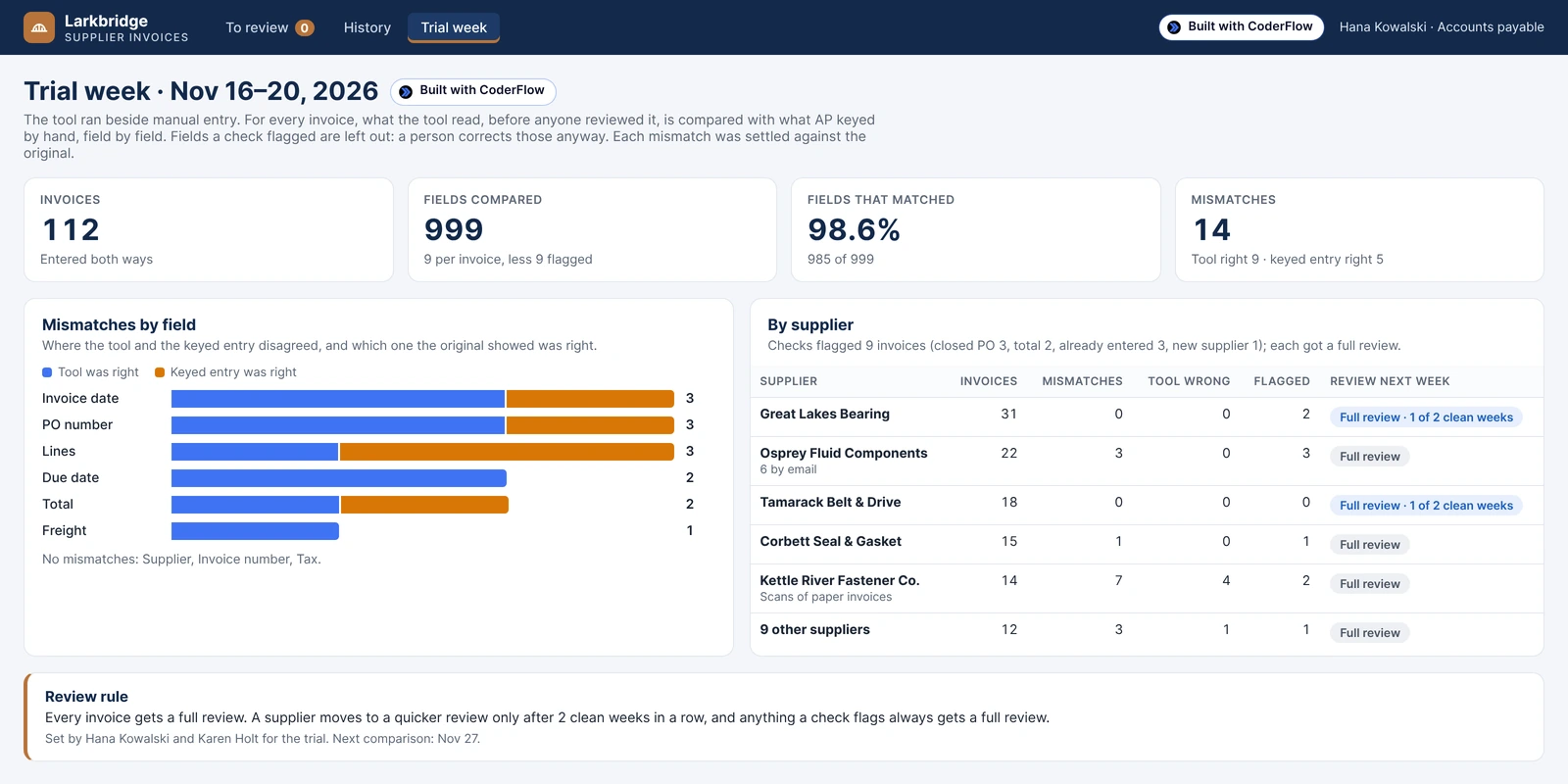
[The trial week: 112 invoices entered both ways, 999 fields compared, and where the tool and the keyed entry disagreed.]
The next week, her team runs it beside the usual typing
[By supplier: Great Lakes Bearing, full review, 1 of 2 clean weeks; the app's own header, built with CoderFlow, Hana Kowalski, accounts payable.]
and relaxes the review only once a supplier earns it.
[End card: CoderFlow logo, "Business Builds It. IT Approves Every Change." and the disclosure.]
Business builds it. IT approves it.
Every business has a pile like this. Supplier invoices arrive as PDFs, customers send orders in the body of an email, technicians send photos of signed work orders. Someone opens each one and types the supplier, date, amounts and line items into another system. It is careful, necessary work, and it takes hours that could go to customers.
Why Is Retyping From PDFs and Emails Still So Common?
Because documents rarely arrive the same way twice. Each supplier has its own invoice layout, each customer writes orders differently, and some paperwork is scanned or photographed. Most business systems expect clean data typed into a form, not a PDF, so a person becomes the bridge.
Volume makes it worse. A few documents a day are easy. A few hundred a week, with a backlog after every holiday, means mistakes and late payments, and the person doing it becomes hard to replace.
Why Keep a Person Checking?
Because the cost of a wrong entry is real. A misread total pays a supplier too much, a wrong account number sends a payment to the wrong place, and a missed line item becomes an argument with a customer. Some documents are simply hard to read: poor scans, handwriting, stamps across the numbers.
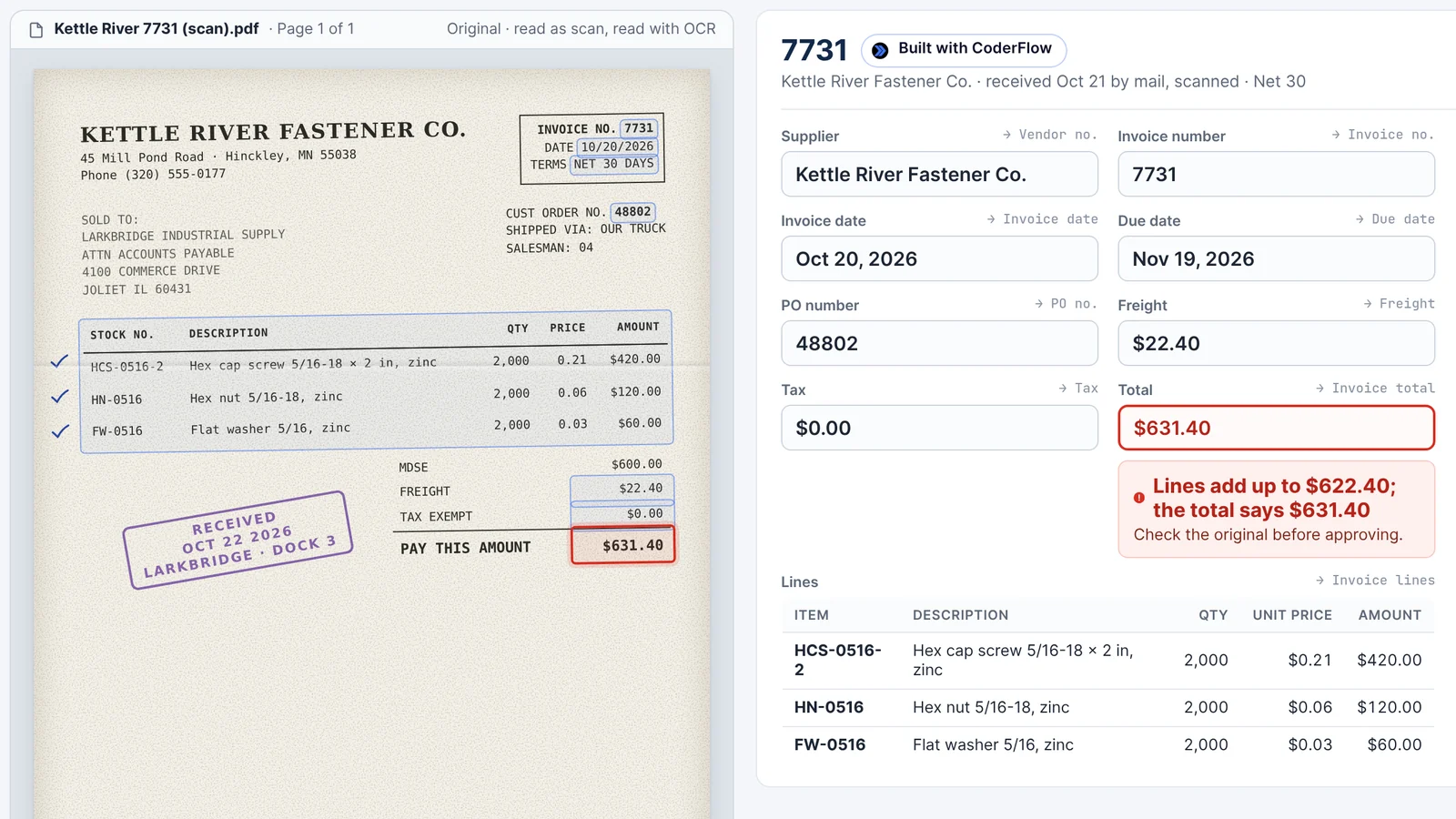
Reviewing is much faster than typing. When the fields are already filled in and the original sits beside them, a person can confirm most entries in seconds and spend their attention on the few that are flagged. You keep the careful check and drop the typing.
How Do You Set Up Data Extraction From Invoices and Emails?
- Gather real examples. Collect 20 to 50 recent documents from different senders, including the messy ones: scans, long invoices, emails with attachments.
- List the fields and where they go. For an invoice, that might be supplier, invoice number, date, due date, purchase order number, line items, tax and total, and the system each one belongs in.
- Write down the checks. The lines should add up to the total, the supplier should already exist, the purchase order number should be open, and the same invoice should not be entered twice.
- Decide the review rule. Start by having a person review every entry. Anything that fails a check is flagged for a closer look.
- Try it on a real week. Run the tool alongside manual entry for a week of documents and compare the results.
- Relax the review only when it is earned. If a supplier's invoices come out right week after week, you might review them more quickly. Keep a full review for anything unusual.
How CoderFlow Helps
With CoderFlow, whoever does the typing today describes the documents, shares a few examples and names the fields that matter. CoderFlow builds a tool that reads incoming PDFs, scans, forms and emails, pulls those fields out and shows them in a review screen beside the original, flagging anything it is unsure about. See data entry automation for how it works.
Before the tool goes live, you run it on a stack of real documents. Point at any field it gets wrong and explain, and CoderFlow improves it. You approve the tool when the results are right, and every later change goes through the same step. Approved entries are saved where they belong: an app CoderFlow built for you, a database, a spreadsheet or another system that accepts an import or has an API (see connect your systems). Each document can be tracked from arrival to approval, so you can see who approved what and when.
For example, a plumbing and electrical service company with 20 technicians receives supplier invoices by email and photos of signed work orders from the field. The office manager shares a month of examples. CoderFlow builds a tool that fills in invoice and work order details for review, matches invoices to open purchase orders and flags any total that doesn't add up. The office reviews instead of typing. See how this fits field service businesses.
No IT team is needed. Profound Logic hosts the tool on CoderFlow Cloud, so there is nothing to install, and the owner or anyone on the team can describe, try and approve changes. Learn more about CoderFlow for a small business.
What to Watch out For
- Poor scans and handwriting. These are harder to read for any tool. Expect more flagged fields, and ask senders for typed PDFs where you can.
- Changes to payment details. A new bank account on a supplier invoice is a common fraud warning sign. Have the tool flag it every time and confirm the change with the supplier by phone.
- New layouts. When a supplier changes its invoice design, results can slip. Keep the review step, and tell CoderFlow about the new layout so the tool can be updated and approved.
- Sensitive information. Decide who can see documents in the review screen and how long they are kept, the same way you would for the paper versions.
Where to Start
Pick the documents your team retypes most, and set aside a few weeks of examples. That is enough to see how much typing a review screen would save. Customers are already replacing spreadsheets and manual processes with apps built in CoderFlow. Talk to sales and we'll show you how CoderFlow would handle your paperwork, or start with Reimagine, a custom engagement with our team.
Questions
Can CoderFlow Extract Data From PDF Invoices and Emails Automatically?
CoderFlow builds tools that do. You share examples of the PDF invoices, scanned forms or emails you receive and name the fields you need. CoderFlow builds a tool that pulls those fields out, checks them against your records and shows them beside the original, so a person confirms each entry before it is saved to your system.
Why Does a CoderFlow-Built Data Entry Tool Keep a Person Checking?
Because a wrong entry can cost real money, and some documents are hard to read. Tools CoderFlow builds put extracted fields in a review screen beside the original and flag anything unusual, such as totals that don't add up or new bank details. Reviewing is far faster than typing, and you decide how much review each kind of document needs.
Can a Small Business Automate Invoice Data Entry With CoderFlow Without IT?
Yes. The owner or the person who types invoices today describes the documents and shares a few examples. CoderFlow builds the tool, you try it on a real week of paperwork and approve it, and Profound Logic hosts it on CoderFlow Cloud, so there is nothing to install. Talk to sales and we'll show you how CoderFlow would handle your documents.